


InReview: PixelSquid
PixelSquid is a service that takes stock art to a new level, offering a vast library of pre-rendered 3D objects that can be rotated to almost any angle

This article appears in Issue 107 of InDesign Magazine.
Using 3D imagery can open up all kinds of creative avenues and make your designs stand out from the crowd. But the sad truth is that building 3D objects from scratch is laborious and requires a lot of expertise. Alternatively, you can buy ready-made 3D models from various websites; however, they’re expensive and take time to render. But PixelSquid offers the next best thing: a library of thousands of immaculately rendered 3D objects that any designer or illustrator can use, without a lot of work, available on a subscription basis, with new objects added daily. Even better, you can quickly choose, edit, save, and place this 3D artwork into your InDesign layouts.
Discovering the Art
You can search the huge PixelSquid library by keyword or by browsing one of the collections, which include Architecture, Holiday, Paper Goods, Household Objects, Office Furniture, Animals, and more. Of special interest are the Nature objects, which allow you to add perfectly cut-out trees, grasses, bushes, and other forms of flora to your montages. They’re perfectly suited to covering up unwanted elements in a landscape, and far tidier than conventional photographic cutouts.
You can find similar 3D libraries online, but what makes PixelSquid unique is its Photoshop plug-in. You can use it to search for models without leaving Photoshop. Initiating a search will take you directly to the PixelSquid website, where you can browse all the models that fit your keywords.
Hover your cursor over a thumbnail and it will rotate, so you can view the object from multiple angles, and you can click a button to add it to any of your lightboxes (Figure 1).
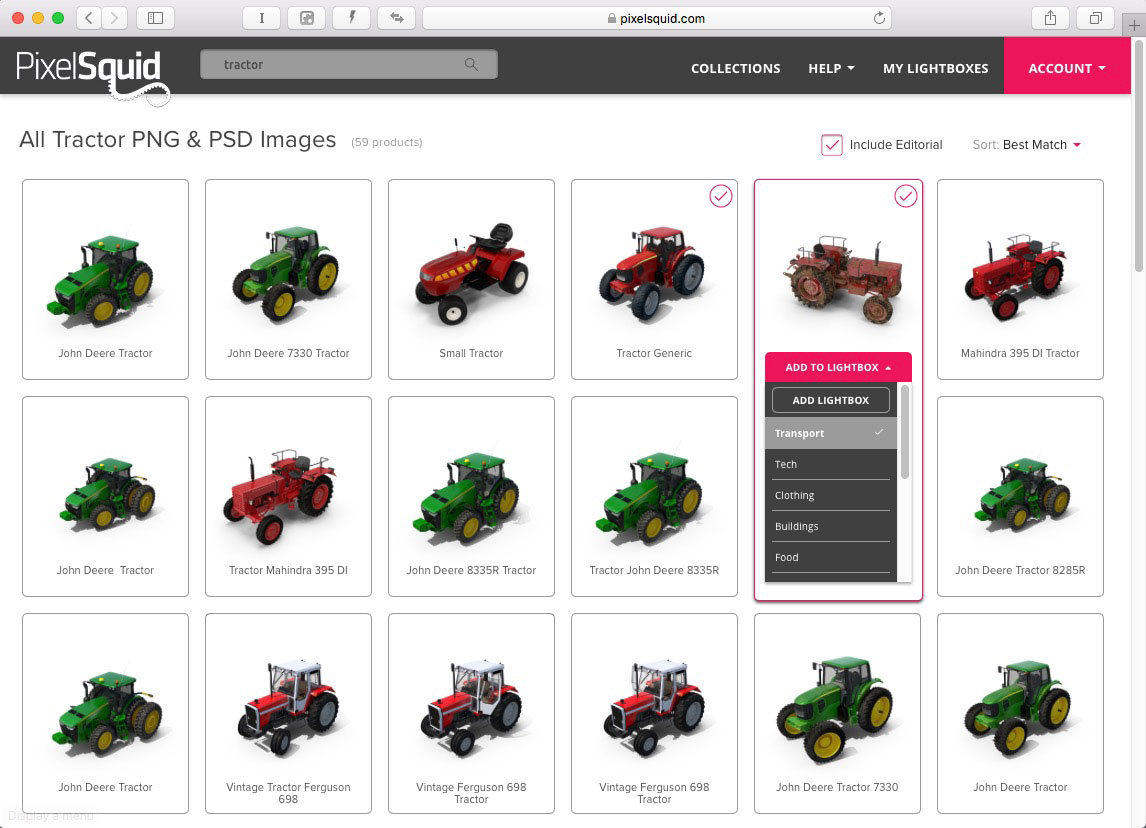
Figure 1. You can search for PixelSquid objects by keyword, or
browse the collections for inspiration. Some models appear multiple times, with different combinations of open doors, for instance.
Lightboxes offer a means to categorize objects, making them easier to locate, and you can create as many lightboxes as you want. For example, I have lightboxes labeled Technology, Architecture, Furniture, Transport, Tech, and several more.
Turn It Around
The true magic begins in Photoshop, when you click a thumbnail in the PixelSquid panel. The graphic will then appear in your artwork at low resolution. You can scale it, rotate it, and move it anywhere on the canvas. When you drag its thumbnail in the PixelSquid panel, you can view it from up to 225 different angles. The image placed in your artwork will update almost immediately to match the preview (Figure 2).

Figure 2. Spin the object to any of up to 225 viewing angles directly inside the Photoshop plug-in panel.
Once you’re happy with the viewing angle, click the High Resolution slider to download the full-size image, which can be up to 2048 pixels square. This replaces the low-res version precisely, with no resizing required. You can also choose whether or not to display the shadows directly from the plug-in’s panel.
If you need to customize specific parts of a graphic, you can do that too, by downloading all the layers associated with the file. These give you access to material and object selection tools so, for example, you can easily select the all the red of the tractor used here and change it to a different color. Simply switch on the Advanced layers nested within the object, and use the Magic Wand tool to select just those parts you want to change. You can then use adjustment layers to change the appearance of just those elements (Figure 3).
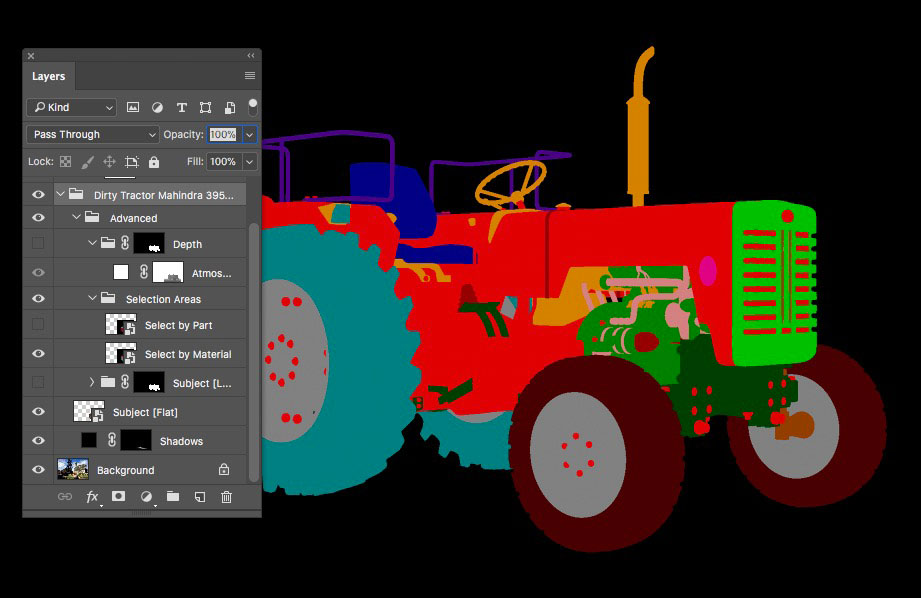
Figure 3. You can download the object’s full set of Photoshop layers, which makes it easy to select object parts and materials.
Using PixelSquid with InDesign
In the example shown in Figure 4, I’ve used PixelSquid to create images to accompany a travel checklist.

Figure 4. An InDesign page with all the objects seen from the same angle—a great way to unify the design.
Using standard stock imagery would mean a range of images that didn’t look as if they belonged together, but the hyper-real nature of the 3D renders allows them to all look good when clustered together on the same page.
The ability to view images from any angle allows you to choose exactly the viewpoint you want (Figure 5).

Figure 5. Each PixelSquid object can be viewed from up to 225 angles, so you can get the viewpoint you need.
For example, I was able to turn the Hotel sign in Figure 4 so that it faced into the page, and at an angle that worked with the rest of the headline. It also allowed me to have the plane flying over the sign at the perfect angle, so I ended up with a dynamic, bold introduction to the story.
To further unify the images, I’ve chosen to view them all from a three-quarter, top-down angle. Again, this would be impossible to do with regular stock images. And since they’re all cutouts with transparent backgrounds, they can be placed so that they overlap the red title block behind each header.
In the image “Has it been built?” (Figure 6), notice how the building overlaps the text.

Figure 6. If an object doesn’t fit your layout perfectly, choose Edit Original, and use Photoshop to turn it to a more appropriate angle.
I could just flip the image horizontally, but it’s much more satisfying to be able to choose Edit Original from the contextual menu, and turn it around in Photoshop to the angle I want.
Using PixelSquid without Photoshop
Not comfortable using Photoshop? Not to worry—you don’t need to use Photoshop at all with PixelSquid. You can rotate an object to the angle you want directly on the PixelSquid website, and then export it as either a Photoshop file or a PNG file, with transparency, ready to import directly into InDesign.
Of course, choosing the angle of an image in this way means there’s a certain amount of guesswork involved. It’s a better idea to take advantage of the Photoshop plug-in, even if it means taking a screen grab of your InDesign page, and then opening it in Photoshop first to gauge the angle you need.
Limitations
Although PixelSquid has a huge and ever-growing range of objects available, it’s short on images of people, mainly because 3D models of people never look that realistic. However, you will find examples of people in full costume, including knights in armor, Star Wars figures, astronauts, and so on, where faces are covered by masks.
Another limitation is one of image size. Although high-res PixelSquid files can be downloaded at a size of 2048 pixels square, the actual object is often somewhat smaller than this, set within the square area so that extended shadows are not cut off by the edge of the canvas. If you need a full-page image for a print project, then PixelSquid may not be up to the task. But for any small elements, either in a page layout or a photomontage, the size will be more than adequate.
A Higher Standard of Stock Art
With its vast library of graphics, and its Photoshop integration, PixelSquid is a powerful and unique tool that can free you from the limitations that plague standard stock photography. Every object is a perfect cutout that you can view from almost any angle, offering you tremendous flexibility in creating strong layouts.
The Photoshop plug-in is an extraordinary tool, and the ability to rotate an object directly in your layout, using the revolutionary panel, means there’s no guesswork involved in getting just the right viewpoint.
An annual subscription to PixelSquid costs $19.99 a month, or $199 for a full year; or you can buy individual objects for $7.99. You can try out any of the objects without a subscription, and they will download with a watermark.
A Special Discount For You!
PixelSquid is offering a “throwback pricing” promotion for InDesign Magazine subscribers!
You can get a one-year subscription to PixelSquid for $119. That’s $80 off the regular price! Just go to:
https://www.pixelsquid.com/indesignsecrets
You can create a free account and then activate the offer from that page.
Commenting is easier and faster when you're logged in!

Recommended for you

InDesign Magazine Issue 65: Long Documents
We’re happy to announce that InDesign Magazine Issue 65 (September, 2014) i...
Helping Photoshop and InDesign Play Nice
Chad Chelius and David Blatner offer advice on how to make these two software si...