


Photoshop Layer Styles: “One-Click” Flexibility


Instant Style Changes



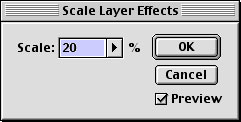
A Layer Style can be changed instantly. You can either assign a different Style with one click in the Styles palette, as we did here for the background layer, headline type, and photos. Or you can leave the same Style in place and change its parameters, either individually in the Layer Style dialog box or by scaling the entire effect, as shown here for the small type.
A Wow-Textures Bumped 25, made with a fine-grained pattern used as the Pattern Overlay and Texture components of the Style
B Wow-Textures Bumped 17
C 012 Wow-Sepia With Halos, made with a sepia-toned Color Overlay at 75% Opacity in Color blend mode to allow some of the original color to show through
D 308 Wow-Haloed G Textured, scaled to look more like the Style was originally designed to look
Instant Content Changes


If you change the content of a layer to which a Style has been applied, the Style instantly conforms to the new content, as shown with these type changes. (For the small type a different Style was also applied.)
A Wow-Textures Bumped 25 (unchanged)
B Wow-Textures Bumped 17 (unchanged)
C 012 Wow-Sepia With Halos (unchanged)
D 399 Wow-Rusted Metal
This article was last modified on January 3, 2023
This article was first published on February 6, 2002
Commenting is easier and faster when you're logged in!

Recommended for you

Building an Underwater Scene in Photoshop, Part 1
The Oscar-winning film The Shape of Water opens with a stunning sequence in whic...
Building an Underwater Scene in Photoshop, Part 2
In the previous tutorial, we saw how to assemble all the elements of our underwa...
Creating a Blend Mode Test Layer in Photoshop
Blending Modes use a top layer to change the appearance of the layer, or layers...