


Photoshop How-To: The Power of Hue and Saturation Adjustment

Colorizing Photographs
You know sometimes you just don’t want that photo you took to be a plain, old snapshot, especially if you are hanging it on the wall or putting it online. You want to spice it up. One easy way to do this is to colorize it.
You’ve seen those old photos that are not black and white, but more like brown and white right? That brown and white tone is called Sepia tone. In Photoshop you can make sepia images very easily with some of the basic tools the software provides for you. But you don’t have to have just brown, you can have any color you want. Whether it be brown, blue, green or purple, it’s very easy to do. I’ll show you how.
First thing is you need a photo. Any one will do, even a black-and-white shot. Color shots are just fine too. Bring your photo into Photoshop and do any cropping and adjusting you need to do to make it a perfect snapshot. Now we are going to colorize it.
The first thing to do is to hit Image -> Adjust -> Desaturate. This will turn your color photo into a grayscale photo — basically just black and white. Now hit Image -> Adjust -> Hue and Saturation. Look at the image below (see figure 4).
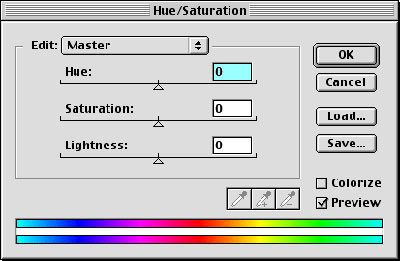
Figure 4
There are three sliders to work with. One adjusts the hue, the second adjusts the saturation and the third adjusts the brightness. In the lower right-hand corner is a checkbox that says Colorize. Click that now. Now you will have an image that is based on the color of the top slider. As you move the slider back and forth, you will see a color change throughout the image.
The Saturation slider adjusts the amount of color that the image has. So the farther it is to the right, the more color will be applied. As you move left of the center point, you will begin to see the image go back toward black and white or desaturation. Saturation means simply what it says. The higher the saturation, the more color. Think of a towel that you are soaking with liquid color. The more color you add, the more saturated the towel becomes.
The last slider will adjust how light or dark your image is. The middle is fairly neutral, and as you move left or right of that point, the lightness changes.
To demonstrate, I have taken a simple snapshot of some ladies watching the television. I brought the image into Photoshop and did some cropping. I also adjusted the levels to make it more balanced. When I was satisfied, I desaturated it and then added a nice brown Sepia tone. Take a look at figure 5.
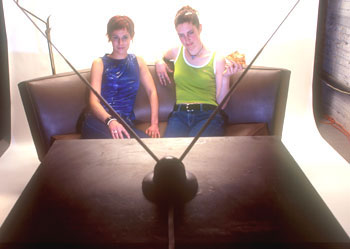
Figure 5
You can see that this is just a plain, old photograph. Now take a look at the finished product (see figure 6).
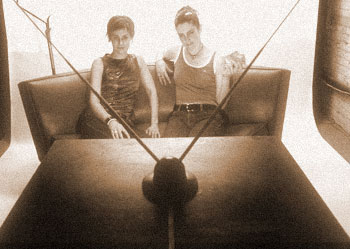
Figure 6
If you look closely, I also added some noise to the photograph to give it more weathered and old look. I simply hit Filter -> Noise -> Add Noise… I added a bit of Gaussian noise and voila, I’m done.
Try doing this with some of your favorite photos and then printing them out on your printer. You can get some great wall photos out of this little trick.
This story brought to you by the National Association of Photoshop Professionals (NAPP). Copyright 2003 KW Media Group. Photoshop is a registered trademark of Adobe Systems, Inc.
This article was last modified on January 3, 2023
This article was first published on January 15, 2003
Commenting is easier and faster when you're logged in!

Recommended for you

Photojojo University
Photojojo, the site that brought you such goodies as the camera lens coffee mug...

Mastering Photoshop Smart Objects: Blending Layers Without Masking
When it comes to mastering the art of blending layers (or any of Photoshop...
Heavy Metal Madness: Put on a Happy Face!
When I met my wife Patty back in the very early ’80s, it made perfect sens...