



Excerpted from Deke’s Techniques on lynda.com.
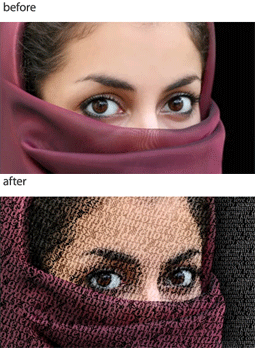
Words communicate ideas. So can photos. Combine the two and you have not just an image that’s worth a thousand words, but an image that is a thousand words.
In this Adobe Photoshop tutorial, I’ll show you how to blend a photo and three layers of text to create one powerful image.
A few important things to keep in mind as you work: The text must be white. The leading between the lines of text should be so tight that ascenders and descenders overlap. That makes the text harder to read at a glance, but it also fills in as much detail in the photo as possible. Using multiple text layers also lets you get as much detail as possible; however, any one of the three stages in this tutorial may work well for your image. Other photos will be best if you use all three.
As you follow along with the video below, you may have to stop at crucial points or even back up a few times. But the end result will be worth it.
Visit Deke’s Techniques for more Photoshop and Illustrator creative how-to projects in about 10 minutes.
This article was last modified on December 14, 2022
This article was first published on November 23, 2011
Commenting is easier and faster when you're logged in!

Recommended for you

How to Extract Images Using Photoshop’s Refine Mask
Splitting Hairs with Refine Mask We can only accomplish so much using manual mas...

Photoshop How-To: Adding Bleeds and Crop Marks
One question that I receive on a fairly regular basis, is how to add bleed to an...
Lightroom 5 Round-up
Adobe’s Lightroom 5 was released this week with a number of new features includi...