



Adobe now includes a bunch of products in what it calls the “Photoshop family.” That term sounds so cozy. I picture a Waltons-like scene, with Lightroom as John-Boy, Photoshop Elements as Jason, Photoshop Album as Elizabeth…
The reality is a little less warm and fuzzy. The many branches of the Photoshop family tree can leave you confused: Are you better off with Elements? Extended? Lightroom? Or the standard Photoshop?
So here’s a quick cheat sheet:
- Lightroom ($199 intro price, but eventually $299) is for photographers managing a lot of pictures and is a complement to, not a replacement for, other versions of Photoshop.
- Album (free) is too basic for you.
- Elements ($99), while highly capable, is missing some features you might need.
- The new Photoshop CS3 Extended ($999 full/$349 upgrade) has features for creatives working in multimedia, but it’s also aimed at engineers, architects, and medical professionals.
- If you don’t often deal with video, animation, or 3D, stick with the standard Photoshop CS3.
When bought as a separate app, Photoshop CS3 will set you back $649 ($199 upgrade). Here’s what you can expect for your money:
Interface Changes
I don’t care how big your monitor is — you can never have enough screen space. Photoshop CS3 recognizes that in several ways. For example, the Tools palette has slimmed down to a single column, and you can stash your palettes in adjustable docks (Figure 1) that can show palettes full-size, as icons, or hidden completely.
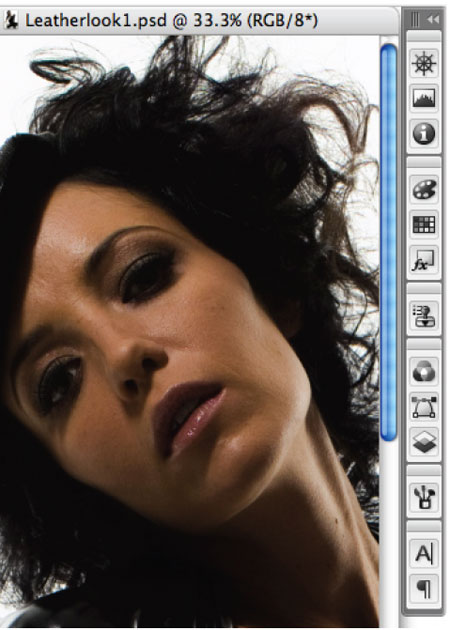
Figure 1. I liked the new adjustable palette docks once I got used to them. Just click on the dock to bring up the full palette. Or if you’ve hidden a dock completely, move your mouse to the edge of the screen to reveal the dock.
New Selection Tools
Photoshop has many ways to select areas of an image, but let’s be honest: Do you actually enjoy using any of them? Me neither. Selecting is just a chore we want to get through quickly and with as few mistakes as possible. The combo of the new Quick Selection brush and the Refine Edge feature may be just what we need. Once you click on the Quick Selection tool, you paint the area you want to select (Figure 2). Photoshop somehow analyzes the photo and completes the selection for you. If it goes too far or not enough, you can contract and expand the selection by pressing a key.

Figure 2. The Quick Selection tool is well named. The red color is the mask.
Once you’re pretty happy with the selection, you can bring up Refine Edge (Select> Refine Edge and on the Options bar) to modify the selection’s edge (Figure 3).
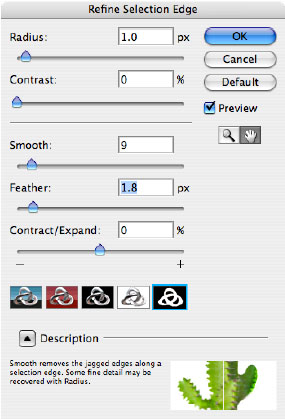
Figure 3. In the Refine Edge dialog box, you can smooth, feather, contract, or expand the current selection.
Be Smart, not Destructive
Smart Filters are Photoshop filters that don’t destroy any data in your image, so you can remove and change them without permanently altering the image (Figure 4). They work within Smart Object layers.
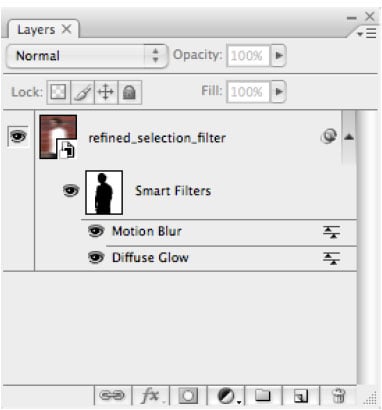
Figure 4. Look for Smart Filters in the Layers panel.
Camera Raw Improvements
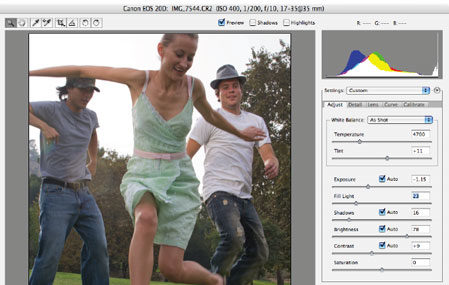
Speaking of nondestructive abilities, Camera Raw has added a nondestructive Clone and Heal tool, and the new Fill Light and Vibrance controls should look familiar to Lightroom users (Figure 5).

Figure 5. Notice the new lighting controls. Click on the image for a larger version.
Adobe says that the performance is snappier, which is good news for all photographers, not just those who shoot in Raw: Camera Raw accepts JPEG and TIFF files, too.
Group Shots No One Will Gripe About
It is a universal truth that you cannot photograph a group of people and capture a shot that pleases everyone. Someone will have her eyes closed or his head turned or a dorky smile. Photoshop CS3 lets you bypass that truth with a way to take the best of several group shots and combine them into one (Figure 6). While you could get similar results from CS2, the new automatic alignment and layer blending tools make it easier and faster.
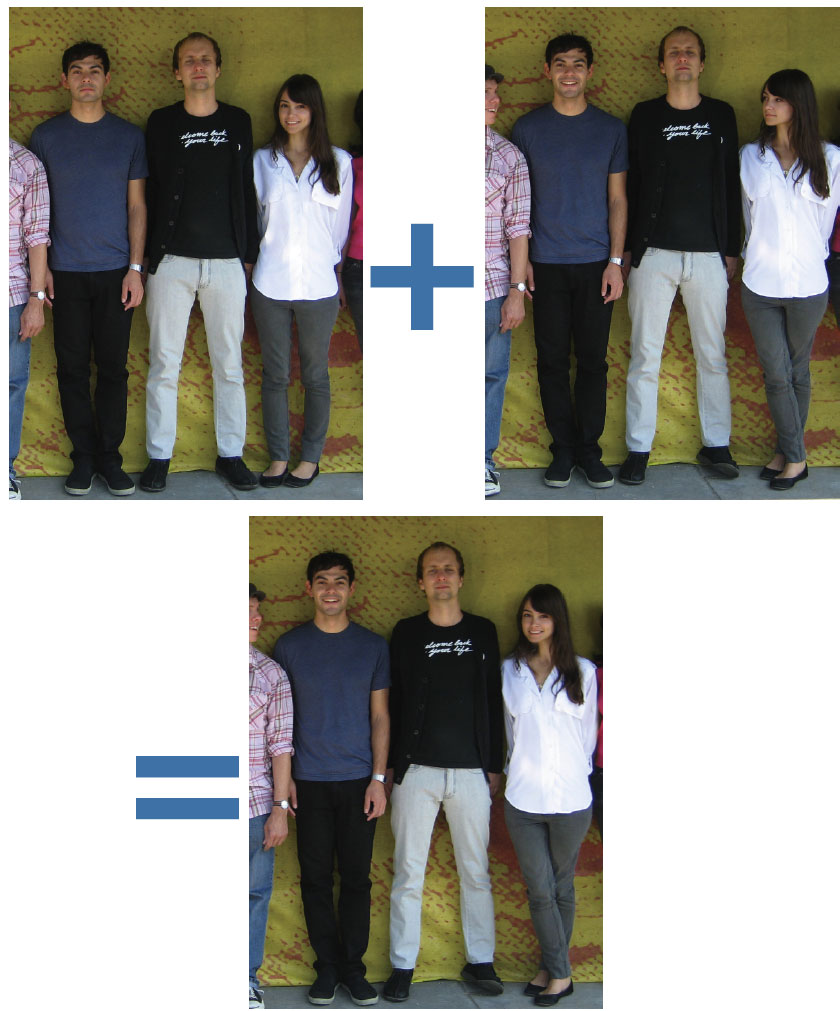
Figure 6. Once you place related images on separate layers, Photoshop CS3 moves and rotates the layers so they overlap more precisely. Select the best areas from different layers with masks, and let the automatic layer blending make the final composite look like you thumbed your nose at the universal truth. Click on the image for a larger version.
Revamped Bridge
I still mourn the loss of Photoshop’s File Browser, last seen in version CS. Everyone told me that Bridge would more than make up for File Browser’s demise, but the snail-like pace of Bridge CS2 made me gnash my teeth.
In CS3, Bridge has picked up speed and added photo-management extras File Browser never dreamed of (Figure 7).
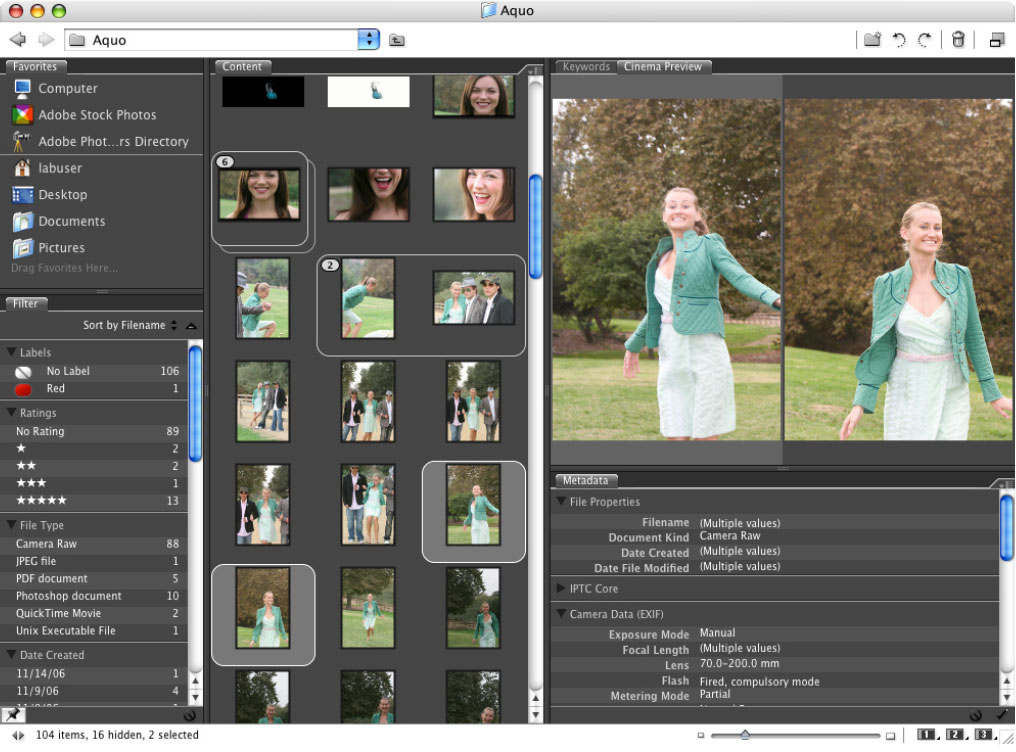
Figure 7. Bridge is a standalone app, but you can reach it from Photoshop. Click on the image for a larger version.
The new Filters panel makes it easier to sort through a big shoot, and thanks to Stacks, you can contract and expand a series of photos to one thumbnail with one click. I also like the new Loupe tool for easier zooming.
All Things Are Relative
There are many other updates to Photoshop CS3 that will appeal to certain users, including a Vanishing Point well-suited to package mock-ups; better HDR; improvements to Curves, Clone, and Healing; better grayscale conversion; and Adobe Device Central, which helps you visualize your design on mobile devices. But if I went through all that, you’d be reading this overview until dawn. Instead, I’ll say…
“Good night, John-Boy.”
“Good night, everyone.”
Can’t sleep yet? Go to other pages in the CS3 Overview:
This article was last modified on January 4, 2023
This article was first published on March 27, 2007
Commenting is easier and faster when you're logged in!

Recommended for you

A Film Technique for Your Digital Photography
Before Picture Elements (“pixels” for short) were a gleam in some IB...

Integrating 3D Text into Images with Photoshop
This is a technique you’ll have seen in countless films and TV shows, from...

Crafting Chromatically Rich and Luminous Images
“If all the world’s a stage, I want better lighting.” I couldn’t agree more with...