Bryan wrote:
I have a problem with pasting something into an object that has been transformed (ie. rotated, resized, skewed, etc…) Is there anyway to have it “pasted into” without haveing the pasted distored?
When you use Edit > Paste Into, the object you’re pasting always takes on the transformations of the parent object. I can see how that would be frustrating. You can, of course, simply reverse the transformations on the child object. That is, if the parent frame is rotated 30 degrees, you could select the nested object and rotate it -30 degrees. But this might get tiresome.
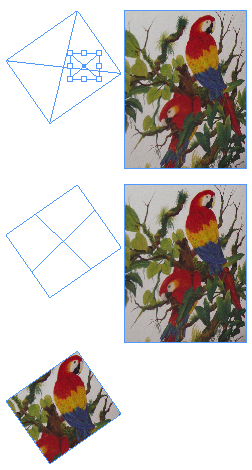 Here’s a trick to “reset” the transformations of the parent object to zero so that anything you paste into it will also not appear transformed. Note that this is based on the same principle as a tip we got from Tim Cole (see the “rotated text inside a frame” trick we discuss in Episode 32).
- Place a new small frame on top of the transformed frame (the one that will be the parent frame).
- Select both emtpy frames and choose Object > Pathfinder > Add (or click the Add button in the Pathfinder palette). Because the result of Add uses the transformation settings of the top object, the new object looks like the original frame, but has no rotation, skew, and so on.
- Now paste the image into the empty frame using Edit > Paste Into (Command-Option-V/Ctrl-Alt-V). The image does not appear transformed inside the frame!
This article was last modified on December 18, 2021
This article was first published on October 5, 2006
Commenting is easier and faster when you're logged in!

Recommended for you

Sort Cross References
Cross-references are printed in the order in which they were added to the docume...

Nashville in Focus: CreativePro Week 2026 Photo Walks
A look at Music City through the lenses of the CreativePro community