




Where’s My Paintbrush?
Another lament I often hear is that you can’t paint on high-bit files. The Paintbrush tool isn’t available. Well, yes and no. Again, History comes to the rescue. One of my main reasons for painting on images is to make subtle alterations to color — I often paint with a low opacity, with the blending set to Multiply, to change color slightly. Here’s how to paint with any color on a high-bit file.
After making further corrections, this high-bit image is in better shape, but the stonework is a little too red (see figure 8).
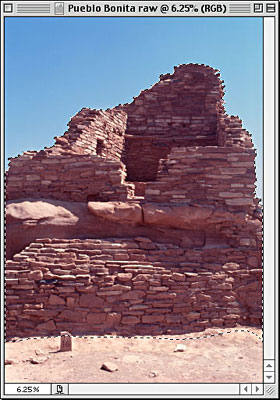
Figure 8: In this version, the stone is too red.
I can fix it by painting in some yellow with a low (around 10%) opacity and blending set to multiply. To make it a little easier, I first created a mask for the stonework (using the sky channel as a starting point) and loaded it into the high-bit image, then I took a Snapshot, to make sure I could get back to that point.
The trick here is to use Curves to provide the History brush with a solid color. It’s a simple two-step process, but it’s a little scary because it appears to destroy the image. That’s why I took the Snapshot.
First, I use Curves to turn the entire area white by dragging the black point of the curve all the way up to the top left corner (see figure 9).
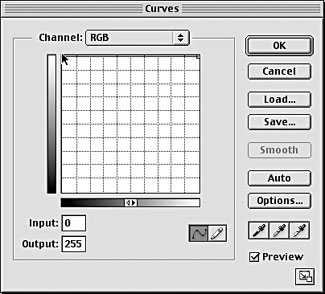
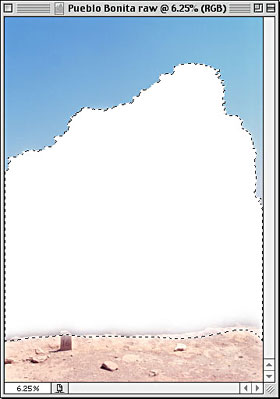
Figure 9: Drag the black point to the upper left (top). This turns the area white (bottom).
Then, I adjust the individual channel curves to produce the shade I want (see figure 10).
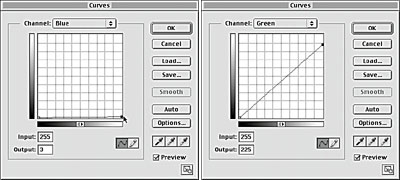
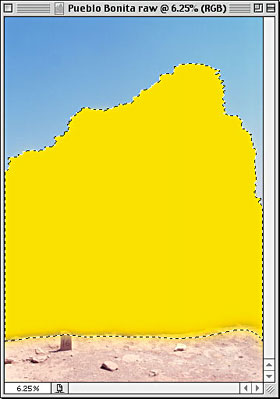
Figure 10: Adjust the green and blue channels (top). This turns the area yellow.
Now, I go to the History palette, and set it to the state before I applied the curve that turned the area white. I set the History brush source to the curve that turned the area yellow (see figure 11).
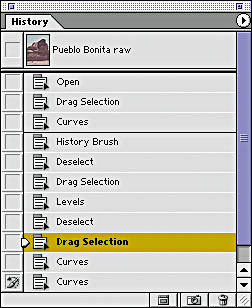
Figure 11: The History palette with the brush source set to the curve that produced yellow.
I set the History brush opacity to 10%, and set the blending mode to Multiply, then I paint the yellow wash over the stonework. I use a large brush (Photoshop 7 will let me use a 2500-pixel brush instead of the current 999-pixel limit), and paint with a single stroke so that I don’t have to worry about overlapping brush strokes or disappearing History states. The result is shown in Figure 12. In this case, it’s fairly subtle, but you can use the same technique to paint with any color in as subtle or unsubtle a manner as you wish.
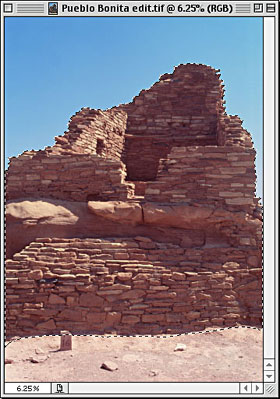
Figure 12: The yellow paint applied.
This article was last modified on January 3, 2023
This article was first published on March 26, 2002
Commenting is easier and faster when you're logged in!

Recommended for you

The Pop-Up Pinhole Project
They say necessity is the mother of invention, but it’s clear nowadays that Kick...
Do-It-Yourself Glitch Art
Here’s something perfect for a Friday, or any day when productivity isn...
Learn About Photoshop CC While You Use It With the New Features Panel
We are all creatures of habit and develop our favorite ways of getting work done...