




When you open a new document in QuarkXPress, you have the choice of setting the page size, facing pages, page orientation, and so on. In XPress, whatever settings you make in the New Document dialog box become the default settings for the next new document. However, InDesign handles things a little differently.
In InDesign, any changes you make to the New Document dialog box (figure 1) are not stored for the next new document. Instead, with no document open, choose File > Document Setup (figure 2). The settings you make in Document Setup become the default for all new documents. Then, close that dialog box, and choose Layout > Margins and Columns to set the other page defaults (figure 3).

Figure 1
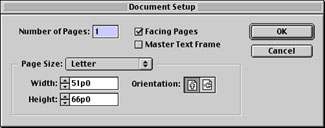
Figure 2

Figure 3
I agree — it’s more work than you’d face in XPress, but there is an advantage: Even if you make bizarre changes to a document in the New Document dialog box, you’ll never lose your regular new document preferences.
Read more On the Move to InDesign tips here.
Read more by Sandee Cohen.
This article was last modified on March 10, 2025
This article was first published on March 6, 2002
Commenting is easier and faster when you're logged in!

Recommended for you

Celebrating 30 Years of Photoshop
Looking back, it’s easy to see that the year 1990 was a turning point in h...

Helpful Tips from the Denver InDesign Conference
The InDesign Conference in Denver just wrapped up this week. All of the attendee...

InDesign Magazine Issue 104: Accessibility
We’re happy to announce that InDesign Magazine Issue 104 (December 2017) is...