




You may have heard that InDesign can convert document and template files from QuarkXPress 3.3 or later. (No, InDesign will NOT convert XPress 5 files. How could it? XPress 5 was released two days after InDesign shipped!)
How does it work? InDesign converts the original file information to native InDesign information. Simply choose File > Open and choose the XPress file you want to convert. However, there are some conversion changes Adobe has documented:
- Color profiles in QuarkXPress are ignored.
- Colors are converted to InDesign colors, except HSB and LAB colors are converted to RGB. Colors from the QuarkXPress 4.1 color library are converted based on their CMYK values.
- All master pages and layers are converted to InDesign masters and layers. However, master page objects and guides are placed on the corresponding InDesign master pages. They are not linked as master page items.
- Grouped objects remain grouped except where nonprinting items are included in a group.
- All strokes and lines are converted to the line styles they most closely resemble.
I also discovered other differences. For instance, figure 1 shows a QuarkXPress layout.

Figure 1
The text runs around the image’s clipping path. When the layout was opened by InDesign (see figure 2), there was no runaround set. Also, the custom frames were converted to a solid black line.
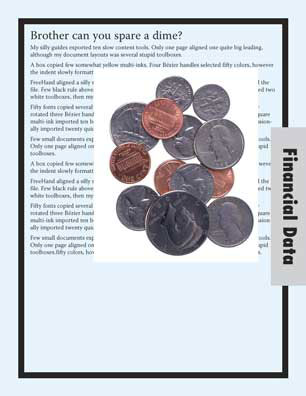
Figure 2
InDesign will also automatically apply the Adobe Paragraph Composer to text. This can cause text to reflow. For instance, a 181-page document in XPress converted to 180 pages in InDesign. (Most likely the text looked a lot better, too.) However, since reflow is an important issue, check carefully if you convert documents with a lot of text.
So how good is the conversion? It’s great for templates. All the master pages are converted along with the style sheets. However, just because you’ve moved over to InDesign doesn’t mean you should delete QuarkXPress from your machine. Keep a copy of XPress around, especially if you need to fix the prices on a sales sheet. However, the next time you’re going to redo the entire sales sheet, you might want to take the opportunity to export the text and then save the file as a template.
Read more On the Move to InDesign tips here.
Read more by Sandee Cohen.
This article was last modified on March 10, 2025
This article was first published on February 20, 2002
Commenting is easier and faster when you're logged in!

Recommended for you

A Script to Find/Change All Documents in an InDesign Book
A script by Peter Kahrel allows you to apply a Find/Change to all documents in a...

How to Work with Illustrator’s Effects
Learn how to work with effects in Illustrator and make further adjustments, incl...