



When it comes to driving InDesign, your keyboard is like the accelerator pedal, the more you stay on it, the faster you’ll go. Every time you move to the mouse or trackpad, it’s a little like stepping on the brake. With that in mind, here’s a tip for you speed demons.
In many cases, when you open a panel with its shortcut, you can immediately control that panel with your keyboard. Highlighted text fields await your input. Lists can be navigated with arrow keys, or by simply typing the name of the item you want.
For example, if you have selected a frame filled with [None] and you want to fill it with [Black], just press F5 to open the Swatches panel, then b.* If your selected object is currently filled with a tintable color (ie not [None] or [Paper]), the Tint field will be highlighted when the panel opens and it will respond to keyboard input. Also remember you can hold Shift when you press the up or down arrow keys to adjust tints in 10% increments. If you want to move from the Tint field to the Swatch list, press Tab. In fact, any time the Tint field is highlighted,  you can press Tab to move down to the Swatch list and it will be keyboard-navigable.
If you’re using CS3, you get an added bonus visual cue: the border around the swatch list becomes bold when you can navigate it via the keyboard. This subtle-but-cool feature is mostly gone in CS4 and CS5.
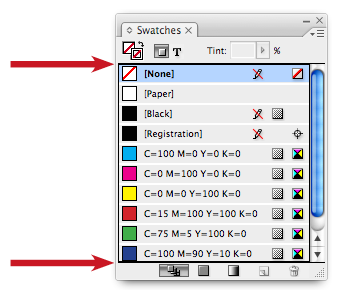
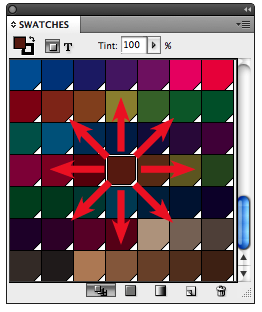
If you’re in the habit of viewing your swatches as, well, swatches (instead of by Name/Small Name), you can navigate in eight directions. Up, down, left, right, and even diagonal if you press two arrow keys simultaneously.
What if a panel is already open? You can just hit its keyboard shortcut twice, to quickly close and re-open it. Or you could Command+Option/Ctrl+Alt click on a panel list to make it keyboard-navigable.
Unfortunately, you can’t activate panel buttons via the keyboard. Nor can you do things like apply styles. For that, your old friend Quick Apply is probably the way to go.
Another cool trick is to use your keyboard to select which type of Find/Change you want to perform. For example, to perform a GREP Find/Change, press Command/Ctrl+F, then Command/Ctrl+2. Command/Ctrl+1 = Text, Command/Ctrl+3 = Glyph. But don’t use Command/Ctrl+4 for Object Find/Change. It’s kind of a dead spot that you can’t control via the keyboard.
In CS5, you can navigate the snazzy new Layers panel via the keyboard. Press F7 to open the Layers panel, then use your up/down arrow keys to select a layer, then use your left/right arrow keys to hide/show the list of objects on that layer.
Any time you have a panel flyout menu open, you can select menu items with arrow keys or by typing the name of the menu item. To execute a menu item, press Return/Enter. For example, in the Swatches panel, to apply the Add Unnamed Colors command, open the flyout menu and press a, then Return/Enter. To select the first/last item in a menu, press Command/Ctrl+up/down arrow.

Actually, those trick works for all menus, not just panel flyouts.
*AFAICT, the ability to select a swatch by typing its name does not work in CS4, but it works like a charm in CS3 and CS5. Go figure.
This article was last modified on December 20, 2021
This article was first published on August 28, 2010
Commenting is easier and faster when you're logged in!

Recommended for you

5 Cool Things You Can Do with GREP Styles
I love GREP Styles in CS4. Here are 10 (or more) tips for how you can use them t...
Stop Hyphenating Across Columns and Page Breaks
Luke wrote: I wondered if there was any way of stopping InDesign from hyphenatin...
Little Things Mean A Lot in CS3
I'm in the middle of a large production project in InDesign CS3, and as I'm work...