



It’s time to reveal the solution—and the winner—for this month’s InDesignSecrets contest!
Here’s the scenario:
You a receive a layout file created by another designer. In Preview mode, it looks OK.

But if you view it in Normal mode, the text frames appear to have stroke and fill colors.
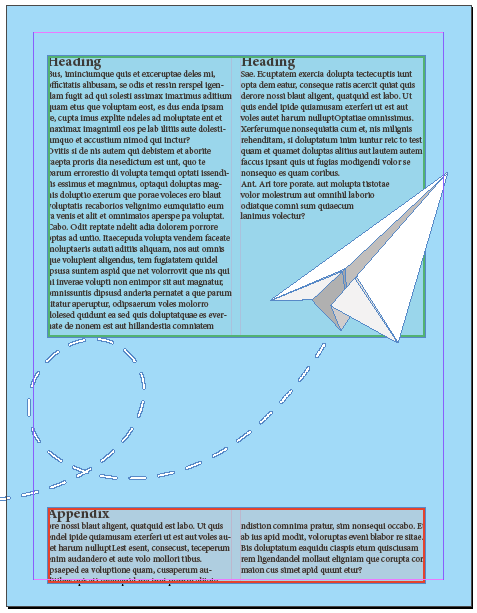
But when you select the text frames and check the Swatches panel, it shows there is no stroke and no fill applied to any of the text frames.

If you view the file with Overprint Preview turned on, you don’t see the colors. Likewise, they don’t appear in output like a PDF.
Why do these text frames appear to have stroke and fill colors in the Normal viewing mode?
Solution: There are two scenarios where the frames would appear this way.
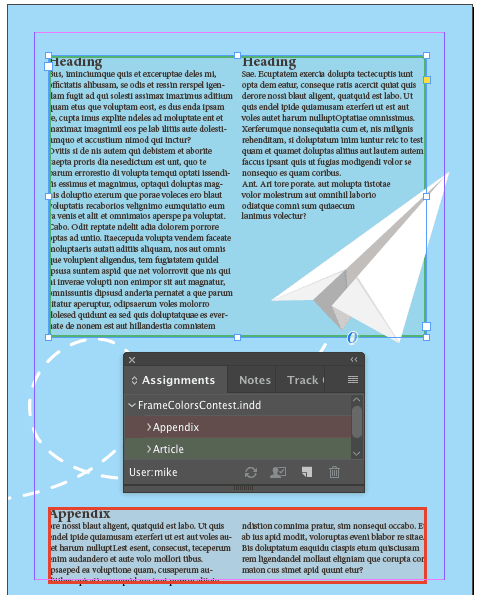
1. XML tags were applied to the frames. When you show tagged frames (View > Structure > Show Tagged Frames), they appear in the layout with the color associated with the tag.


2. The frames were assigned as InCopy content. In the Assignment Options you can choose a color to show which text frames belong to each assignment. Then to see those colors in the layout, choose View > Extras > Show Assigned Frames.

And the winner of this contest is…
Valentine Valentine (that’s not a typo)
Valentine wins 3 months access to videos of any 2 days of CreativePro Week 2017.
Thanks to everyone who entered, and be on the lookout for another contest with a new great prize next month!
This article was last modified on July 25, 2019
This article was first published on August 24, 2017
Commenting is easier and faster when you're logged in!

Recommended for you

New Contest! The Case of the Missing Placeholder Text
Solve this InDesign mystery for a chance at winning a great prize.
Using Stylistic Sets
Elegant typography is just a click away with the context menu and these eight gr...
The Mystery of the Moving Overset Contest Answer and Winner
Solve this InDesign mystery for a chance at winning a great prize.