



E.C. wrote:
I am making a document that needs to have two spreads only (it’s a booklet cover: front and back). I can see how to set up facing pages, but there’s that pesky single page 1 floating there before the two spreads. How can I make that page 1 go away?
The problem with page 1 is that it’s a odd number, and (at least in the English version of InDesign), odd numbered pages are almost always right-hand (recto) pages.
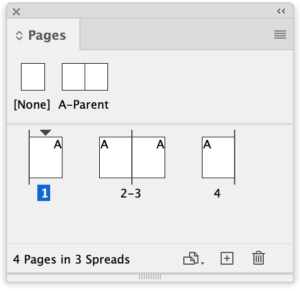
To make the first page a left-hand (verso) page, select it in the Pages panel and choose Numbering and Section Options from the Pages panel flyout menu.
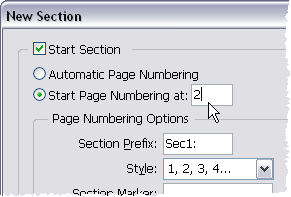
Change the odd page number to any even-numbered page, and it will magically become a left-hand page. If Allow Document Pages to Shuffle is turned on (it usually is), then the other pages will arrange themselves properly in spreads (see below).
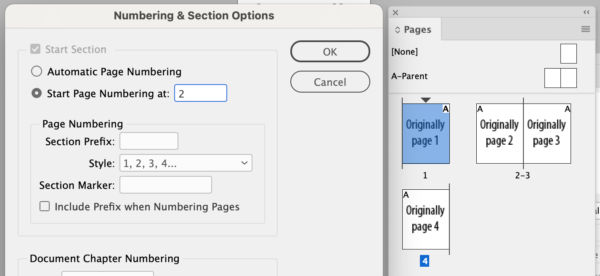
Change any odd page to an even page with Numbering & Section Options…
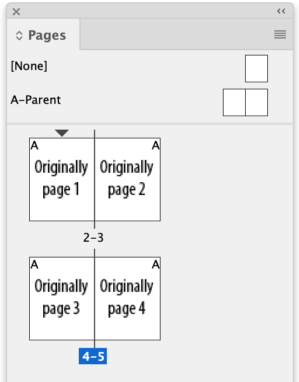
… and as long as Allow Document Pages to Shuffle is selected, the pages in the document will move from left to right and right to left.
And, of course, if you have already designed a spread starting on page 2 and have a blank page 1 hanging around, you can do the above to define the existing page 2 as the section start. Now you can go and delete that unused page 1—and nothing will reflow.
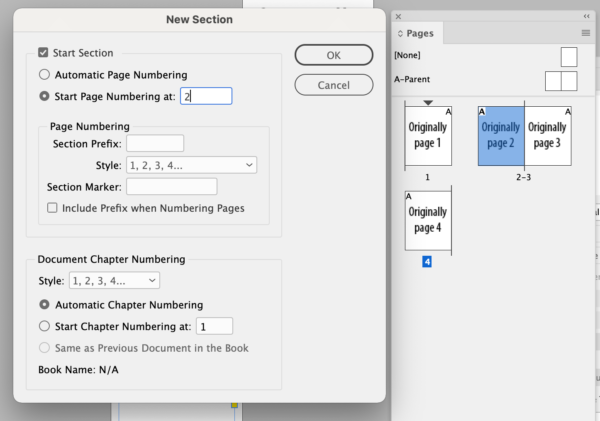
If you start a new section on a left page and make the page number the same even number…
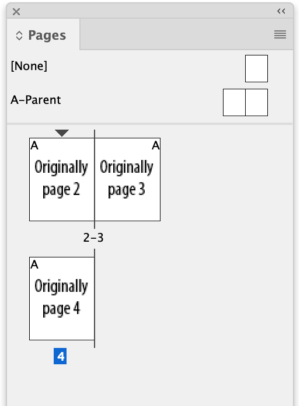
… and you can delete an unused right-hand page without disturbing the spreads that follow.
How do you get page 1 as a left page?
There is another way to do this, too, which might come in handy if you actually need page 1 to be the left-hand page.
- Highlight page 1.
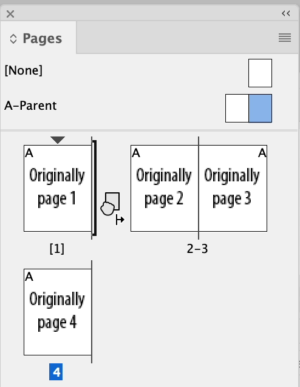
- Turn off Allow Selected Spread to Shuffle. (It will be on by default.) The numbering “1” will appear in brackets (“[1]”) in the panel.
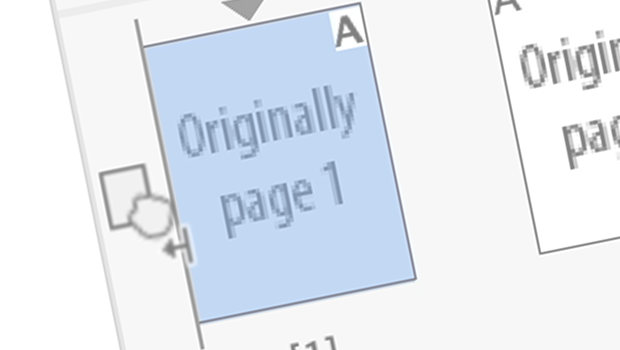
- Select Page 1 and move it from the right to the left. A blank space will appear in the space that page 1 originally occupied.
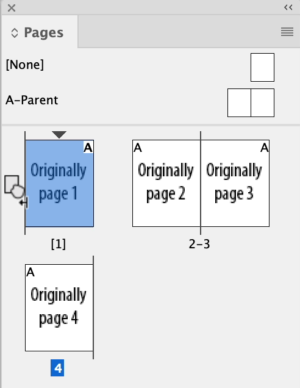
- Now select a right-hand page from a facing pages spread in Parent Pages. Drag it over to the right of page 1, dragging until you see a thick dark vertical line appear to the right of page 1 and to the left of your page. That indicates that the page you’re dragging will become the right-hand facing page to page 1.
This article was last modified on January 16, 2022
This article was first published on January 12, 2007
Commenting is easier and faster when you're logged in!

Recommended for you

Changing the Language with Find/Change
Paul wrote us, Well I am still fairly new to using InDesign, but after listening...
Assigning Default Text Formatting
FS wrote: I always use the import options dialog box to remove all formatting fr...
Make an Image Flow with the Text
"Oh, why can't InDesign behave more like a normal program, like Word?" she said,...