



I had a need recently to type out a bunch of data (like name, code number, price, and so on). It wasn’t enough work to warrant building a database (in my opinion), and I didn’t have a database handy anyway. But the problem was that I was forever forgetting what text should come next. That is, was price after name? Or SKU? I needed labels! But I didn’t want those labels to appear when I exported the text, or formatted the text later.
Here’s the solution I came up with: Numbered Lists. Sounds weird, but it works great.
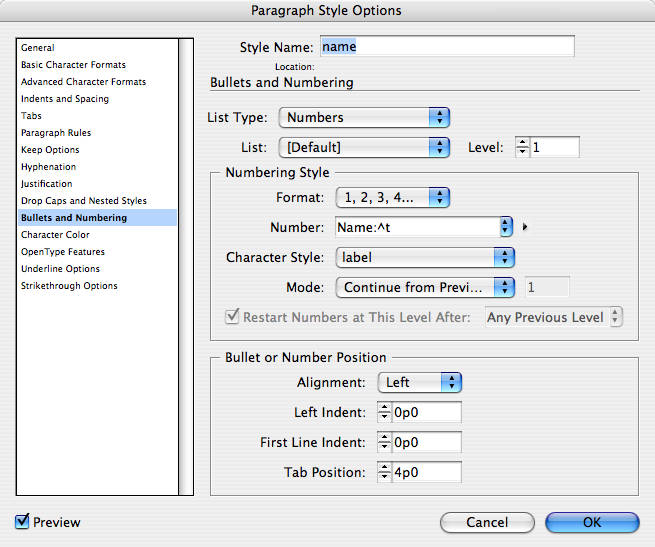
First, I built a character style called “label” and set it to a blue Courier so that it’d be obvious that it’s a label. Next, I made a paragraph style called “name” that had had a numbered list in its definition. But (and here’s the key to the whole trick) I changed the Number field from the default value of “^#.^t” (which means: put a number followed by a period followed by a tab) to the label I wanted to use — in this case “Name:^t”
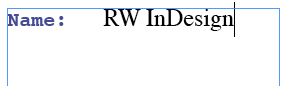
When I apply this to my first paragraph, the label magically appears:
Then, for each additional label, I would:
- Create a new paragraph style, based on “name”
- Change the “Number” field in the Bullets & Numbering pane to reflect the label I wanted to apply.
- Click OK
- Edit the previous style so that the Next Style pop-up menu is set to the next one. For example, for the name style, I chose code as the Next Style. On the last label, I set the Next Style back to the first label (so it would repeat indefinitely).
When I was done, I had a labeling machine!

Best of all, I could even type in Story Editor! While the label doesn’t appear on the document page until you actually type one or more letters, the Story Editor shows you the label (because of the style name). This acts as a prompt to remind me which to type next. See also Anne-Marie’s revelation that the “numbering” appears in story editor.
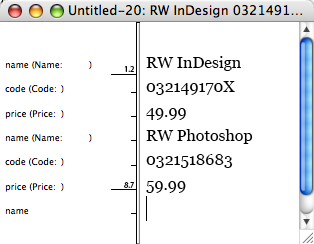
But the best part of all is that the lables could be visible or not, depending on what I wanted. If I want to hide all the labels, I change the “name” paragraph style definition so that it no longer has auto numbers. Because all the other labels are based on that one, all the other labels hide, too.
If I want export the story as RTF or TXT (or XML), the labels all disappear, and I end up with just the data. (Or, if I wanted the labels in there for some reason, I’d first have to select all the text and choose Convert Numbering to Text from the context menu.)
Can you think of any other ways you might use labels or non-regular “numbers”?
This article was last modified on December 18, 2021
This article was first published on December 21, 2007
Commenting is easier and faster when you're logged in!

Recommended for you

Decimal Align Numbered Lists
Abbe wrote: I like to use InDesign's auto-numbering feature, but don't see a way...
Remote Workflow Support in InCopy/InDesign CS3
With CS1 or CS2, an InDesign/InCopy workflow works best when everyone (design an...

Creating Double Outlines Around Text in InDesign
The Outer Glow effect can help you create the effect of double strokes around te...