



Gregory wrote:
Is there a simple way to create vertical rules in the same place as my tab stops? Is this something that can be done with Nested Style?
Look, I would argue that this is what tables are for — and InDesign’s tables feature is very powerful. But every now and again, you may want a table with vertical rules and such, but without using the tables feature. For example, if I were creating a directory with several thousand names, I’d likely look for a non-table route. I’m sure tables would work, but I just don’t like the idea of creating a single table with a thousand rows. The idea freaks me out.
So, what to do. How to get those vertical lines (other than printing the whole thing out and using Format line tape or a rapidograph pen… remember those?)
Here’s one solution: Find all the tabs and replace them with tab, vertical bar, then tab. The vertical bar (sometimes called pipe) shows up in most fonts, but it’s not tall enough. More on that in a minute.
The next step is to set additional tab stops for the paragraph: One tab stop for the bar, and another for where the text should go. Note that the horizontal bars in this image are handled with the Rule Below feature.
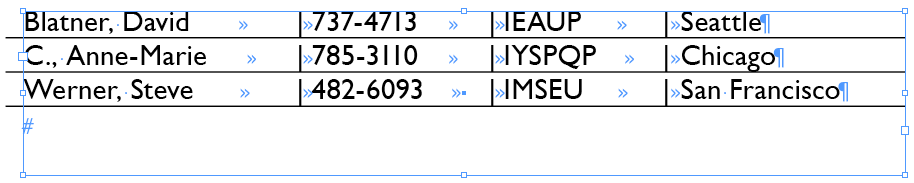
Now you need to apply a character style to each of those bars to make them taller (and perhaps thinner or thicker, depending on the horizontal line). Here’s the character style I made:

You don’t want to apply that character style manually, or even with a find/change. No, you want to define your paragraph styles to apply it automatically. That’s a perfect case for nested styles:

Note that I use the Repeat feature so that the “tall bar” style is applied to all the vertical bars, no matter how many there are in the paragraph. That should do it! Here’s the final result, zoomed in a bit:
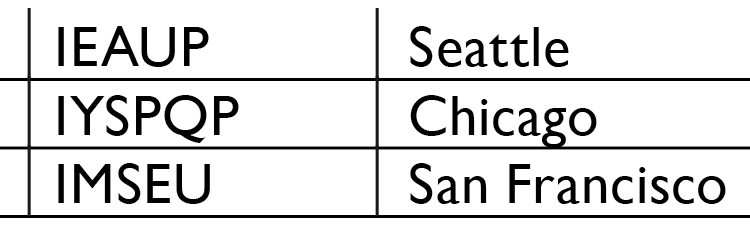
Look, I’m not going to tell you this isn’t a kludge. Of course it is. There are probably some fonts with which this won’t work well, and you certainly need to be careful that the lines actually connect (zoom way in, print proofs, and all that). But drastic documents call for drastic workarounds, and this one is relatively easy and straightforward.
This article was last modified on December 19, 2021
This article was first published on August 20, 2008
Commenting is easier and faster when you're logged in!

Recommended for you

InDesign How-to Video: Add Special Characters to Autocorrect
In this week’s InDesignSecrets video, Keith Gilbert shows how to create an autoc...

Adjusting Gradients in Table Cells
When you want a gradient to fit inside a single table cell, you need to take ext...
Automatically Generate Multiple PDF Pages
Using Acrobat 9's Split Document feature is a fast way of splitting up a PDF exp...