




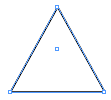
 Sure, you can make a perfect rectangle or elipse with one of several tools in InDesign (or hold down the Shift key while you drag to make it a perfect square or circle). But what about triangles? I often find myself in need of an equilateral triangle (where all sides are the same length), but InDesign doesn’t have a triangle tool. Or does it?
Instead of drawing with a “triangle tool,” just draw out any shape (even just an open path) on your page and choose Object > Convert Shape > Triangle. Yes, that’s yet another menu item that most users don’t even see, no matter how long they’ve been using the program. When you do this, you typically get an isosceles triangle (where only two sides are the same length). To get an equilateral triangle, start off with a square or circle before converting.
Method #2
Here’s another way to get a triangle (this one even works way back in InDesign CS!): Use the Polygon tool (which is hiding under the normal frame tools). Double-click the Polygon tool in the Tools panel to open its options dialog box. Set it to 3 sides and a Star Inset to 0% and you’ve just defined a triangle. Click OK and drag the cursor out to create a triangle. Or hold down the Shift key while dragging to make a perfect, 60-degree-per-angle, triangle every time.
Method #3
In a right-angled triangle (or “right triangle”), two lines in the triangle are perpendicular (that is, they form a 90-degree angle). How best to form one of those? I like to draw a rectangle, switch to the Pen tool (press P), then click on one corner. When you click on a corner point with the Pen tool, it deletes just that one point, leaving the other three.
This article was last modified on December 19, 2021
This article was first published on August 4, 2008
Commenting is easier and faster when you're logged in!

Recommended for you

Quick Wins: Vector Drawing Skills
Use these five resources to boost your vector drawing skills.

InDesign How-to Video: How to Convert Shapes
How to change circles to squares, rectangles to starbursts, or hexagons to trian...
Livestream Video: Creating 3D Lettering Using Illustrator’s Inflate Tool
Join Khara Plicanic as she shows how to create stunning 3D lettering with Illust...