



InDesign is awesome, but it doesn’t live in a vacuum! You can’t really be efficient in InDesign (or any other program) if you don’t take advantage of how other software can help you get your work done. I’m talking about utilities and add-ons. We’ve discussed plug-ins and scripts for years, but I just have to take a moment here to give a shout out to several pieces of Mac OS software that I love. Yes, I am primarily Mac-based, and these are the tools that I use every day. We’ll follow up with a Windows utilities blog post soon.
Some of these are free; others you need to pay for (but they’re so worth it). Feel free to share your favorite Mac OS utilities in the comments below.
By the way, I don’t make any money from any of these companies, or from you following any of these links. In fact, as much as I like getting free software, I actually paid for each of these out of my own pocket. (But if any of these companies are reading: Feel free to give us some free software and we’ll give it out to InDesignSecrets readers as prizes.) :)
Keyboard Maestro
This is the newest addition to my Mac (and what got me thinking about the subject this week). Keyboard Maestro is a macro program — that is, it lets you make keyboard shortcuts. I was a big QuicKeys user way-back-when, and more recently I had used iKey. But neither company has kept up with the times (I don’t think either one works with Mountain Lion 10.8, for example). Then my friend Adam Engst told me about Keyboard Maestro, developed by early-Internet-software-master Peter N. Lewis.
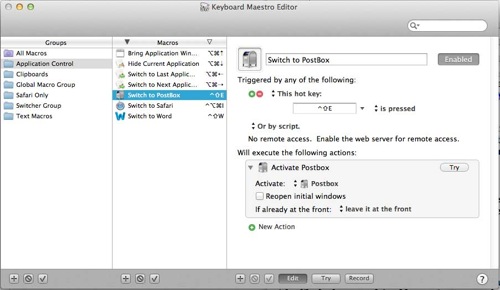
I now use Keyboard Maestro to launch programs that I use every 5 minutes with a single shortcut. I use it to type stuff that I need to insert all the time (like 4 different email signatures or long common sentences). And I will be using it for far more, as its capabilities (I’m now learning) are far-reaching. It’s $36 and worth it.
DropBox
Everyone here knows about DropBox, right? It’s free, you get to share folders and files with people (or among all your various computers and devices). It backs up everything you put in it. I’m pretty sure every computer user on the planet should have a dropbox account.
LaunchBar
I use Keyboard Maestro to launch a small handful of apps — like Word, InDesign, Postbox (my email client), Safari? the ones I have to switch to every 5 minutes. I use LaunchBar to launch everything else. LaunchBar is also does other tricks, like look up people’s addresses in Contacts for me, do basic math, keep track of clipboard history, and “launch” other things (like play a particular song in iTunes). And you do it all with your hands on the keyboard, which is awesome.
For example, I press Ctrl-Spacebar to launch it (you can change this) and then type pho. It gives me a list (like InDesign’s Quick Apply) of choices, such as “Photoshop,” “iPhoto,” and “Photo Booth.” I pick one (with my arrow keys) and hit Enter, and bob’s your uncle. It’s worth $35. Get it.
Default Folder
Let’s face it: the open and save dialog boxes on the Mac leave a lot to be desired. That’s why I recommend every Mac user get a copy of Default Folder. I wrote about this in InDesign Magazine a few years ago, and my love for it hasn’t ebbed a bit. I use it to jump to the last folder I was in, or among recent folders, or to favorite folders? I use it to get great previews and information about files before I open or place them:
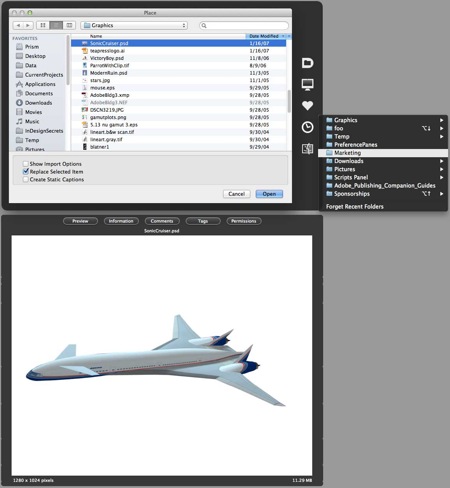
Default Folder is about $35 but will save you $1,000 in frustration. You want it now.
SizeUp
Okay, SizeUp isn’t for everyone. This utility lets you move windows around your screen quickly, and I use it all the time because I keep switching between using my MacBook Air 13″ screen and using it in clamshell mode with a humungous monitor. For example, I’m in Word on the laptop at a cafe* then I get home and plug in? the Word window is tiny, so I hit a shortcut (or use the sizeup menu) to make it: fill the left side of the screen, or the right side, or center it, or fill the whole monitor. Similarly, I’ll jump to some other app that I want to keep my eye on, and move it (with a shortcut) to fill just the lower-right corner of the screen. It’s nifty.
*Joke made up by my son this morning: What are the basic elements of coffee? Calcium and Iron! Get it? Get it? Ca and Fe! (groan? periodic table of elements joke…)
1Password
You know you shouldn’t have the same password for all your various log-ins, but it’s hard to remember more than one? Get 1Password. Now. The idea is simple: You remember one password that is really hard to crack but really easy to remember and type (like “72 donuts!”), and 1Password remembers all the other ones for you. When you log into your bank using Safari or Chrome, you type your special pw, it digs the bank pw out of its vault, puts it in the right place for you, and logs you in. Super easy, super fast, super safe.
CrashPlan
[Editor’s note: CrashPlan abandoned the personal market to focus on larger corporate solutions. So these days, we use Backblaze, which is amazingly simple to use.]
Backups are a pain? unless you use CrashPlan! There’s a free version of CrashPlan that lets you back up to any other computer on your network, or hard drive, or even across the internet to a friend or relative’s computer. (It’s all encrypted so that they can’t get in and see your stuff.) Or you can pay them a fee and get more options and back up to their central offsite location. I cannot tell you how many times CrashPlan has saved my buttocks.
TotalFinder
TotalFinder is the only one of these that I am not currently using, but I think I’ll try it again soon. I was having some weird problems and disabled it as part of my troubleshooting; I don’t think it was causing the issues, but I haven’t had a moment to turn it on again. Anyway, TotalFinder is a neat replacement for the normal Mac OS Finder, using code from Chrome, so that it can do cool tricks like windows with multiple tabs, split windows, and lots of other helpful ways of managing your folders and files.
Font managers
There are many font managers out there, and I just want to encourage you to choose one. I use FontExplorer X Pro, from Linotype/Monotype, which I like (this is the one exception to what I said above; they did give me a copy of this). I also think Suitcase Fusion from Extensis and FontAgentPro from Insider Software are nifty. However, I never ever use the Auto Activation plug-ins from these companies (here’s why).
How about you? What Mac OS tools you do use every day? Things that you miss when you go use someone else’s computer?
This article was last modified on December 21, 2021
This article was first published on September 20, 2012
Commenting is easier and faster when you're logged in!

Recommended for you

Store Live Captions in libraries
Learn a handy way to create repetitive Live Captions in InDesign CS5 easily, plu...
InDesign Eye Candy, part 5: Blending a la Mode
What's black and white or red all over? Your document in a blender (mode).
Version Cue CS3 Disables Mac Firewalls
This isn’t InDesign news, but many of us are now installing InDesign as pa...