




When you select an object in your layout, the Control palette changes to Transform mode and shows you a little 9-button grid on the far left.

These buttons, called Reference Points (aka Proxy Points) let you tell InDesign where to measure from when changing the selection’s X/Y position, its dimensions, or where the point of origin should be when you enter a rotation value, for example.
One question I hear a lot (and just read for the umpteenth time on one of the Adobe user forums) is how to assign a keyboard shorcut to these points. There’s no entry for “Reference Point positions” in Edit > Keyboard Shortcuts.
While there’s no direct shortcut for each button, you can get there from here:
- Select something with either Selection tool to make the Control palette jump to Transform mode
- Press Command/Ctrl-6, which selects the first field in the Control palette, regardless of its mode. InDesign considers the X Position field to be the first one in this mode. But it’s not!
- Press Shift-Tab to move the focus one field back and you’ll see the Reference Point grid highlighted:
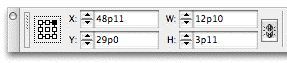
Now you can use the number keys to select a point on the grid. They’re mapped like so:
7 8 9
4 5 6
1 2 3
Alternatively you could use the arrow keys to move from point to point.
When you’ve got the point you want, press Tab to move the focus to the next field in the palette, in this case, back to the X position field in the Control palette.
Use Tab and Shift-Tab as usual to navigate around the palette until the focus is on the field you want, enter a measure, and press Return/Enter to “make it so!”. (Or use Shift-Return/Shift-Enter to “make it so” but keep the focus on the field in case you change your mind.)
This article was last modified on December 18, 2021
This article was first published on June 20, 2006
Commenting is easier and faster when you're logged in!

Recommended for you

Photoshop Downloadable: Top Tips Ebook
A compendium of CreativePro tips, tricks, and techniques for Adobe Photoshop

How to Solve Typographic Widows and Orphans
Discussions of typographic widows and orphans normally start with an argument ab...