


InReview: MindSuite Pro
Master collection of linguistic products includes grammar checking, a thesaurus, plus additional spelling and hyphenation tools.

This article appears in Issue 96 of InDesign Magazine.
You’ve probably seen the funny phrase about the importance of proper punctuation: “Let’s eat Grandma!” vs. “Let’s eat, Grandma!” The point is, punctuation matters. Language is important! Every day we mix letters, words, and punctuation to communicate and, increasingly, we do so in multiple languages. The more you can communicate, effectively, whether in English or Uzbek, the more value you will add for your clients and to your company. If your language needs are greater than InDesign/InCopy’s built-in support of 30+ languages, consider MindSuite Pro from Mindsteam Software, a company that specializes in multilingual publishing.
MindSuite Pro is a collection of Mindsteam Software’s linguistic plug-ins for InDesign and InCopy, consisting of five plug-ins:
- MindGrammar Pro
- MindSpell Pro
- MindHyph
- MindThes
- LanguageLamp Pro
Collectively, these plug-ins give you advanced control of the words, textual structure, and languages in your documents beyond what InDesign provides on its own. MindSuite Pro is available directly from Mindsteam’s website or from the Adobe Add-ons plug-in store.
MindSuite comes in a “non-Pro” version as well, but the Pro version integrates with InDesign’s Preflight feature. This integration, as you’ll see below, is helpful for identifying grammatical errors (MindGrammer Pro), spelling errors (MindSpell Pro), and language rules (Language Lamp Pro).
The first thing you’ll notice after installation is a new “Mind” menu in the InDesign menu bar (Figure 1).
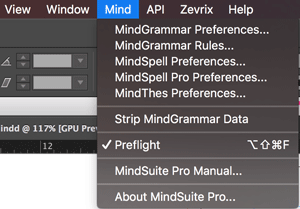
Figure 1: MindSuite Pro adds a “Mind” menu to the InDesign menu bar for quick access to the suite’s features.
This menu allows you to access MindSuite Pro’s preferences, toggle the Live Preflight option, and open the MindSuite Pro manual. Selecting one of the preferences in the menu bar will bring
up the corresponding section in the InDesign program preferences (Figure 2).

Figure 2: MindSuite Pro adds various preferences to InDesign where you can configure its features.
Let’s take a look at each of the components inside MindSuite Pro, one at a time.
MindGrammar Pro
The MindGrammar Pro plug-in adds an English-language grammar checker to InDesign, much like Microsoft Word’s grammar checker. As InDesign has no built-in grammar checking capability, this is extremely helpful not only for finished documents, but for those people who write all their content in InCopy/InDesign. Particularly helpful is the Dynamic Grammar Checking, which gives you suggestions as you type. When MindGrammar finds a questionable grammar choice, it will underline the text with a user-definable color. Right-clicking the underlined text will tell you what error MindGrammar has identified, giving you the choice to ignore it or fix it (Figure 3).

Figure 3: MindGrammar indicates grammar errors with a wavy underline in the color you choose from its preferences.
You can also select a more detailed explanation about the grammar in question, but unless you’re an English teacher (and if you are, you’re likely not in need of MindGrammar), that explanation may not always clear things up for you (Figure 4).

Figure 4: MindGrammar’s detailed explanations, while technically correct, are not always “user-friendly.”
One interesting aspect of MindGrammar is the Confidence Level value. Within the MindGrammar Rules preferences, you can set a Minimum Confidence Level required in order to display the grammar error in your document. By default, 0 is entered, which means it will display all errors. The Confidence Level can be between 0 and 100, with 100 representing extremely high confidence, while 10 would be very low confidence (Figure 5).

Figure 5: MindGrammar’s comprehensive grammar categories
As you can see from the MindGrammar Rules preferences, with over 30+ rules, there’s no shortage of grammar guidelines the plug-in will check for.
As with the other “Pro” plug-ins in the suite, MindGrammar Pro allows you to set up Preflight rules for checking your document (Figure 6).
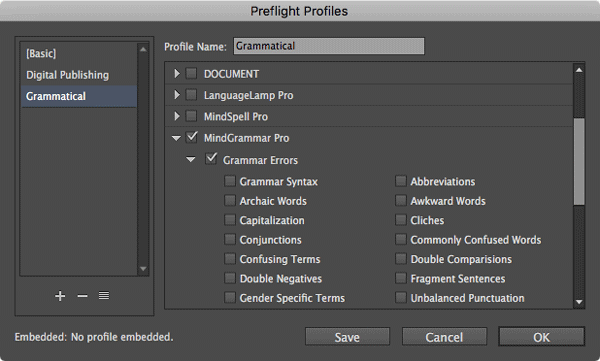
Figure 6: The Pro versions of the MindSuite plug-ins add Preflight capabilities.
Once defined, you can use the Preflight panel to step through any errors in your document. Errors are grouped alphabetically by sub-rule name under the MindGrammar Pro heading. The number in parentheses after each rule is the number of errors found for that rule or sub-rule (Figure 7).
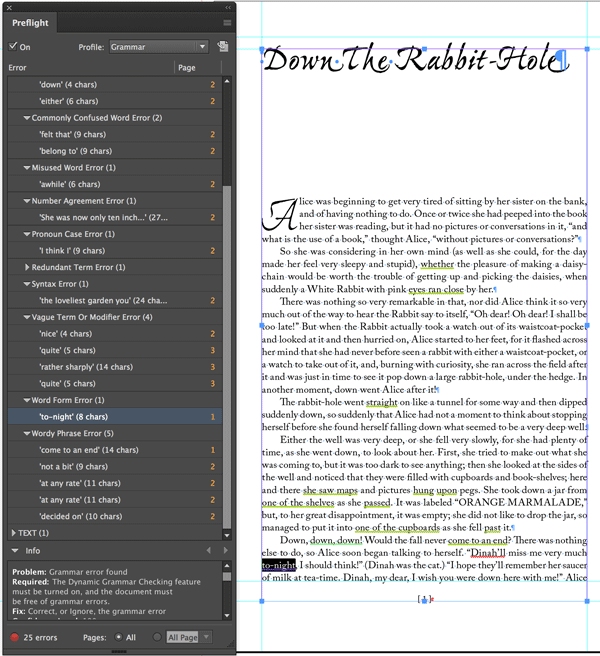
Figure 7: The Preflight errors MindGrammar Pro encountered.
And, as with all preflight profiles, you can generate a PDF report of the grammatical errors MindGrammar Pro encounters.
I experienced a couple of problems with MindGrammar Pro. If you look closely at the proposed grammar correction in Figure 3, you can see there are two spaces between the words “packed” and “their.” Sure enough, when I selected that correction, the extra space was added, correcting one error but introducing another. I also wish there was a way to sync the grammar categories you select in the MindGrammar Rules Preferences to the ones in Preflight. Currently, they must all be checked on or off individually in both areas, making for a lot of clicking… you can’t even Shift-click to toggle them all on/off. And while I applaud any attempt to improve the way one writes, the English language is so nuanced, it’s doubtful any program could perfectly analyze and correct all situations. As you can see in Figure 8, MindGrammar Pro totally missed the sentence “Were putting are bags over their.” (For what it’s worth, so did Microsoft Word). There’s just no substitute for knowing how to write and use words correctly.
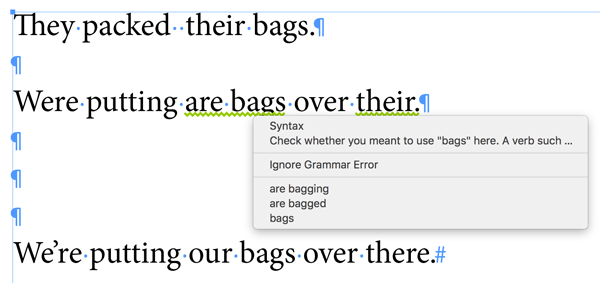
Figure 8: Error fixed, error introduced, error missed.
MindSpell Pro
In its early years, InDesign shipped with only the Proximity dictionary format for use in spelling and hyphenation verification. With the introduction of CS5.5, the open-source Hunspell dictionary service was added, and became the default with CS6 (see sidebar “Understanding Dictionary Services”). MindSpell adds two more options: the MindSpell service (a modified version of Hunspell), and the GNU Aspell service, providing spell checking support for over 140 languages. Need to set some Icelandic, Faroese, or Gaelic text and verify its spelling and hyphenation? By itself, InDesign can’t help you, but MindSpell has you covered.
To be clear, MindSpell doesn’t ship with the dictionaries for all these languages; it merely provides the spell checking support once you have installed the language you need. Installing additional language dictionaries for use in InDesign is an incredibly convoluted process (Sandee Cohen does an excellent job of describing the process in this article). Fortunately, it’s much easier using MindSpell. Once you install your new language dictionary in the proper MindSpell folder (Figure 9), a restart of InDesign is all it takes to start using the new dictionary.
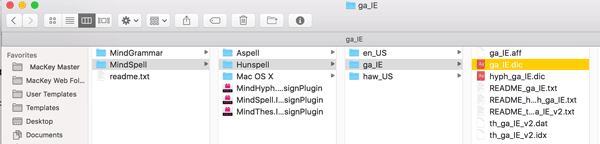
Figure 9: Installing a new language dictionary (Irish) for use with InDesign.
To take advantage of MindSpell, simply enable one of InDesign’s spell checking methods, either Dynamically, with its wavy red underlines (Edit > Spelling > Dynamic Spelling) or via the Check Spelling dialog box (Edit > Spelling > Check Spelling). InDesign will identify unknown/misspelled words and give you options for correcting/adding/ignoring them. The MindSpell Preferences allow you to choose which spelling services to use, give you some spell check options, such as whether to ignore uppercase words, and provide a technical option on how language names should appear (either as InDesign language names or International Components of Unicode [ICU] language names).
To test MindSpell, I went to the Open Office website and downloaded and installed the Gaelic (Irish) dictionary. As you can see in Figure 10, the Dynamic Spelling found no spelling errors in the Irish text of the top paragraph, but because the bottom paragraph’s language was also set to Irish instead of English, almost all of it was highlighted as spelled incorrectly.

Figure 10: Using Dynamic Spelling with Mindspell to spell check Irish text.
After altering one of the Irish words, I used the Check Spelling command, and MindSpell correctly identified the unknown word (Figure 11).
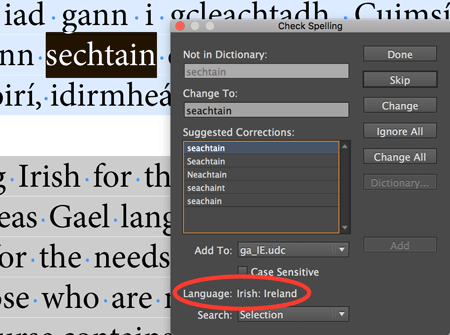
Figure 11: MindSpell identifies an unknown word. Note the Language setting set to “Irish: Ireland.”
Finally, as with MindGrammar Pro, MindSpell Pro adds Preflight Rules support, allowing you to navigate to and correct errors using the Preflight panel. Note that MindSpell also has scripting support.
MindHyph
The MindHyph plug-in implements the “Hyphen” hyphenation service—a related project to the Hunspell dictionary project—with support for more than 50 languages. After you install it, you have to activate MindHyph in the Dictionary panel of the InDesign/InCopy Preferences dialog box. (You can use only one hyphenation service per language at a time.) First, choose the language you wish to work with; then, in the Hyphenation menu, choose MindHyph. After you set the preferences, you will need to quit and restart InDesign, which allows the linguistic manager to register the languages and hyphenation services (Figure 12).
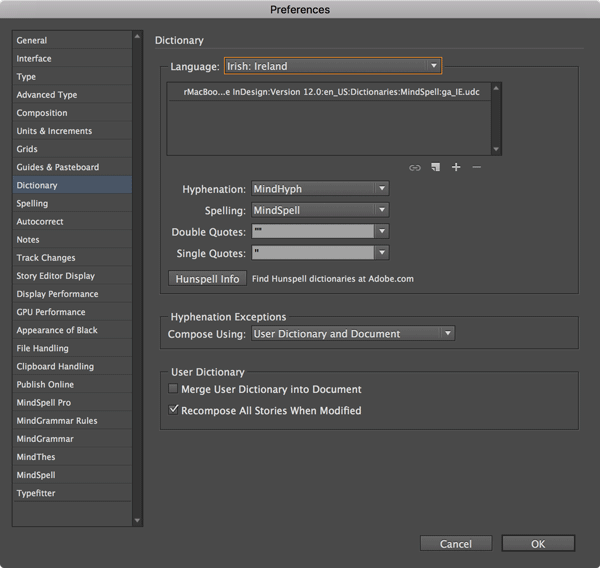
Figure 12: Setting the Hyphenation Service for Irish.
After you set up the languages, MindHyph works just like the built-in hyphenation for InDesign. You can open the Dictionary dialog box and hyphenate words with the Hyphenate button, and use the Paragraph panel to define hyphenation parameters. For example, in the top paragraph of Figure 13, with the language set to Irish, the text is properly hyphenated. In the bottom paragraph, filled with Irish words but whose language is set to English, InDesign can only guess where hyphenation should occur.
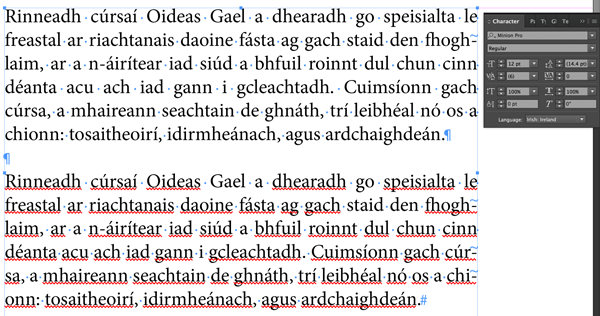
Figure 13: MindHyph can properly hyphenate the words of the top paragraph, as the language is properly set to “Irish: Ireland.” The language of the bottom paragraph is set to “English: US”, so InDesign can only guess hyphenation
MindThes
MindThes is a fully integrated thesaurus plug-in for InDesign and InCopy, with support for over 30 languages, giving you right-click access to both synonyms and antonyms inside your documents. Looking back at Figure 9, the bottom two files listed in the last column are the thesaurus files that are included in the Irish dictionary service. However, these files were not named properly to work with MindThes. Only after I changed their names to thes_ga_IE.dat and thes_ga_IE.idx (which was explained in the MindSuite Pro manual) was I able to access the thesaurus functionality. Once I did, I was able to select some of the Irish words and view possible synonyms and antonyms for them. (Unfortunately, as I don’t speak Irish, I can’t verify the quality of the results.)
As you can see in Figure 14, MindThes will sort the synonym/antonym menu by meaning found for the lookup word. You can control this in the MindThes preferences—when unchecked, the synonyms or antonyms will display as a list.
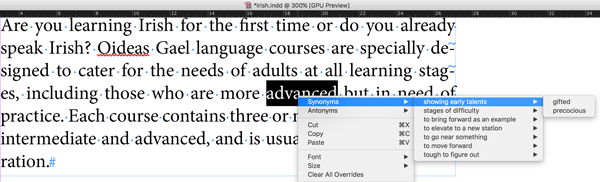
Figure 14: MindThes adds thesaurus functionality to InDesign, listing synonyms and antonyms for selected words.
LanguageLamp Pro
One of the great challenges of working with multilingual documents is being able to see where in the document—or even within each paragraph or sentence—each language is being used. The LanguageLamp plug-in allows you to apply a highlight color to the languages applied to text in your document so you can verify you’re applying the correct spelling and hyphenation. You use the LanguageLamp panel to view all the languages used in your document or current text selection (Figure 15).
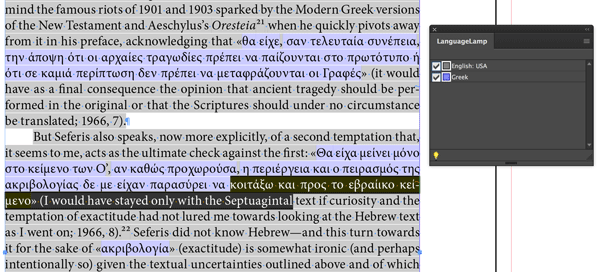
Figure 15: LanguageLamp highlights the Languages applied to text in my document.
The Lamp icon in the panel’s lower left corner turns highlighting on or off globally, but highlighting can be toggled individually by checking the box next to each language’s name. If you don’t like the highlight colors it chooses, you can change them by double-clicking the color box and selecting a new color. There’s also a command to print the highlight color or export it when generating PDFs.
Once again, LanguageLamp Pro expands the features of LanguageLamp by adding support for Preflight rules. There are three rules associated with the LanguageLamp Pro Preflight category: Allow Language, Allow Spelling Service Provider, and Allow Hyphenation Service Provider. For each rule, you define which languages you want to allow in your document by selecting them from the drop down-menu (click the information icon to see the menu as shown in Figure 16).
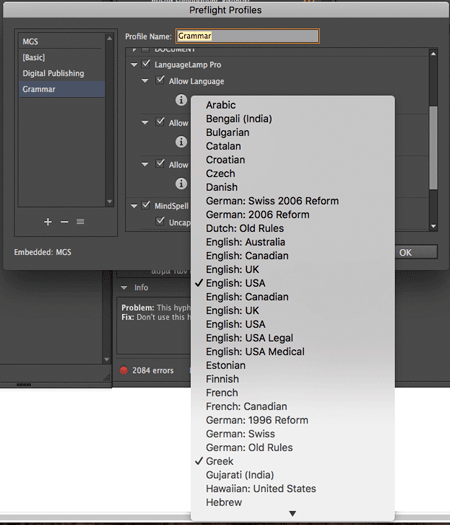
Figure 16: LanguageLamp Pro adds Preflight support to InDesign.
Once you have defined your preflight rules, you can use them to navigate to errors by clicking the error in the Preflight panel.
Final Thoughts
MindSuite Pro is a great collection of language-related plug-ins that adds missing functionality to InDesign, especially in multi-language environments. If you use InDesign less as a design tool and more as a writing or editing tool, or if you’re an InCopy user dealing with multiple languages, definitely give MindSuite Pro a closer look.
Jamie McKee has been designing books/journals and setting type for over 20 years, getting his start at Indiana University Press. His clients still include Indiana, as well as Duke University Press, Johns Hopkins University Press, University of Wisconsin Press, and Cambridge University. You can find out more about him at mackeycomposition.com.
Summary
Mindsteam Software
Price: $199.00 for Mac and Windows CS3 through CC 2017
Rating: 4 out of 5 stars
Commenting is easier and faster when you're logged in!

Recommended for you

Missing Glyphs
InDesign shows missing glyphs as pink boxes. The script can be used to list all...
Get Hyphens
The script collects the hyphenated words in a document and lists them in a new d...

Preflighting in InDesign and Adobe Acrobat
Creating documents that print smoothly and that look as good in print as they do...