



InDesign lets you create multiple Tables of Contents within a book or a document. Anything that uses a paragraph style can be defined as a TOC entry, and you can have as many as you want in a document.
This is useful when you have to include a bibliography or a list of tables or illustrations. Multiple custom content lists like this are easily managed using different named TOC Styles (not be confused with Object, Table, Cell, Paragraph or Character Styles), which are saved with the document.
I’m working on a set of volumes, each containing many individual articles on related topics. The Appendix includes an alphabetized list of article titles, created using a custom TOC Style. Here are the two TOC styles, one for the main TOC (HCA Volumes) and the other for the appendix (Alpha List of Articles).

Naturally, the main TOC must include the alphabetical list as an entry. The obvious way to do that is to tell InDesign to use the title style for the list.

When we generate the main TOC, however, the spiffy new alpha list is missing.
 The reason is that InDesign ignores any existing TOC when it’s creating a new one. In most cases, that makes sense: you don’t want “Table of Contents” to appear as an entry in the Table of Contents itself, even if its title style is one that’s also used elsewhere in the document to create the TOC. But in this situation we do want that alpha list to show up.
There are two ways around this. You can add the item’s title to the page, but in a hidden text frame, a hidden layer, on a non-printing layer, or out on the pasteboard with just part of the text frame touching the page. InDesign will happily add that to the TOC. Or you can put the title in its own independent frame, and omit it from the TOC itself by deleting the contents of the Title field in the TOC Styles panel.

In either case, it will now show up correctly in the main TOC:

This article was last modified on June 24, 2020
This article was first published on June 1, 2015
Commenting is easier and faster when you're logged in!

Recommended for you

How to Incorporate Chapter Thumbnail Images into an Auto-Generating Table of Contents
How you can make a table of contents with thumbnail images (and avoid a horrible...

How to Add a Special Character in Front of a Numbered List
Recently, an excellent question came up on the InDesignSecrets forum. I have a n...
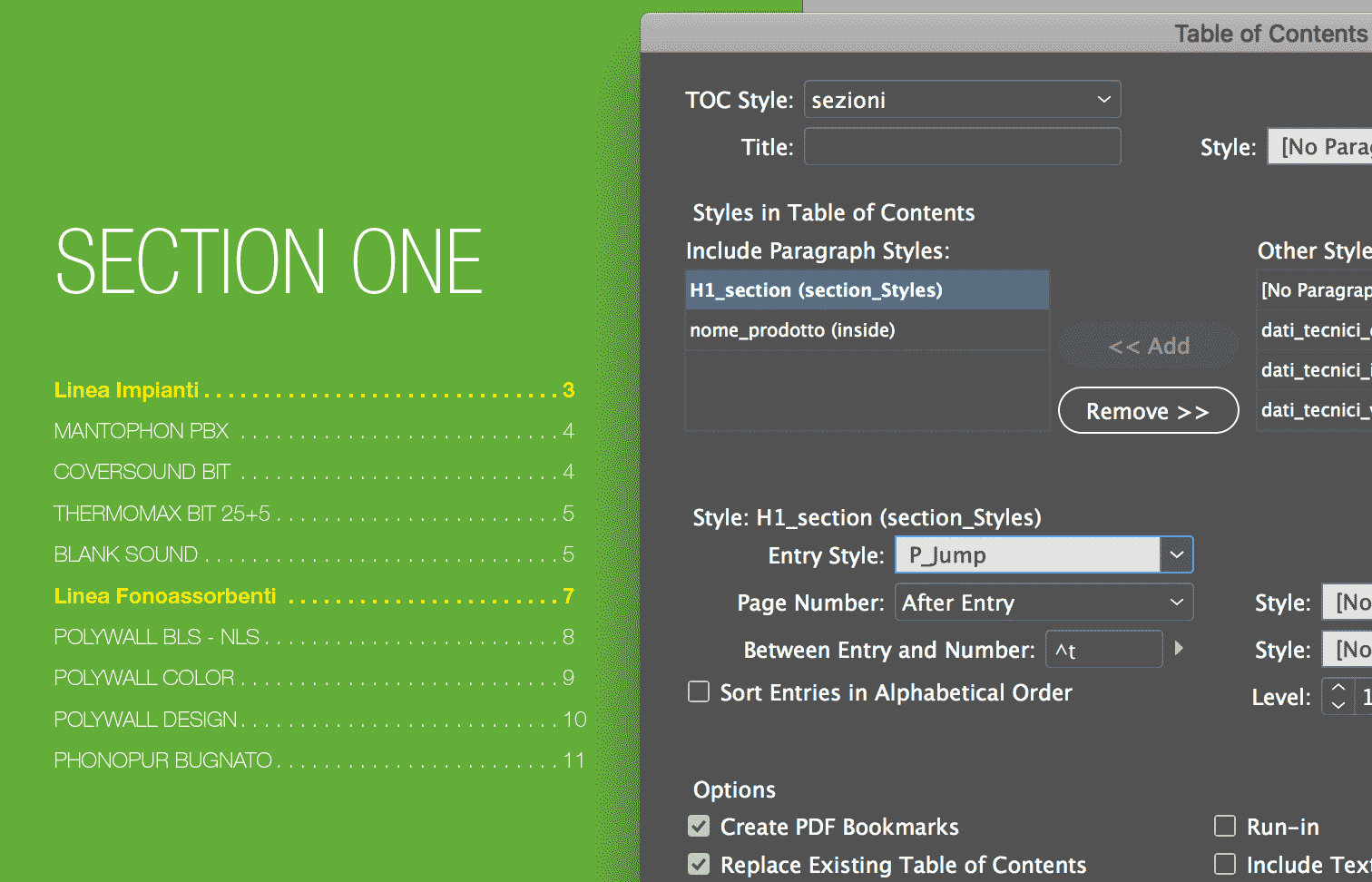
Creating a Table of Contents for a Subsection of a Long Document
I work with a lot of long documents, and here’s a question I often get fro...