




These InDesign keyboard shortcuts for positioning text are not only fast, but they’re fun to do, too—so try ’em out!
1. Leading: To increase leading, select the text then press Option+Down arrow; to decrease leading, use Option+Up arrow.
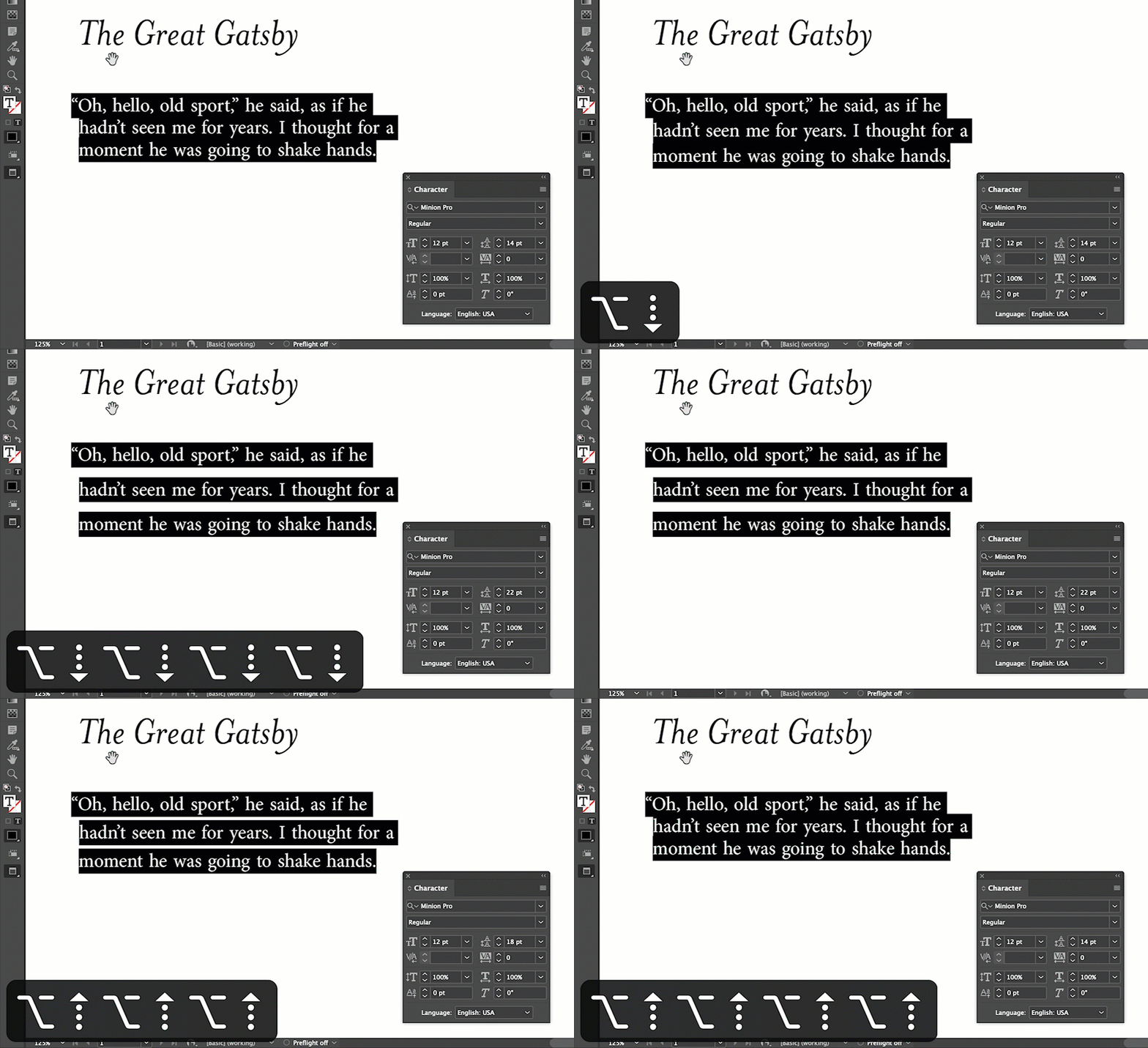
2. Tracking: To increase tracking, select the text then press Option+Right arrow; press Option+Left arrow to decrease it.

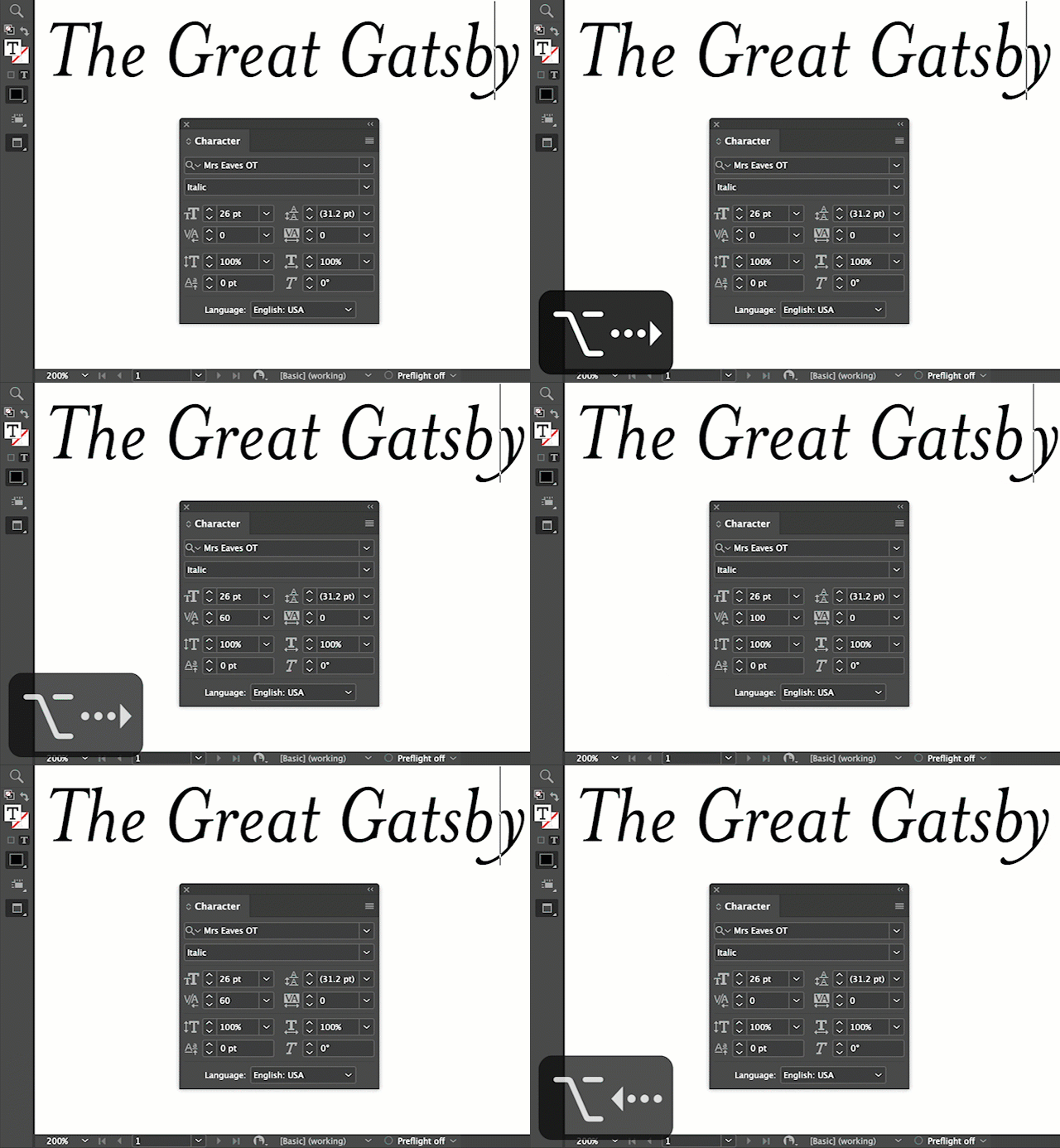
3. Kerning: To increase tracking, place your cursor between two characters then press Option+Right Arrow; press Option+Left Arrow to decrease it.
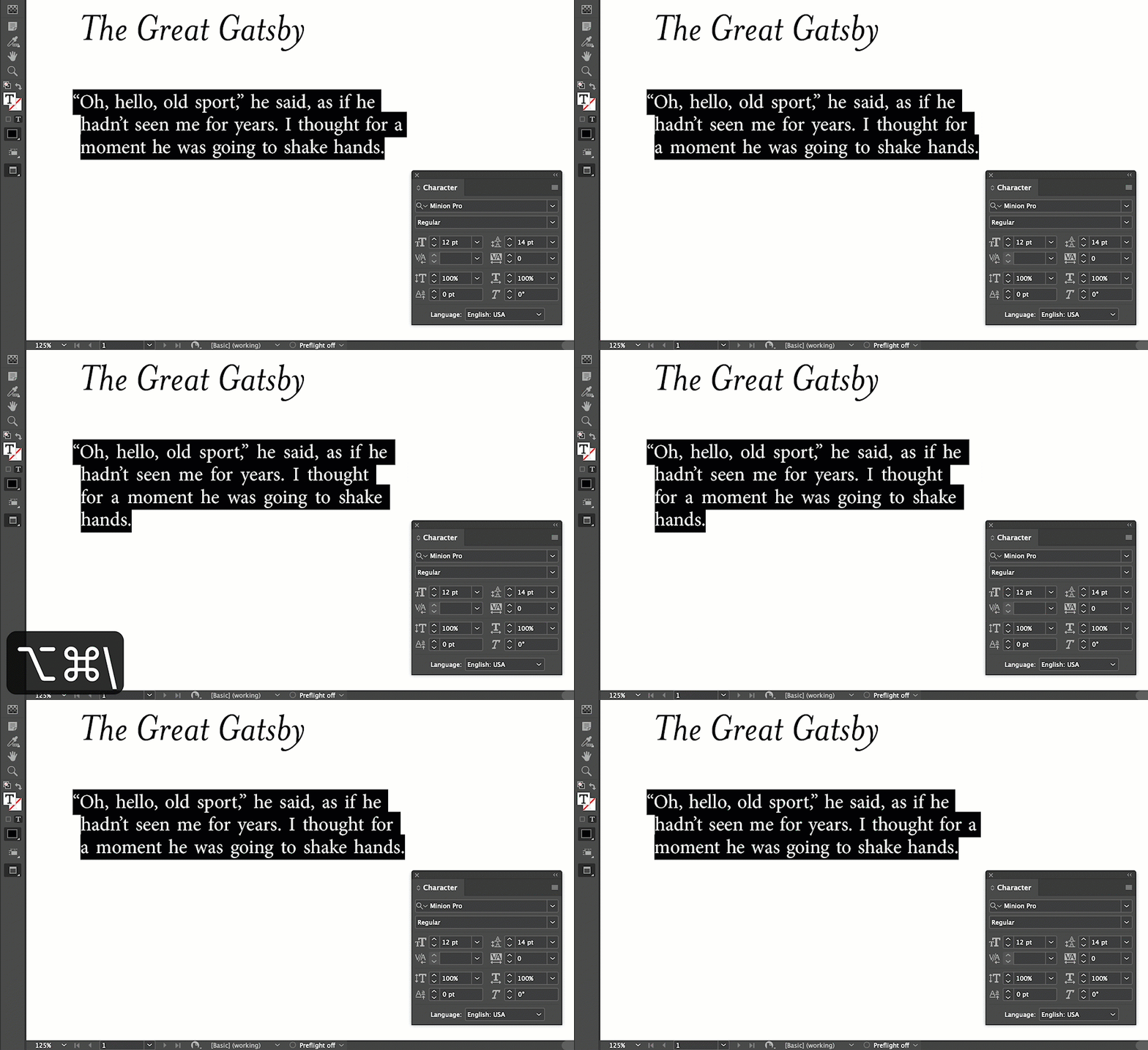
4. Word Spacing: To change spacing between words (but not the characters within those words), press Command+Option+\ to increase word spacing; press Command+Option+Delete to decrease it.
This article was last modified on February 16, 2022
This article was first published on February 16, 2022
Commenting is easier and faster when you're logged in!

Recommended for you
Tips and Tricks: Spring 2023
Make your work go faster and get better results with these quick tips.

10 Essential Tips for Working with Styles in InDesign
Use these 10 important tips to get the most out of text styles in InDesign.
How to Set Default Shapes, Lines, and Text Box Styles in PowerPoint
One way to make working in PowerPoint smoother is to set default shapes, lines,...