


InDesign 101: Character Styles
Learn the right way to control text formatting at the character level in InDesign.

This article appears in Issue 72 of InDesign Magazine.
How much do you know about using character styles—the “little sister” to paragraph styles? The more you know, the faster you will work. I confess that I don’t often spend as much time as I should teaching character styles. There’s so much that I want my students to learn about paragraph styles that I sometimes gloss over the intricacies of character styles. So consider this my apology and makeup lesson.
What are styles?
First, let’s take a quick refresher on what styles are and why you want to use them… religiously! Styles are simply sets of instructions that allow you to format text, tables, and objects consistently throughout a document—or many documents. For instance, a paragraph style defines a range of text formatting. Similarly, InDesign has object styles that can be used to capture and apply the fill, stroke, corner effects, and much more to objects. Cell styles are the instructions for formatting table cells, and table styles are the instructions for formatting all the parts of a table. InDesign has specific panels for all of its style controls. They are located under Window > Styles (Figure 1).
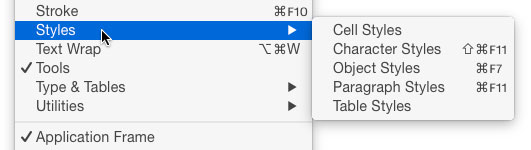
Figure 1: You can open the Character Styles panel by choosing Window > Styles > Character Styles.
Paragraphs vs. Characters
When you format text, you’re actually applying two different types of controls: paragraph and character attributes. Paragraph attributes always apply to an entire paragraph—such as the alignment of a paragraph (left, centered, or justified). If you want one line centered and another left-aligned, you need to divide those lines
into two different paragraphs. However, formatting such as text size or color are character attributes, because you can apply them at the character level—for example, you can have black text next to red text within the same paragraph. InDesign’s Control panel is divided into separate areas for character and paragraph formatting. When the Character Formatting Controls button (“A”) is selected on the far left side of the panel, InDesign displays the character attributes on the left side of the panel and paragraph attributes on the right (Figure 2). Click the Paragraph Formatting Controls button (“¶”), and the two sets of attributes switch places.

Figure 2: The division of character and paragraph formatting in the Control panel.
When To Use Which
When you define a paragraph style, you’re defining everything about the appearance of text in a paragraph. Since characters are contained in paragraphs, you have to define the character attributes as part of the paragraph style (Figure 3). You should use a paragraph style when you want to change the formatting for all, or virtually all, of the text in a paragraph.
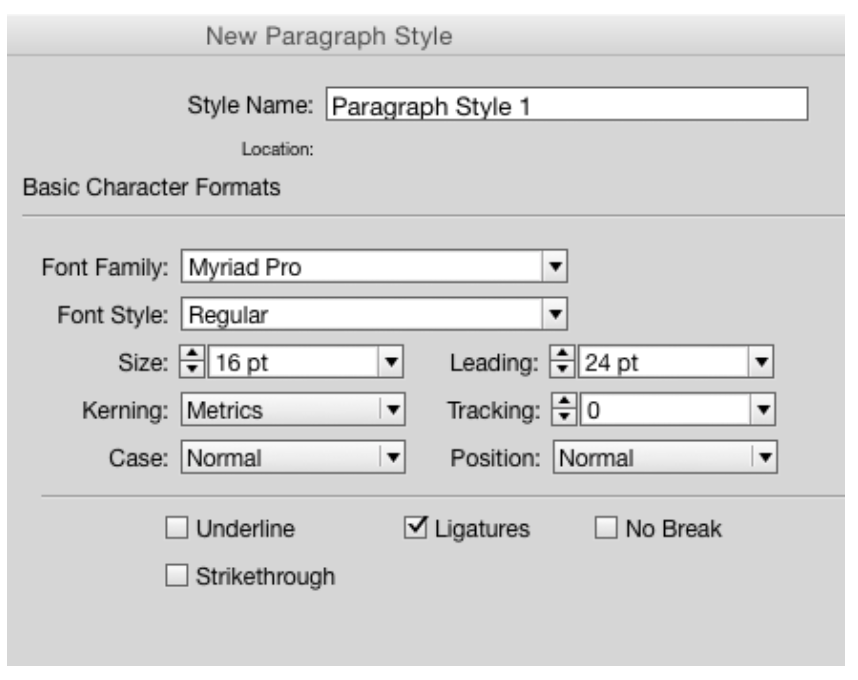
Figure 3: Character formatting controls can be included in a paragraph style.

Figure 4: The proper use for a character style is to apply the style to small bits of the text in the paragraph.
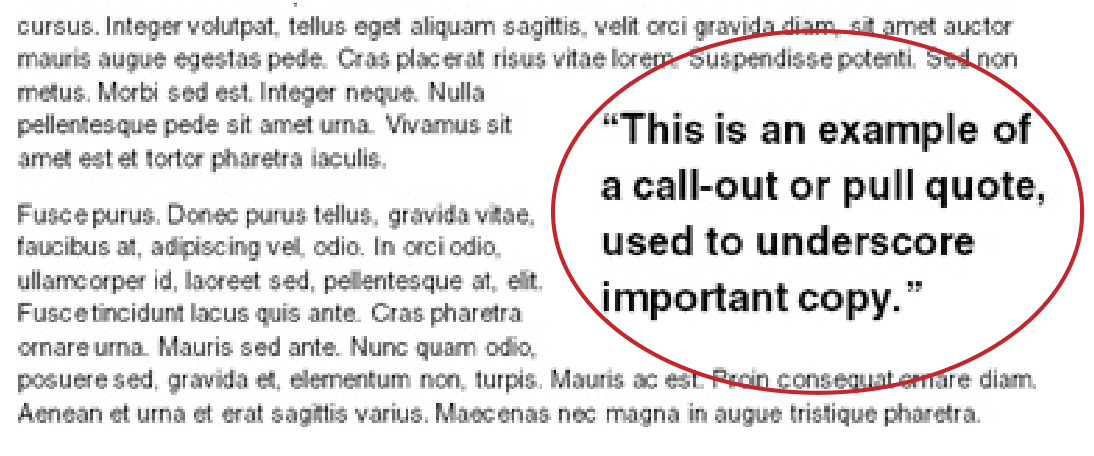
Figure 5: The all-bold text of a pull-quote should not be formatted with a character style; rather, it should be in the paragraph style definition.
Creating a character style
My favorite way to create a character style is to start with a paragraph style applied to text. Then, I select some text within the paragraph and style it with the local formatting that I want for the character style. Most times it’s something like italic or bold. When I apply this local formatting, a plus sign (+) appears next to the paragraph style name. This indicates that manual character formatting—not a character style—has been applied (Figure 6).
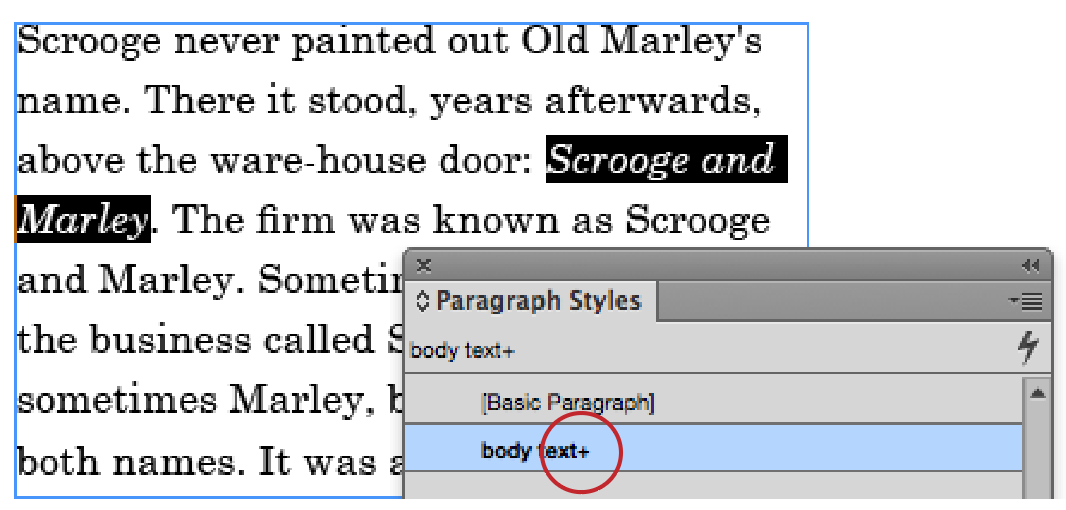
Figure 6: The first step to creating a character style is to format the text with local formatting, which will be indicated by a plus sign (+).

Figure 7: Local formatting applied to text is automatically picked up in the New Character Style dialog box.

Figure 8: Only the minimum character attributes should be defined as part of the character style.
When character-styled text goes pink
You may be familiar with the “dreaded pink text.” It can happen when you open a document from someone who used fonts you don’t have. All the text is highlighted in a non-printing, pink color that means the specified font is not available, and InDesign is currently using a substitute font. (It can also indicate that a particular character is not available in the currently selected font.) The fix is to get that font or apply another font to the text. There’s also another way to see the dreaded pink text, and it has to do with applying character styles. Let’s say your paragraph style uses Futura Book for the main text. There is no italic version of this font. Rather, there is a version called Book Oblique. So the character style for italicized content would need to specify Book Oblique in the Font Style field. But what happens if you apply that character style to text, and then change the paragraph style from Futura Book to, say, Arial Regular. The Arial family uses the name “Italic,” not “Oblique,” so when InDesign tries to apply the “oblique” character style to Arial, the text becomes pink, indicating the font is missing or unavailable (Figure 9)—that is, InDesign is trying to find an “Arial Oblique,” which doesn’t exist.
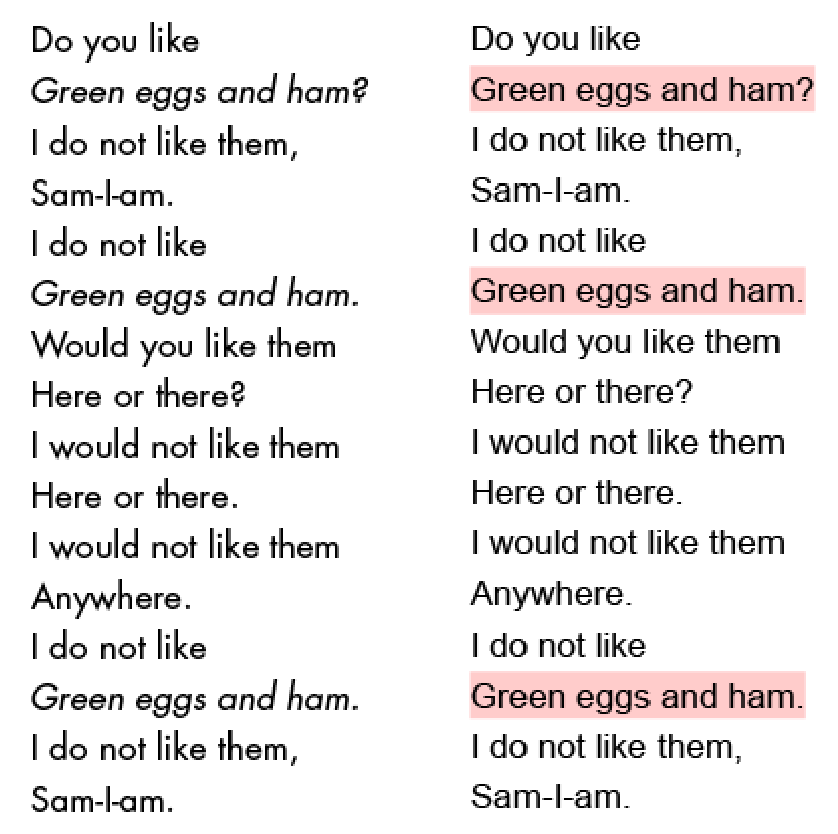
Figure 9: The Book Oblique character style for Futura turns into missing (pink) text when the paragraph style is changed to use Arial.
Redefining a character style
Changing the definition of a character style is easy. Right-click the name of the style in the Character Styles panel, choose Edit, and make your changes in the Character Style Options dialog box. Or, if you want to skip the dialog box, just select some text with the character style applied to it, and change it. Because there is now “local formatting” on the text, you’ll see a plus sign (+) next to the character style name in the panel. Choose Redefine Style from the Character Styles panel menu, and the updated style definition changes throughout the document.
Applying character styles
You don’t have to use the Character Styles panel to create or apply character styles. There are plenty of places in the program where you can apply a character style as part of paragraph style formatting. A list can have a character style automatically applied to the bullet or number. Character styles can be applied to page numbers and dotted leaders in a table of contents. You can specify a character style to be applied automatically when you create hyperlinks. Also, drop caps, nested styles, line styles, GREP styles, and cross-references all let you apply character styles automatically to text. And, since CS4, InDesign has offered the ability to create a new character style while you’re using paragraph style options like nested styles, GREP styles, bullets, and numbering. In the Character Style menu, just scroll down past all the existing styles, and choose New Character Style (Figure 10).

Figure 10: You can use the Character Style menu to create a new character style even if you are working on the attributes of a paragraph style.
Hidden character styles
You might be confused one day when you click on some text that looks like it must be formatted with a character style, but nothing is selected in the Character Styles panel. What has happened is the paragraph style includes a nested style, line style, or GREP style. A character style is applied, but since it’s applied automatically via a paragraph style, it’s listed only at the bottom of the Character Styles panel, preceded by a paragraph symbol: ¶ (Figure 11).

Figure 11: Look at the bottom of the Character Styles panel to find what character formatting has been applied to the text. In this case, a character style called “First line” has been applied.
But wait… There’s more!
Fortunately, I don’t have to write up every tip and trick about working with character styles. The topic is so deep that there have been many terrific posts on InDesignSecrets.com. For example: Basing one style on another. Just as with paragraph styles, you can base one character style on another. This makes it possible to use one character style as a “master style” for several others. I wrote up a blog post last year that shows how to use this technique to turn underline options on or off for several other character styles. Basing a Paragraph Style on a Character Style. One day you might want to create a paragraph style with all the attributes of a character that you’ve used. Unfortunately, there’s no “official” way to do that. Fortunately, David Blatner knows an unofficial way. Applying [None] with a keystroke. I often find that I pick up a character style when I start typing after inserting a character style into text. This often happens when the text is at the end of a sentence and I don’t want a question mark to be italicized. What I want is to get back to [None], meaning no character style, with a single keystroke. While I know I can do it with Quick Apply, I want to apply a keystroke like I can for any other paragraph or character style. But the [None] style in the Character Styles panel has a slashed pencil next to it. That pencil indicates the style is locked and there’s no way to edit it to apply a keystroke. Never one to let “no way” get in her way, Anne-Marie Concepción wrote up some techniques to get around that limitation. Character styles for everything? Arrrgh! Some people are downright bizarre when it comes to how they use character styles. Anne-Marie Concepción describes some documents she has seen that have only one paragraph style, and character styles formatting everything. Here’s the post where she described how to fix that nightmare. And about 1,000 things more! There’s no way I can cover everything about character styles. If you want to learn more, just do a search here at CreativePro and you’ll find over a thousand results. No matter what your questions about character styles are, you’re sure to find an answer in that list.
Commenting is easier and faster when you're logged in!

Recommended for you

Scripted Style Lists
Did you ever want a list of a document's paragraph styles where each style name...

Now available: GREP in InDesign, 3rd Edition
Learn how to harness the power of GREP in InDesign to supercharge your work. And...
How to Create a Vertical Timeline and Automate It in InDesign
Learn how to set up a vertical timeline in InDesign that can be formatted in jus...