



One of the cool new features in the 2014 release of InDesign CC is the way transparency effects are handled when you scale them. Now, by default, effects like Drop Shadow, Bevel and Emboss, and others will scale right along with the object they are applied to.

Objects with Effects: Original size

Objects with Effects: Scaled to 50%
And if you open the Effects dialog box, you’ll see that the values are adjusted in accordance with the scaling you applied. For example, when you scale an object with a 7 px drop shadow up to 200%, the drop shadow grows to 14 px.
Previously, the situation was a bit confusing, since effects wouldn’t scale at all by default. You had to change the preference for Object Editing to Adjust Scaling Percentage. And then, even though the appearance of scaled effects was what you would expect, the values in the Effects dialog box were unchanged. That scaled 7 px drop shadow appeared to be 14 px in size, but the dialog box said it was still 7 px.
Now, you have three options under General preferences in InDesign CC 2014:
Scale effects along with the object (the default)

Do not scale effects
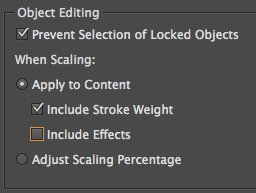
Scale effects the “old fashioned” way, by scaling percentage.

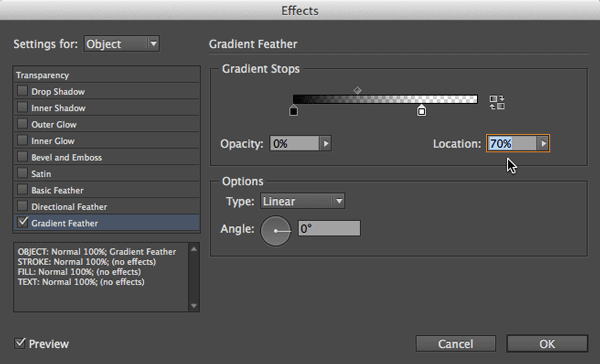
Also note that the Gradient Feather effect is handled differently from the rest. Changing preferences has no effect on the appearance of gradient feathers because the Location value of each gradient stop and midpoint is set as a percentage of the size of the object. So gradient feathers will always scale in proportion to the object, regardless of the preference setting.
If you want to see the new effects scaling in action, check out the free InDesign FX video, Creating a Blue Ribbon at lynda.com

This article was last modified on July 25, 2019
This article was first published on August 20, 2014

Recommended for you

Creating Dramatic Circular Text Effects in Photoshop
Learn two methods for creating circular text in Photoshop, plus how to enhance t...

Tip of the Week: Placing One Image into Multiple Frames
There are three new Links panel icons in InDesign CC that you'll see when workin...

InDesign Nightmares
Terrifying tales of the evil that lurks in some InDesign files, and how to survi...
Comments are closed.