I love it when I learn how to do something that can’t be done. Even if it’s a workaround — a kludge, a hack, or whatever you want to call it. I walked into Mike McHugh’s images session at The InDesign Conference today for 2 minutes and saw him present something I didn’t think was possible: Using the flexibility of a Camera Raw file inside an InDesign document. It’s a simple trick but has wonderful applications because Camera Raw incredibly flexible and lets you make radical changes to your image with no image degradation.
Here’s what you do: When you open a Raw file in Camera Raw (either via Bridge or directly inside Photoshop), you can make any global edits you want. You’ll notice that in the lower right corner, there is a button labeled Open Image. If you click that, you’ll open the image in Photoshop. Don’t do that. Instead, press the Shift key and the button changes to Open Object. If you Shift-click, the Raw file is embedded into a Photoshop file as a smart object layer.
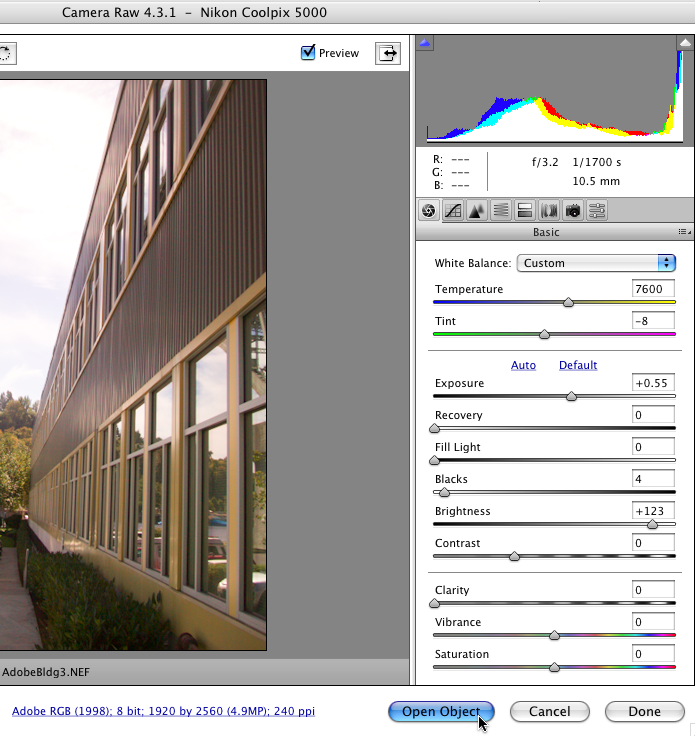
Now you can save your file as a regular Photoshop PSD file and import it into InDesign! Okay, so we didn’t really import the Raw file into InDesign — we imported a PSD file. But you still get all the benefits of Camera Raw: If you want to change your Camera Raw settings, just Option/Alt-double-click on the image in InDesign. That opens it in Photoshop. Then double-click on the layer thumbnail in Photoshop and Camera Raw opens!
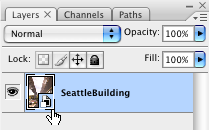
Make the change, click OK, press Command/Ctrl-S to save the file, switch back to InDesign, and the image is updated.
I knew the basics of using Camera Raw files as smart objects before, but for some reason I never put 2 + 2 and saw how this would help in InDesign. Thanks, Mike!
By the way, Michael Stoddard reminded me that you can also click the blue text along the bottom of the Camera Raw dialog box to open the Workflow options dialog box. That offers a checkbox to make the button always show Open Object (so you don’t have to hold the Shift key down to get a smart object).
This article was last modified on December 19, 2021
This article was first published on June 17, 2008
Commenting is easier and faster when you're logged in!