


Identifying Fonts
New artificial intelligence software (and some good old-fashioned human knowledge) can help you identify a mystery font, as Steve Werner explains.


This article appears in Issue 111 of InDesign Magazine.
It’s an old problem in graphic arts: You or your client see a typeface you would like to use for your project… it’s on a website, or in a magazine or book… but you haven’t the faintest idea of what font was used by the original designer! How do you identify the font?
In the pre-Internet days, you had to rely on tedious and time-consuming methods, such as poring over thick and expensive catalogs, like Rookledge’s International Typefinder, trying to match the font by its visual characteristics. Then, starting in the 1990s, you might find an online bulletin board or forum where type experts could try to identify it for you from a picture. But today, I want to tell you about some of the many options at your fingertips for identifying the fonts around you.
Step-by-Step Identification
Beginning about a decade ago, websites started to use categorization software to help you identify a font. One of the earliest was called WhatTheFont at MyFonts.com. This site let you upload an image of your font, and the software would try to identify it, showing you multiple possible font matches. Similarly, the site Identifont.com attempts to match a font after you answer a series of questions about the appearance of the font—like what the letter “J” looks like (Figure 1).
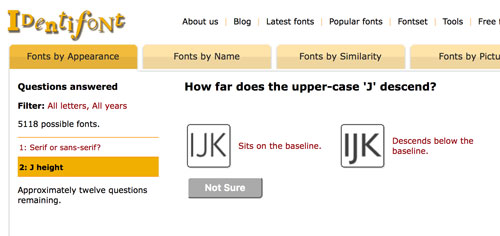
Figure 1. On the Identifont website you can answer a series of questions about a font’s appearance to try to identify it.
The software used by these earlier websites is fairly intolerant of less than perfect images: The type has to be very high contrast on a clean background. If the
type is light on a darker image, you may have to use Photoshop to invert the image, as well as to resample, straighten, and crop it tightly around the type. The letters can’t touch. You may have to manually confirm the identification of each individual letter.
New Tech to the Rescue
These older “field guide” methods are still around, but in the past year or so, new AI (artificial intelligence or machine learning) techniques have been developed by several developers, greatly increasing accuracy and speed of font identification.
In October 2016, at its MAX event, Adobe showed prototypes of new AI technology it called Adobe Sensei to make it easier to edit and manipulate images and help with some other graphics tasks. Then, at the next MAX in October 2017, Adobe showed off more concrete examples which it had begun integrating into various applications. One of these was the ability to identify fonts, which it had integrated into its mobile Adobe Capture CC software and the Typekit website (Figure 2).
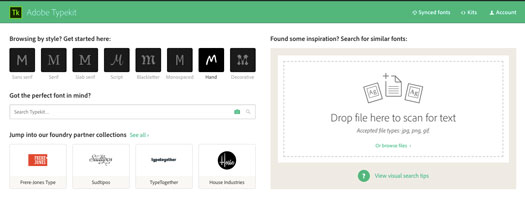
Figure 2. The landing page of Typekit.com prominently features an area where you can drag and drop images of type for the purpose of identifying fonts in them.
Another company working with AI technology is Monotype. They are the owners of the WhatTheFont website and developers of an early iPhone app used to identify fonts. In the fall of 2017, using this new technology, they updated the WhatTheFont app to version 2.0 and released it for both iOS and Android devices. It is now powered by machine learning technology to make identifying fonts faster and more accurate.
Both of these companies are using AI and machine learning in the graphics field as a behind-the-scenes helper. In an article on their website, Monotype claims WhatTheFont is “capable of recognizing over 133,000 fonts, and has learned to do so only after being fed vast amounts of data… [The] team had to take into account that WhatTheFont wouldn’t always be fed crisp, clean images of fonts, but blurry photographs taken from different angles and rotations, and often with the interference of overlays, background images, or minor modifications made by the designer.”
Identifying Fonts Using Phone or Tablet Apps
There are two ways you can use the new machine learning technology to identify fonts—using an app on your phone or tablet or uploading a picture of type to a website using your computer.
Using a mobile device is probably the easiest way for most people because you always have your phone or a tablet with you to take a picture. The software developed a decade ago was slower and didn’t tolerate less than optimum images. These days, the combination of much faster processors on modern phones and tablets and AI technology often makes this approach the best.
There are two primary competitors in this category—the current versions of WhatTheFont from MyFonts.com (Monotype) and Adobe Capture CC.
WhatTheFont app
WhatTheFont is available for download for iOS from the App Store, or for Android devices from Google Play. The interface is simple and easy to use. Here are the steps you would use to identify a font:
1. When you open the app, you’re immediately taken to the camera in your device, so you can take a picture. Alternatively, a button gives you access to your Camera Roll to select an image you’ve already taken. When you click the shutter button, the image is immediately analyzed to find words (Figure 3).

Figure 3. The WhatTheFont mobile app is smart enough to recognize all the fonts on this book cover.
2. A tap of a button at the bottom of the screen takes you to a interface where you can rotate or tweak the angle of the image so the type will be straighter. A second button gives you cropping handles to surround the line of type you would like to be recognized (Figure 4). Click the arrow at the bottom and the app analyzes the image to try to find matching fonts.

Figure 4. WhatTheFont provides tools for straightening the type and cropping the words you want to identify.
3. Several font matches are shown (Figure 5). A display of each font and its name is listed.
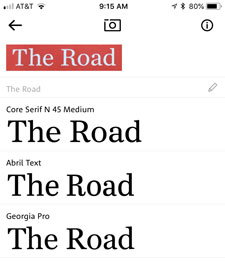
Figure 5. After cropping the type, WhatTheFont provides a list of font matches.
4. When you select one of the matches, you can click the editing pencil and enter new text to display.
5. The app offers links to the MyFonts.com website so you can purchase the font.
This app is very fast and quite accurate. It could find good matches for all the fonts I tried, although the results were not necessarily perfect.
MyFonts.com gives you access to a large library of available fonts. It assumes you’re willing to spend money to buy a font, and not just use a more limited library like an Adobe Typekit subscription offers.
The fact that WhatTheFont is not tied into the Adobe Creative Cloud infrastructure is both good news and bad news. The good news is that you can license the fonts for use perpetually, and don’t need to maintain a subscription. When you click “Buy it at MyFonts,” you’re taken to the MyFonts.com website where you’re given a variety of licensing options, including family packs.
The (slight) bad news is that you need to go through a standard manual font installation process on your computer before you can use the fonts.
Adobe Capture CC app
Adobe Capture CC started life as several separate iPhone apps—such as Adobe Shape and Adobe Color—which used images to capture colors, shapes, and other design assets. As the software evolved, Adobe combined these apps into Capture CC and added the ability to identify type. It has modules that capture, edit, and store not only type, but also shapes, colors, materials, patterns, and brushes. However, unlike the WhatTheFont app, Capture requires access to a Typekit subscription to pick matching fonts.
Adobe Capture CC can be downloaded from the App store for iPhones or iPads, or from Google Play for Android devices.
The font-matching feature in Capture CC is as easy to use as WhatTheFont. Here are steps you would use:
1. Open the Capture CC app and click Type.
2. Click the + button at the bottom of the screen to start a new type capture.
3. Click the camera button to take a picture using your device’s camera, or choose an existing image from your Camera Roll, Adobe Stock image, Creative Cloud Files image, or (new in version 4.0) your Lightroom images. If you’re using the camera, you’ll be prompted to align text above a line. Click the shutter.
4. Capture CC identifies the type it can see in the image (Figure 6).

Figure 6. Like the WhatTheFont mobile app, Capture CC is smart enough to identify the fonts in the image.
5. Click on the selected type, and adjustable crop handles will appear. For best results, tightly crop the type on all sides and then click the check box at the bottom of the screen (Figure 7).

Figure 7. Adobe Capture CC offers cropping handles to select the type to be identified.
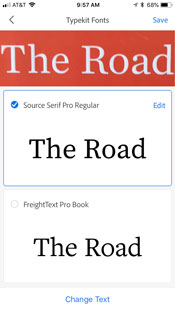
Figure 8. When Adobe Capture CC identifies matches to a font, it picks the closest it can find in the Typekit font library.
7. You have an option to edit the text, and modify the style, size, leading and tracking values before you save it.
8. The information is stored in a character style in one of your CC Libraries. You can edit the style name, pick a library and then save it. It’s immediately available for you to use in InDesign CC or other applications.
Because you’re picking from the Typekit library (which Keith Gilbert estimated to currently includes about 1500 fonts), the range of fonts it will pick from is necessarily smaller. However, you won’t have to purchase the font because you already have access to it through your Creative Cloud subscription.
This workflow is also more integrated with the Creative Cloud applications. You can immediately sync a font from Typekit and use it in InDesign CC, Illustrator CC, Photoshop CC, or XD CC. Of course, there are limits on the number of fonts you can have synced at any given time (100 fonts with a standard Creative Cloud subscription) and you will lose access to the fonts if you ever cancel your Creative Cloud subscription.
I found that Typekit gave me reasonably close matches to the fonts I was looking for. But if you need an exact match to a font not found in the Typekit library, I would recommend using the WhatTheFont app and purchasing the font.
Getting the Best Results
Although the machine learning technology is a lot easier to use than the finicky process on the older font identification websites, not all type images work equally well. Here are some tips for getting the best results:
- You’ll get the best results with one line of type. Crop the type tightly and include the entire shape of each glyph. However, you don’t need to use Photoshop; in most cases, the software provides handles in the app to do the cropping.
- Use alphabetic characters (Aa–Zz) rather than numbers and symbols to enhance identification.
- Use the software’s method of aligning the type. It will have a hard time if the type is skewed.
- Get as high a contrast as possible when taking a picture. It makes it easier to detect character shapes.
- If possible, the color of both the type and the background should be uniform. Type on an image or pattern, or type with varying colors will be harder to recognize.
- Zoom in. Text height should be at least 100 pixels.
Identifying Fonts Using Your Computer
Although using an app on your mobile device is pretty simple and fast, some of you may still wish to use your computer for any number of reasons: For example, you’ve received an image of the font you’re identifying from a client, and it needs to be cleaned up using Photoshop. Or, you prefer storing your type images on your computer with the rest of the project. No problem, the machine learning technology can be used by uploading images to a website.
The older websites for identifying fonts are still around. For example, the Linotype Font Identifier uses the same method as Identifont.com, described above. Font Squirrel uses Fontspring’s Matcherator service, which uses the older technology when an image is uploaded. But you’ll often get better results using browser-based tools from the same two companies I mentioned above—Monotype and Adobe.
WhatTheFont website
The WhatTheFont page at MyFonts.com gives you the chance to upload PNG, GIF or JPEG images up to 2 MB in size.
I found it not quite as easy as using the mobile version of WhatTheFont. You’ll have to do more work ahead of time: I had to resample and crop the image I received to get it to process the file. For this sample, I chose a magazine headline from a designer friend, so I knew the font she had used—a Type 1 Adobe font called Weiss Std (Figure 9).

Figure 9. I used this magazine headline in Adobe Weiss to test the WhatTheFont and Typekit website font identifiers.
After uploading the sample, I was prompted to confirm the identities of each glyph in the headline, then click Continue. It correctly identified the font (Figure 10).
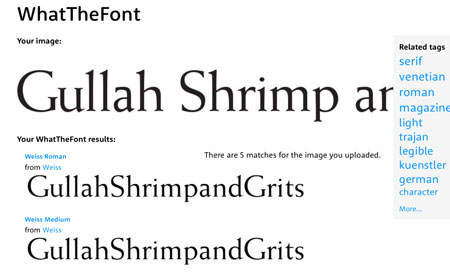
Figure 10. The WhatTheFont page correctly identified the Weiss font when an image was uploaded.
The MyFonts.com website is not only accurate, but it has an ace up its sleeve: If you’re not satisfied with the identification, you can also “submit your image to the WhatTheFont Forum to have your image viewed by font geeks the world over.”
This seems to be a very busy forum indeed, as shown by the Forum landing page (Figure 11). On the day I’m writing this, 134 cases have been solved today, and it claims 433,759 solved to date!
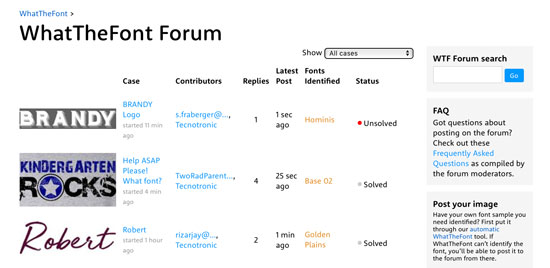
Figure 11. The WhatTheFont Forum claims a high rate of solutions by its font geek contributors.
Similar services are offered at the FontID website and the What’s This Font? Facebook group (Figure 12). Clearly, humans are still sometimes better than machine learning at this task.
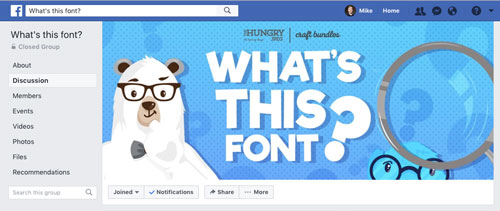
Figure 12. The What’s This Font Facebook group has thousands of members who can help you identify a font.
Typekit website
The Typekit website uses the same technology as the Adobe Capture CC app. It accepts the same three file types as WhatTheFont—JPEG, PNG, and GIF—but seemed to be more tolerant of images which were not well prepared ahead of time.
After scanning the image, it lets you pick a cropping area on screen, a service not currently offered by WhatTheFont website (Figure 13). You then click Next Step. It then confirms that the text it’s interpreted is correct.

Figure 13. Unlike the WhatTheFont site, Typekit lets you crop the type image.
However, in my test it didn’t pick the exact font (Weiss) because it was not included in the Typekit library. Instead, Typekit offered up several similar serif fonts found in its collection (Figure 14).

Figure 14. The Typekit site didn’t identify the Weiss font, but offered up other choices in its collection.
The Typekit site offers two kinds of type choices: First, it includes the fonts that you can sync in Adobe Capture (which includes the fonts in your Creative Cloud subscription). But it also shows additional fonts that you can purchase, just like MyFonts.com. Ironically, they don’t include all the fonts in the Adobe library—including Weiss! But for those that are in the Typekit library, immediate syncing to your computer is available.
The PDF Method
If you have received a PDF file containing font(s) you want to identify, you can use Acrobat Pro (any version) to identify the font.
Acrobat gives you two tools for this purpose. The first one is the Fonts section of Document Properties. Choose File > Properties (Command/Ctrl+D). Click on the Fonts tab of the Document Properties dialog box, and all the embedded fonts in the PDF will be listed. If you have a lot of fonts in the document, you may be confused as to which one is the one you want to identify (Figure 15).

Figure 15. Adobe Acrobat Pro can identify any font embedded in a PDF file in the Document Properties dialog box.
A more accurate method is to open Output Preview in the Print Production tools. In Acrobat Pro DC, use the search field at the top of the list of tools on the right side of the screen, and search for “Output Preview”. When it’s opened, in the Preview menu, choose Object Inspector. Move your cursor over the font you want to identify, and the Object Inspector will list the attributes of the type, including the font name, size, and font type (Figure 16).

Figure 16. The most accurate way to identify a font with Acrobat is to use the Object Inspector in the Output Preview tool.
Browser Extensions to Identify Web Fonts
If you need to identify fonts you see on a website, there are several browser extensions and bookmarklets that can help you. (A bookmarklet contains Javascript which is stored in a browser bookmark to perform some function within a web page.)
The most impressive browser extension that I found was FontFace Ninja. It is available for free download and installation on Chrome, Safari, and Firefox browsers. In Safari, where I tested it, it installs a button at the top of the browser window. Clicking it allows you to inspect the font on any open web page. It will identify the font name by hovering over it, as well as font size, letterspacing, line height and color of the font. Most of the other extensions do this as well.
But what makes FontFace Ninja special is that when you click the font, you also get a separate window (still in the current web page) where you can type sample text, change its size and letterspacing, and generate a pangram which displays all the letters of the alphabet. If it’s a free web font, it may provide a link to download it (Figure 17).

Figure 17. FontFace Ninja is the most complete web browser extension for identifying fonts. Here it also lets you type your own text and provides a download link.
If it’s a font that you need to purchase, FontFace Ninja will display the price and a link to MyFonts.com to purchase it.
Here are some other free browser extensions and bookmarklets for identifying fonts:
- Fount provides bookmarklets which can be dragged onto a bookmarks bar in Safari, Chrome, Firefox and Internet Explorer 8+. It identifies font name, size, weight, and style.
- Whatfont Tool installs an extension for Safari or Chrome, or a bookmarklet. Click the bookmarklet and it shows font name and style.
- Font Finder provides extensions for Chrome, Firefox and Opera browsers. It allows a user to analyze the font information of any element on a page, copy any piece(s) of that information to the clipboard, and perform in-line replacements to test new layouts.
- What Font Is works a little differently. Its website lets you upload an image of a font which it tries to identify (as described earlier in the article). Alternatively, you can download Chrome or Firefox extensions that speed the image uploading process.
Choosing Your Method
The method you choose to identify a font depends on whether you prefer to work with mobile devices, or a computer, what your expectations are about spending money on fonts for your project, and how exact a match you’re expecting to your font sample. In any case, the assistance of artificial intelligence which is being applied by Monotype and Adobe software to font identification will produce much faster and more reliable results that what has been available in the past. And when all else fails, it’s good to know there are still many friendly font geeks out there willing to lend a hand.
Commenting is easier and faster when you're logged in!

Recommended for you
Jan Tschichold, Master Typographer of the 20th Century
Few have left deeper impressions on modern typography than Jan Tschichold, desig...

Exploring OpenType Pro Fonts, Part 2
Last week we started an in depth look at the features of OpenType fonts. Let...

TypeTalk: Trending Fonts
Looking back at the past year’s most popular font offerings is a good way to vie...