


How to Work Smart In Photoshop

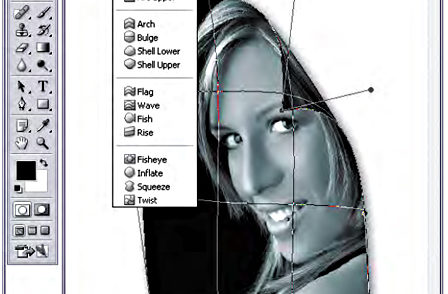

Many actions within Photoshop are destructive, which means that when you make an edit, you lose information. That’s why using non-destructive Smart Objects is a wise choice. But they do call for a new way of thinking and working. This excerpt walks you through the steps with easy-to-follow visuals and focused tutorials.
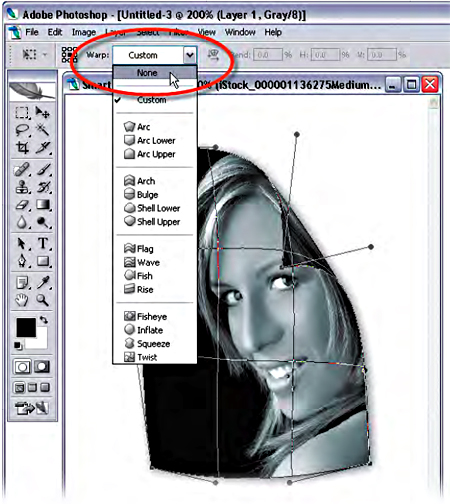
If this were anything but a Smart Object, you’d be stuck with this warp. However, since you converted this to a Smart Object first, you can choose Edit>Transform>Warp once again, and you’ll see that Photoshop remembered your warp settings. You can choose None from the Warp pop-up menu in the Options Bar to reset the Smart Object or you can just tweak the warp grid if you want.
We’ve posted this excerpt as a PDF file. To open the PDF file in your Web browser, click “Get Smart.” You can also download the PDF to your machine for later viewing.
To open the PDF, you’ll need Adobe Acrobat or Adobe Reader. We highly recommend Acrobat Reader 7.0 to view this PDF.
To learn how to configure your browser for viewing PDF files, see the Adobe Reader tech support page.
Excerpted from The Photoshop CS2 Speed Clinic: Automating Photoshop to Get Twice the Work Done in Half the Time by Matt Kloskowski. Copyright © 2006 by Kelby Corporate Management, Inc. Used with permission of Pearson Education, Inc., and Peachpit Press.
This article was last modified on January 4, 2023
This article was first published on December 4, 2006
Commenting is easier and faster when you're logged in!

Recommended for you

How to Adjust Colors in Photoshop Using Hue and Saturation
Learn how to manipulate an image’s colors using Photoshop’s Hue and Saturation s...
How to Turn a Photo into Graffiti in Photoshop
Create a spray-painted masterpiece in Photoshop with Steve Caplin.
How to Adjust Colors Using Photoshop’s Contextual Task Bar
Learn how to use the Photoshop Adjust Colors feature to make quick, non-destruct...