




So you’ve laid out an InDesign document on a single page, and now you want to split it into individual pages… Possible? Sure!
Let’s take an example of a trifold that was created on a single page, and now you want it on three pages:
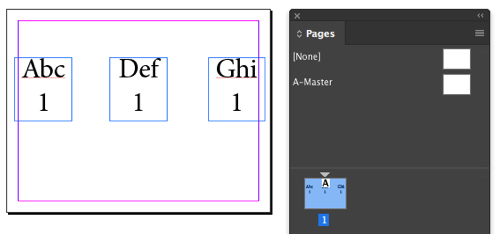
In the image above, the “1” in each text frame is an automatic page number—obviously it’s all just page one.
There are two ways to split this document. (Well, perhaps more than two, but I’ll describe two here.)
The Document-in-Document Method
The easiest way to “split up” a document into pieces is to place it into a new document that is the size you want. Remember that you can place one InDesign document (.indd file) into another, and it acts much like placing a graphic.
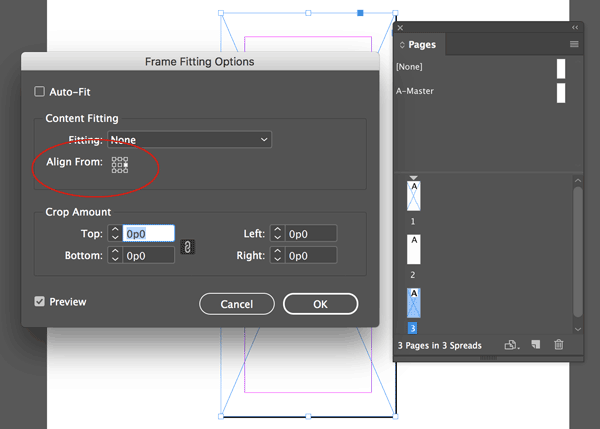
So, in this case you’d create a new 3-page document one-third the width of the original, and put a graphic frame on each page. On each page, add a graphic frame, and for each frame, choose Object > Fitting > Frame Fitting Options. In this dialog box, set the Align From icon to either align left, center, or align right.
For example, in the following image, I’m changing the frame fitting options for the frame on page 3, which will force the placed document to be “align right”:
Now, use File > Place to import the INDD file three times—once for each page. Below is that same page 3:
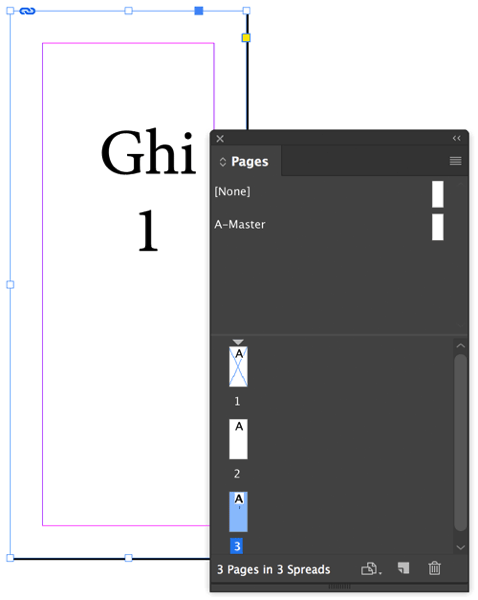
Notice there’s a problem here… the ‘automatic page number’ isn’t updating… it’s fixed at page 1, even though it’s technically the third page. And, of course, the objects on that page are static and not editable. If you want to edit it, you can Option/Alt-double-click on the graphic with the Selection tool to invoke “Edit Original” (which opens the placed InDesign file back in InDesign, of course!)
The Master Page Method
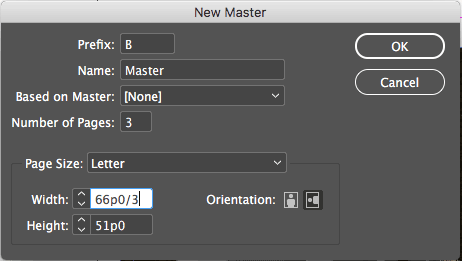
The second method actually leaves you with three individual pages with editable objects. First, create a new master page which is defined as a multi-page spread. In this case (below) I’m creating a 3-page spread with the width set to one-third the width of the original page width (remember that you can do math in the fields… in this case, division):
Here’s the Pages panel after creating the new spread:
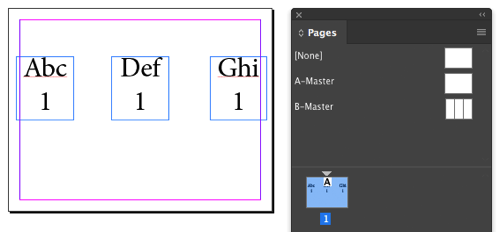
Next, make sure these two features are turned off in the Pages panel menu: Allow Spread to Shuffle and Allow Document to Shuffle.
Now use the Add Pages feature (also in the Pages panel menu) to add one page before and one page after the page in your document:

Note that in the image above, the auto page number (which I placed there just for demo purposes) has updated to page 2.
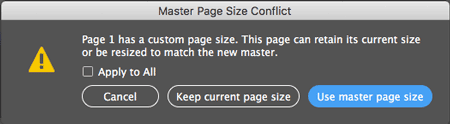
Finally, apply the new master page to your new multi-page spread. When you do that, InDesign asks which page size do you want to keep? The answer, of course, is “Use master page size”:
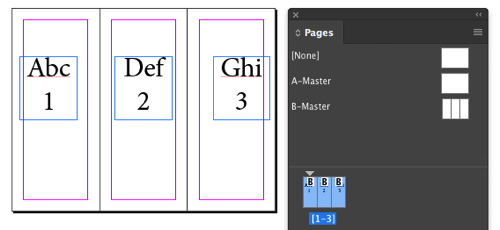
The result? A three-page spread:
Of course, it’s pretty rare that you’d need to do this, but when you need it… well, now you know how!
This article was last modified on July 25, 2019
This article was first published on October 26, 2017
Commenting is easier and faster when you're logged in!

Recommended for you

Cleaning Up Hyperlinks from Word Text
Like many InDesign users, Terry V. is not fond of Word's hyperlinked text. He wr...

Synchronize Text in More Than One Place in an InDesign Document
Need to synchronize a bit of text from one place to another in a document? It's...
Moving your Find-Change Queries to InDesign CC
How to move find/change queries to InDesign CC.