



Books wrote:
Is it possible to split a table into two seperate tables in order to change the setup? Or is it that once I created only one table I can’t undo it? I tried finding a break charecter with no luck.
Last year we looked at how to merge two tables together, but you bring up a good point: What if we want to split a table into two or more pieces? It seems like there should be some command to do this, but there isn’t. Instead, we again turn to copy-and-paste. To split a table, first select the rows you want to split off:
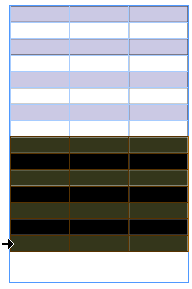
Then cut them to the Clipboard (Edit > Cut) and place the cursor in the text frame after the original table (or wherever you want the new table to be) and paste (Edit > Paste). Here, the new table has been created and I used Table > Table Options > Table Setup to change it’s alternating fill color.

If you have trouble selecting “after” the original table, it may be easier to do in Story Editor view (Edit > Edit in Story Editor). Here’s what Story Editor looks like with two tables in a row (with no paragraph return between them):

I completely agree that it should be easier to split a table in two. But this method isn’t too onerous.
[Editor’s note: See below in comments for links to a script that does this even faster!]
This article was last modified on July 6, 2022
This article was first published on May 10, 2007
Commenting is easier and faster when you're logged in!

Recommended for you

Importing iWork or Excel or Anything Else Into InDesign
Karen writes: The charts generated by iWork Numbers are beautiful and I would li...
How to Add Page Numbers?
Every once in a while, an question comes in from a new user that brings you back...
Rotating Text in Table Cells
Here's a quick tip on rotating text inside a cell, and positioning it just right...