



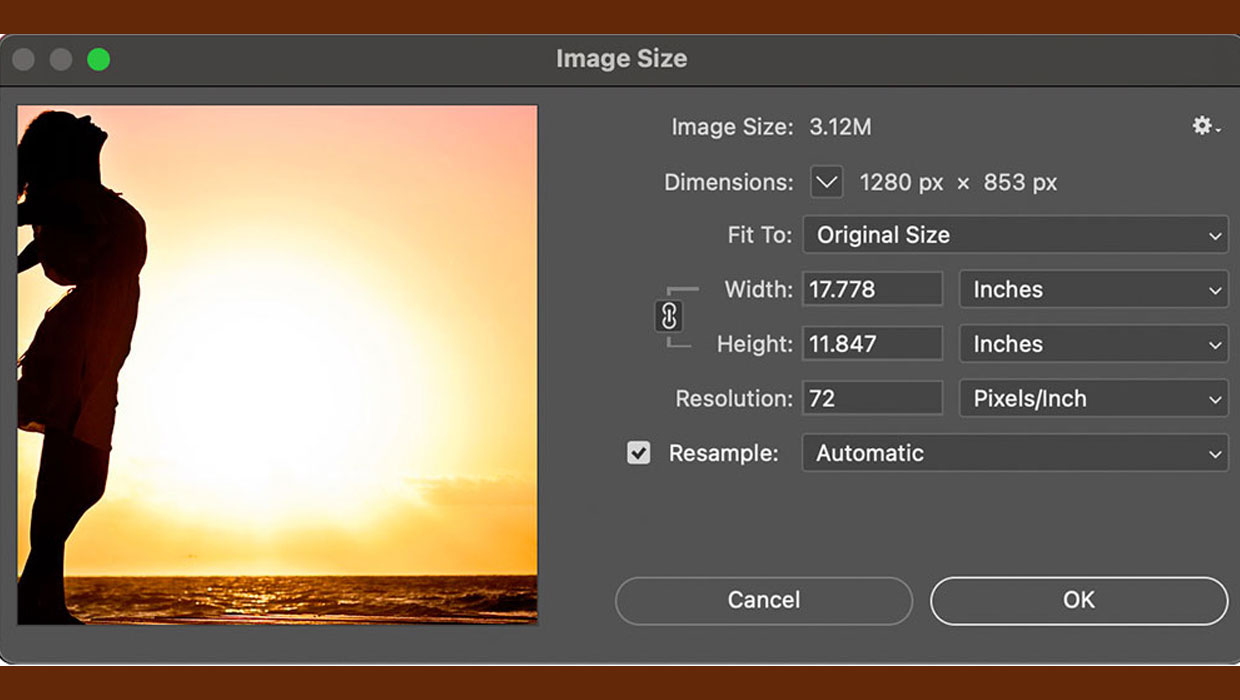
Here’s a common situation: you’re sent an image for use in a printed publication, and Photoshop tells you it’s 17 by 11 inches. Does that mean you can use it at that size? If not, how do you tell?
Look at the Image
The image appears big, but this isn’t enough for you to decide. Choose Image > Image Size to get the full information. 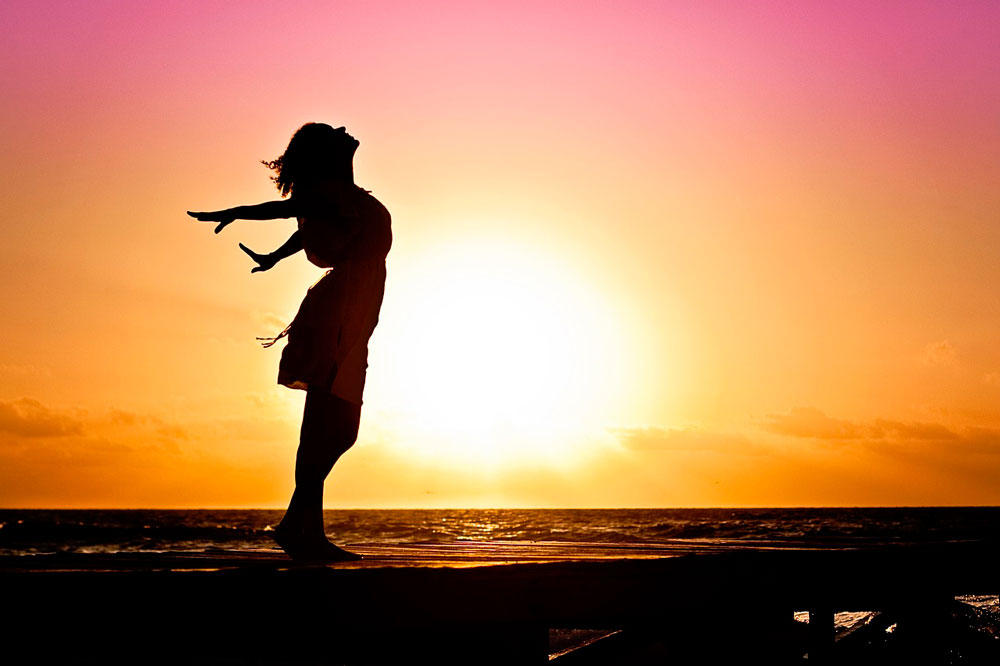
The Image Size Dialog
Here’s where we can see the image size in inches. But look at the Resolution: it’s set to 72 pixels per inch, which is standard for images straight from the camera. 
Change the Resolution
For print publications, a resolution of 300 ppi is generally recommended. But if you change the resolution here, you’ll end up enlarging the image – which will mean a blurry, pixelated result. Instead, you need to first uncheck the button marked Resample. 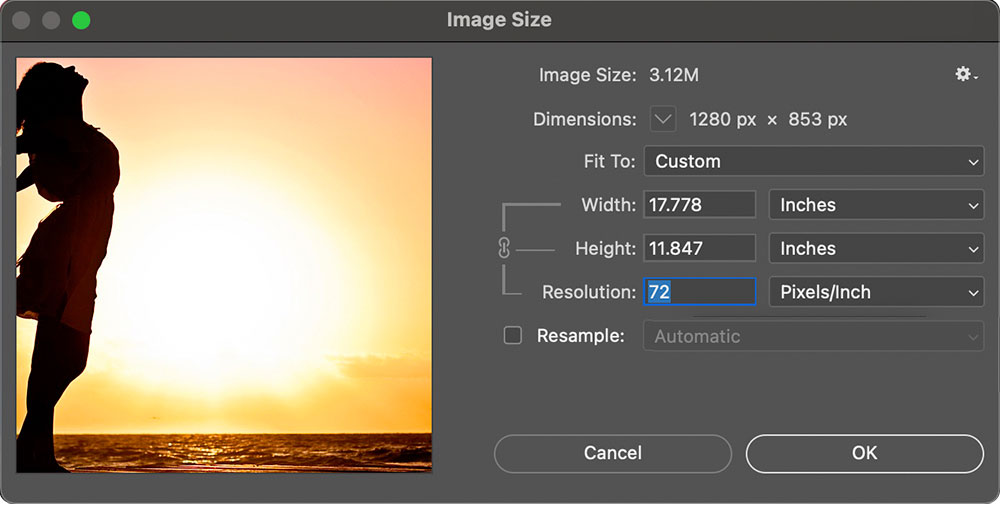
The True Size
Now, when you change the Resolution setting to 300, the image won’t resample; the width and height will be adjusted to show how big the image really is. In this case, it’s just over four by just under three inches. Click OK, and when you place the image in InDesign it will now be at the actual print size. 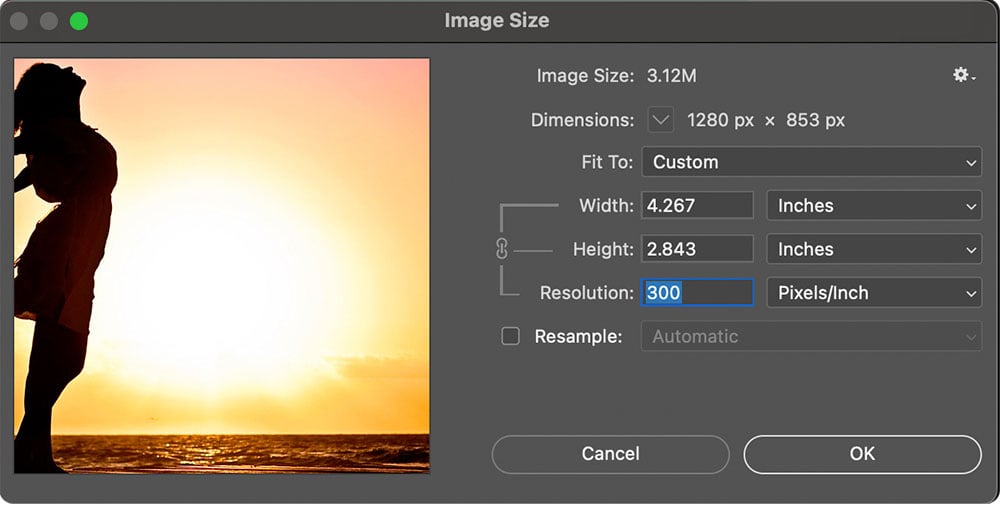
This article was last modified on November 5, 2024
This article was first published on November 5, 2024
Commenting is easier and faster when you're logged in!

Recommended for you

Enlarging Images in Photoshop with AI Partner Models
A comparison of techniques for increasing the resolution of images with the help...

Changing sizes… mixing scaling and sizing
This is a story about scaling and sizing objects? InDesign CS5 introduced the ab...

How to Make Amazing Halftone Effects with Photoshop
Use a Photoshop method to explore and control creative halftone effects for prin...