



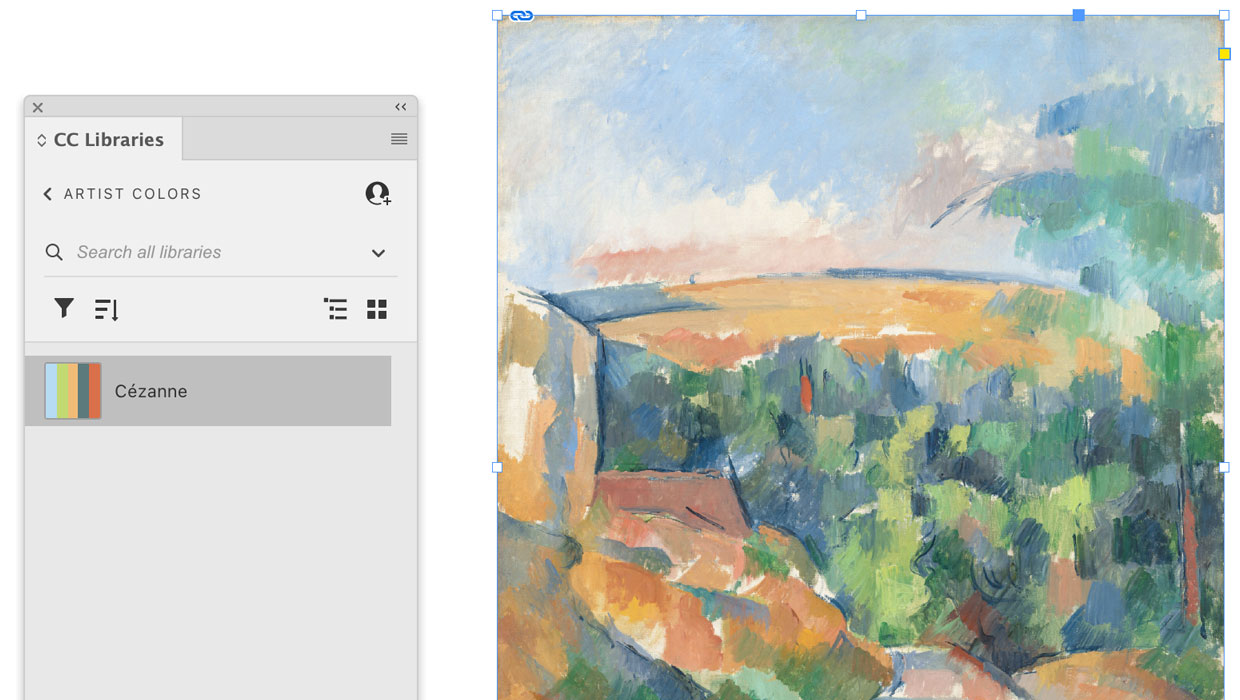
Here’s a quick tip for creating shareable color palettes from placed image content in InDesign.
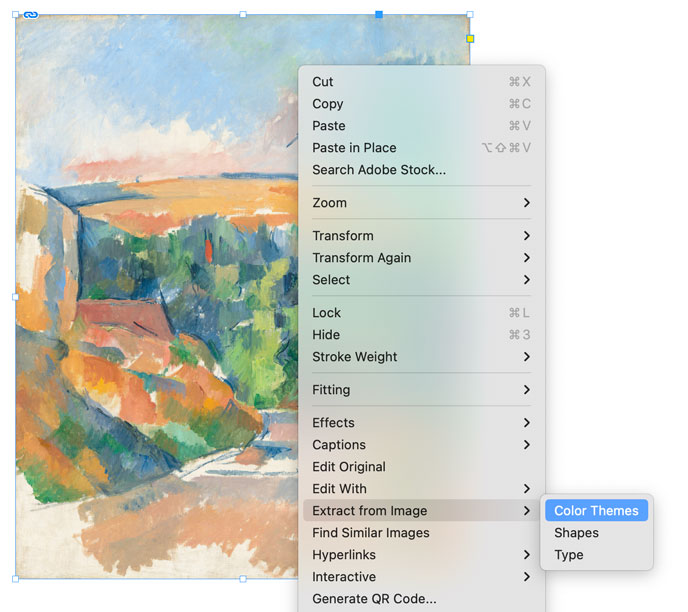
Start by selecting a placed graphic. Then, right-click on it and choose Extract from Image > Color Themes.
In the Extract from Image dialog box you can create a theme from five colors and see their hexadecimal values.
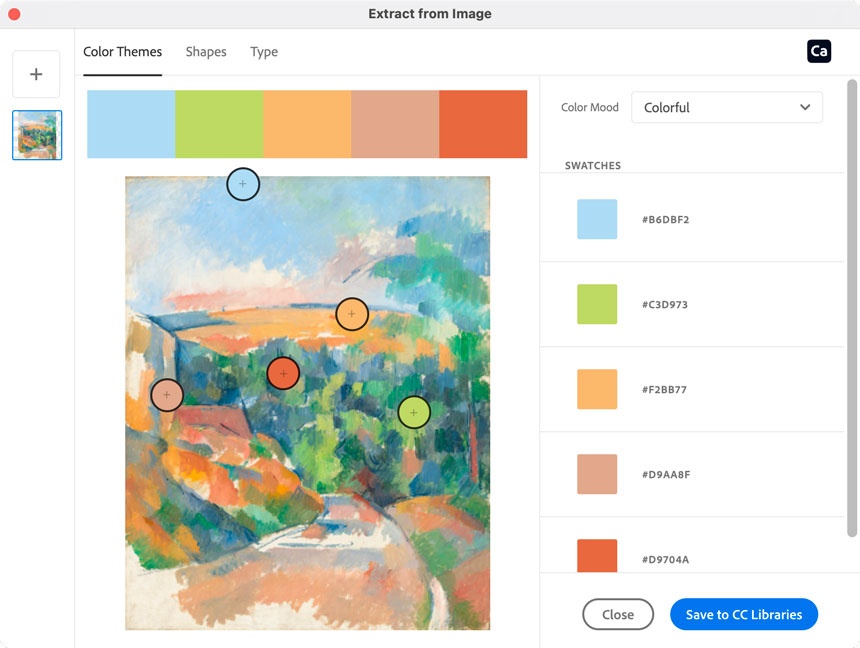
If you don’t get exactly what you want at first, you can drag the sample points to other positions on the image.

Or, choose an entirely different theme from the Color Mood menu.
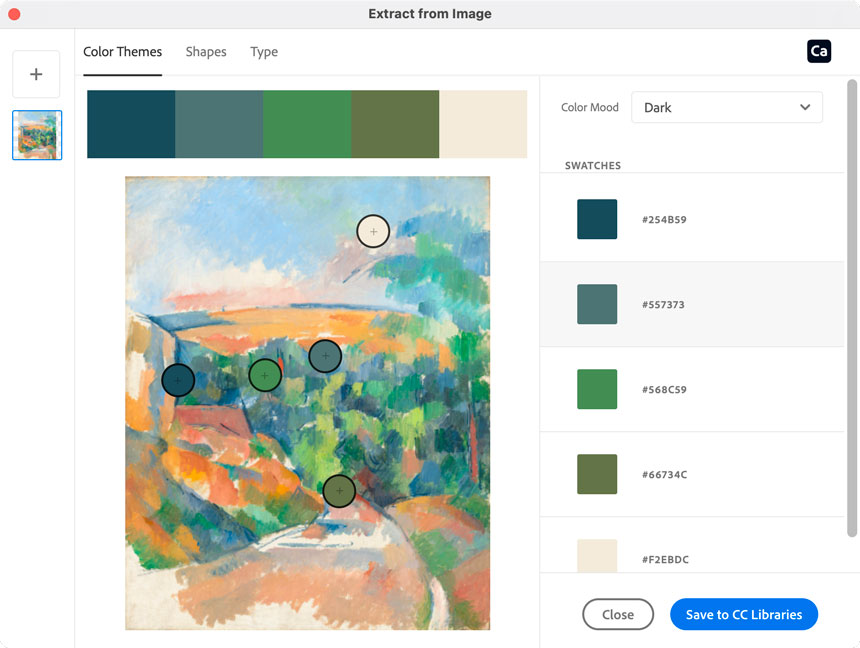
When you have the colors you want, select Save to CC Libraries.
In the library, you can rename the color theme.

Move your pointer over any color to see its RGB and Hex values.

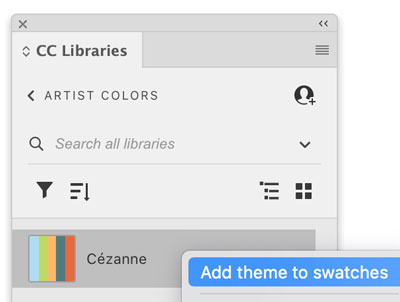
Right-click to add the theme to your Swatches panel.
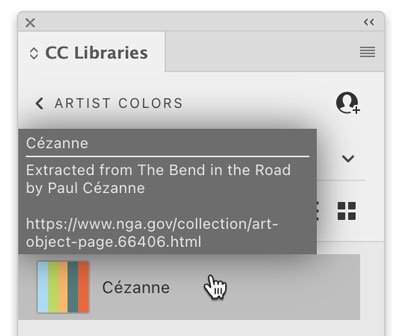
Or, enter a description that you can read later by moving your pointer over the theme.

And since it’s in a CC library, you can easily share your new color theme with colleagues or the world.
Go to the CC Libraries panel menu and choose Get Link to create a shareable link.

Click here for the link to the library shown in this example. From there, you can create a copy or add to your libraries.

Or, choose Invite People from the CC Libraries panel menu to share the library with specific colleagues.

This article was last modified on February 12, 2024
This article was first published on February 12, 2024
Commenting is easier and faster when you're logged in!

Recommended for you

Interview with George F. Baker III, Designer and Illustrator
Q&A with George F. Baker, who is presenting at the CreativePro Week 2024

The Art of Business: Leading Like a Pro
What does it take to be a great leader today — not an effective manager or...

P22 Type Foundry's Lanston Type Co. introduces LTC Holiday Ornaments
Based on the popular demand of the LTC Halloween and LTC Christmas Ornaments, a...