




Step 2: Texturing with Thread
Now that we’ve got our basic building blocks, let’s set aside the text and give the rectangle a bit of realism. Because lanyards are typically knitted thread, let’s simulate a knitted texture.
1. Select the filled rectangle.
2. On the Appearance panel (Window > Appearance), click the flyout menu and choose New Fill. Use the same color on this fill as on the original fill. You should now see two identical fill attribute entries in the Appearance panel—only the upper one will be visible on the artboard, however (see Figure 3).
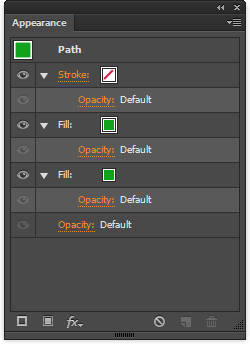
Figure 3: The Appearance panel shows the two fills.
3. With the upper fill attribute selected in the Appearance panel, go to Effect > Stylize > Scribble. Make a nice tight scribble. You can see my settings in Figure 4, but feel free to tailor yours to taste. The goal is to create a bit of texture—visible primarily on the outside edges. You should see slightly bumpy upper and lower edges on your box, but no gaps between the Scribble strokes (see Figure 5). Click OK.
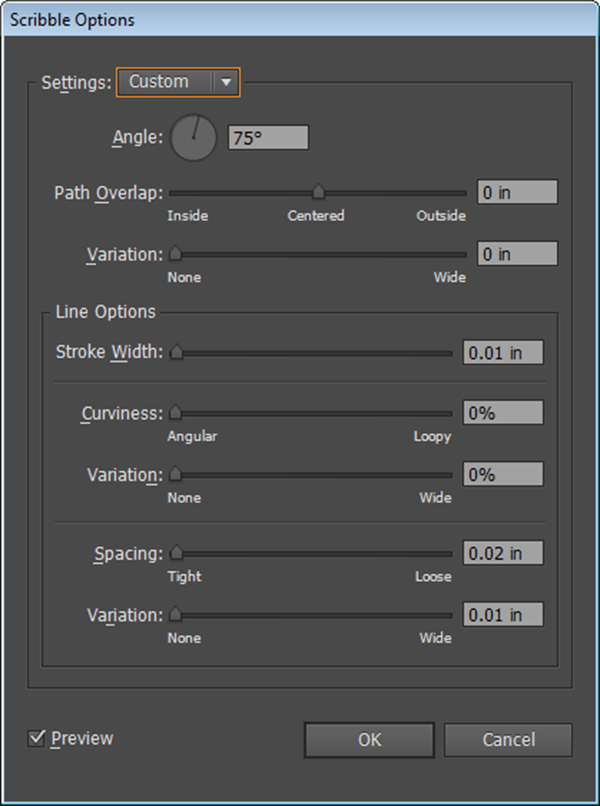
Figure 4: My Scribble Options.
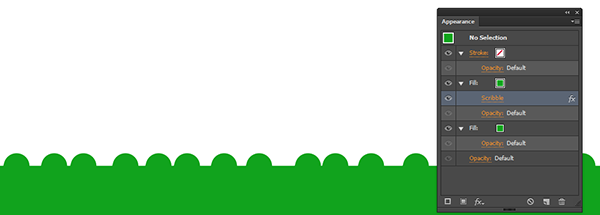
Figure 5: A close-up of the rectangle with one fill scribbled.
4. For texture, let’s add a third fill via the Appearance panel. This time choose a color that is somewhat lighter than the first two fills.
5. Scribble the new fill as well by selecting it in the Appearance panel and choosing Effect > Stylize > Scribble. Again, choose your settings as you like, but do vary the angle a bit to allow for some of the lower or background fills to shine through the new fill’s scribble. In my case, I used all the same Scribble Options except for Angle, which I set to 90-degrees to contrast with the darker fill’s 75-degree angle.
6. Your rectangle should now look more like woven fabric (see Figure 6). When you’re satisfied, group the rectangle with the text by selecting both objects and pressing CMD+G/CTRL+G.
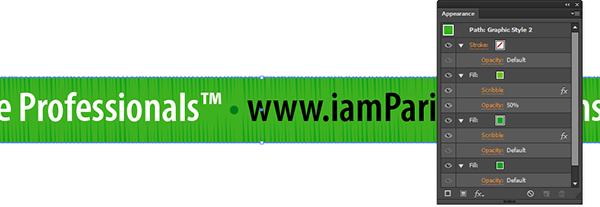
Figure 6: Now with three fills, two scribbled.
7. Finally, duplicate the layer containing the grouped rectangle and text, and then hide the duplicate layer; we’ll use it later.
This article was last modified on December 13, 2022
This article was first published on June 10, 2013
Commenting is easier and faster when you're logged in!

Recommended for you
Using Photoshop’s Generative Fill to Remove Objects
Learn how to simply remove items from an image in Photoshop, without extra conte...
How to Turn a Photo into Graffiti in Photoshop
Create a spray-painted masterpiece in Photoshop with Steve Caplin.
How to Adjust Colors Using Photoshop’s Contextual Task Bar
Learn how to use the Photoshop Adjust Colors feature to make quick, non-destruct...