



The New Document dialog box in InDesign CS5 includes a pop-up menu labeled “Intent” with two options: Print and Web. This option is misleading in several ways. First and foremost, the word “Web” is a misnomer; it should be “onscreen” or “interactive” or something more generic. The Web is only one place where interactive documents end up.
The second misleading aspect of this feature is that is appears to promise some underlying magic, when in fact, it is (mostly) just a set of presets. When you choose Web, InDesign:
- sets the document measurements to pixels.
- sets the Transparency Blend Space to RGB.
- sets all the colors in the Swatches panel to RGB (instead of the normal CMYK swatches).
Okay, so what do you do when you have a document that was created with the Print intent (or in a previous version of InDesign, where there was only print intent) and you want to repurpose it as an interactive document? Easy:
- Right-click on the square where the two rulers meet and choose Pixels.
- Choose Edit > Transparency Blend Space > RGB.
- Create a bunch of new RGB color swatches!
The last item is the most time consuming, of course. Here’s an .ASE file with the colors; download it, choose Load Swatches from the Swatches panel menu, and select this InteractiveColors.ase file:
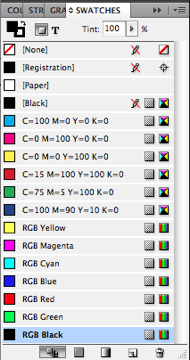
So up in the second paragraph, when I wrote “mostly”… what was that about? Well, there appears to be only one thing that choosing Web from the Intent pop-up menu can do that you cannot do manually: It changes the [Black] swatch from CMYK to RGB. You cannot redefine the [Black] swatch, so you need to create your own. (I did include one in that ase file.) Thank you Johannes H. for pointing that detail out to me, in a different forum.
This article was last modified on December 20, 2021
This article was first published on January 4, 2011
Commenting is easier and faster when you're logged in!

Recommended for you

Version Cue Lives in CS5 (in Beta)!
If you have bemoaned the passing of Version Cue in InDesign CS5, it has risen ag...
Timesaver: Span and Split Columns in CS5
One of the best timesaver features in InDesign CS5 is its ability to span and sp...

Introducing Multiple Page Sizes in InDesign CS5
InDesign CS5's new Page Tool enables you to create multiple page sizes in the sa...