



Question: What is the secret of getting numbers to align correctly in numbered lists in CS3? If you want numbers to align on the decimal or align right, simply choosing ‘Align right’ in the Bullet or Number Position area seldom does the job. It takes a lot of fiddling. Is there any logic going on behind the scenes?
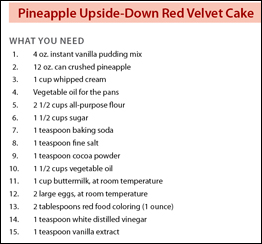
Answer: Ah, the dreaded DDDLU Syndrome (Double Digits Don’t Line Up)! Dontcha just hate that? The coward’s way out is to just stop at Number 9, but that’s not a viable solution; look at all the ingredients you’d have to leave out of the Pineapple Upside-Down Red Velvet Cake (yuck!):

Indeed, there is a trick, and it does NOT involve hitting the tab key before each number. It’s one of those things that’s sort of hiding in plain sight.
If you’re creating a numbering scheme as part of a paragraph style, the secret is in the bottom of the Paragraph Style Options dialog, under ‘Bullet or Number Position.’ (See below)
 What do the options mean?
- Alignment refers to the alignment of the numbers themselves, not the paragraph they’re in. If you want right-aligned double (or triple) numbers, choose Right alignment.
- Left indent controls the left indent of the paragraph, but – and this is the really important part – it also controls the ‘elbow room’ for numbers. If your multi-digit numbers don’t pay attention to your choice of Right alignment, jack up the left indent value and watch what happens; once you allow enough room, your numbers will fall into place. If you want to right-align double- or triple-digit numbers (the most common scenario), you must stake out enough space for them. There’s no magic number; the proper amount depends on your font size.
- First Line indent governs, well, the first line. If you want a hanging indent, this will be zero or a negative number. Again, the amount depends on the effect you want and the size of your text.
- Tab Position establishes the space between the number and the next character in the first line.
If you’re not using a paragraph style (Shame on you! Styles are your friends!), you’ll find the same controls in the Paragraph panel (Window > Type & Tables > Paragraph) (see below).

Either way, once you’ve sussed out the magical values that work for your text, your multi-digit numbers will line up and life will be good:
[Note that there is more on this topic on this post.]
This article was last modified on December 19, 2021
This article was first published on July 26, 2008
Commenting is easier and faster when you're logged in!

Recommended for you

Setting Inline Object Offset Numerically
O.G. wrote: You can move an anchored object vertically by clicking on it with th...
Making Labels that Disappear Later
I had a need recently to type out a bunch of data (like name, code number, price...

New Contest! Solve the Mystery of the Missing Image
Last month, many of you enjoyed solving the mystery of the low first baseline. S...