



Q: Our office periodically needs to create a grayscale PDF for one of our clients, even though their jobs are done in CMYK plus spot plates. There’s no place to choose ‘grayscale’ in the Export to PDF dialog box. We tried printing to the Adobe PDF printer instead, since the Print dialog box does offer Composite Gray as an Output choice, but some of the graphics didn’t convert – they stayed in color. We really don’t want to have to re-create these files in grayscale, as some are over 200 pages long!
A: InDesign can convert colors to grayscale during the process you describe only if it can get to them. It does fine with any color created in InDesign itself (CMYK, RGB or Lab; process or spot), as well as placed color TIFFs and PSD files, even if the PSD has a spot color channel. However, InDesign won’t change placed color EPS and PDF images into grayscale.
The good news is, through a simple hack, you can force InDesign to convert those recalcitrant images too. Nick Hodge first wrote about this trick for InDesign 2.0 and it still works in both CS, CS2, and CS3.
He discovered that when any image is run through InDesign’s transparency flattener, the program has a chance to adjust its colors to conform to the type of Color Output (in this case, Composite Gray) you set in the Print dialog box.
If you select one of your stubborn color images and set it to have a 99.9 percent opacity from the Transparency palette (Window > Transparency… in CS3, it’s Window > Effects), it’s enough to trigger the Transparency Flattener when you output to a flattened format. That allows InDesign to get in there and convert it to grayscale while it’s at it, without changing the look of the image at all, since the .01 percent that is transparent is not detectable.
Apply that transparency setting to any placed PDF or EPS images first. Then, when you print to the Adobe PDF printer, make sure that changing the Color Output to Composite Gray is the last thing you change in the dialog box before you click the Print button. We’ve found that sometimes, the selection reverts to the Composite CMYK choice if you go elsewhere in the dialog box, or click the Printer (or Setup, in Windows) button afterwards, before clicking the final Print button.
This post excerpted from Adobe InDesign CS/CS2 Breakthroughs, by David Blatner and Anne-Marie Concepción, published by Peachpit Press.
This article was last modified on December 18, 2021
This article was first published on September 28, 2007
Commenting is easier and faster when you're logged in!

Recommended for you
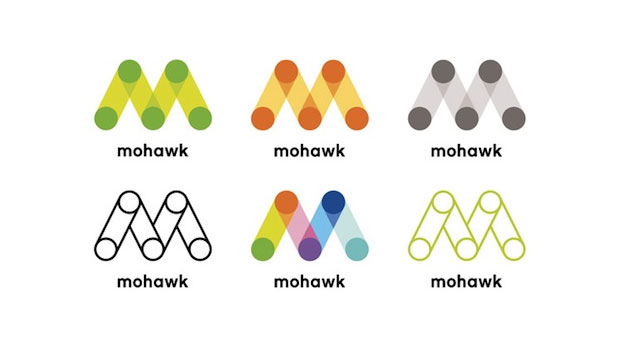
New Mohawk Logo Designed by Pentagram
The 81-year-old paper company Mohawk unveiled a new logo that it says will let i...

Make Scalable Shapes with Data Merge
Data Merge is a feature of InDesign that I use regularly to prepare personalized...

TypeCon2011 Dates & Venue Set
The Society of Typographic Aficionados is thrilled to bring TypeCon2011: Surge t...