



As Pariah mentioned a while back, the ASE (adobe swatch exchange) system is great for moving color swatches back and forth among the Suite programs. But some swatches won’t come along for the ride… notably gradients. This is too bad, because Adobe Illustrator ships with some really cool gradients.
Now, I’m now Illustrator expert, but I know that I can find great gradient swatches in Illustrator’s Swatches panel flyout menu.
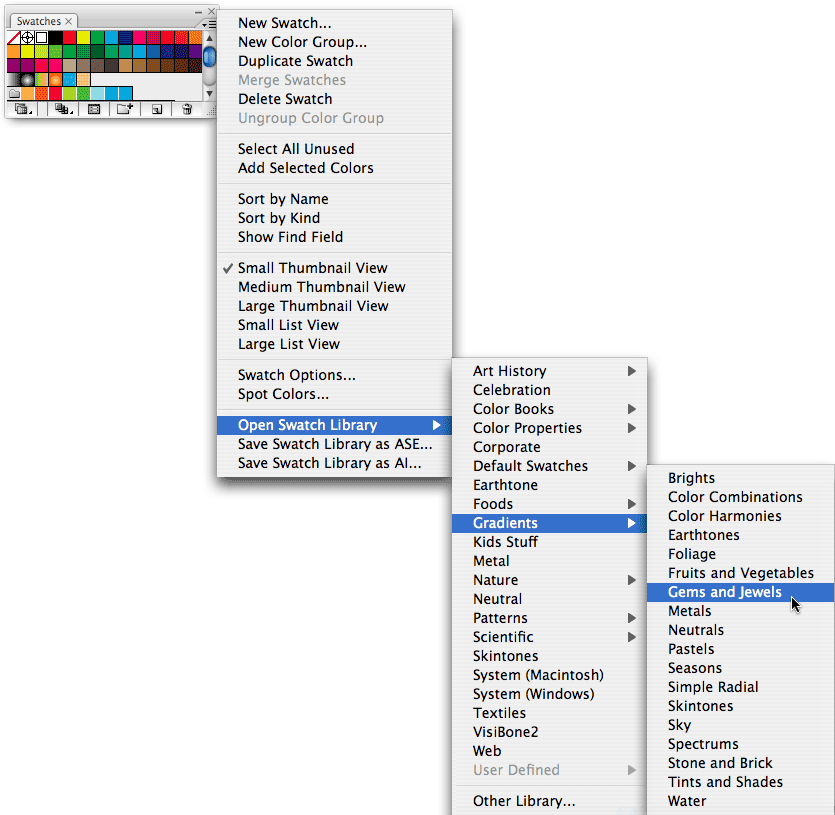
When I choose one of these, it opens the swatch library (as a palette on screen) and I can apply the colors to objects.
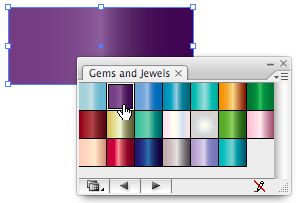
But if I can’t use ASE, how on earth can I use those gradients in InDesign? I’m embarassed to admit that I don’t remember who told me the answer to this, but it was during the recent Creative Suite conference in Chicago… perhaps Mordy Golding? Sandee Cohen? Anne-Marie? Well, whichever genius it was, I give thanks, because the answer is painfully simple, yet I had never considered it: Copy and Paste.
Yes, you just need to copy an object (one with the gradient, of course) from Illustrator to InDesign. When you paste it into InDesign, it appears as “New Gradient Swatch”. Right-click (or control-click with one-button mouse) on it, choose Swatch Options, and change it’s name to something else.

And of course, once it’s there, you can apply the gradient to any object or text on your InDesign page.

This article was last modified on December 18, 2021
This article was first published on November 29, 2007
Commenting is easier and faster when you're logged in!

Recommended for you

How to Check Tint Shades Using the Separations Preview Panel
I recently designed a large table (900+ cells) for a client. I used cell styles,...

Automated Forms with Acrobat 8 and InDesign
One of the hottest new features in Acrobat 8 Professional is its Run Form Field...
InDesign Documents on Behance
If you’re like me, you probably have looked at the portfolios on Behance a...