




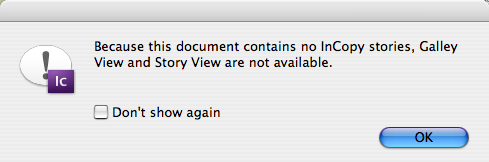
Lately, the InCopy forums at Adobe.com have been peppered with posts from different users quoting the same Alert dialog box, and asking why they’re seeing it.
The Alert box they’re referring to is this one:
(Now, if you’ve been using the workflow for a while, don’t jump to conclusions about the frustrated users who ask about that message. Don’t you remember how confusing the whole system appeared to you at the start? We were all beginners at some point!)
Frustrated users, the simple explanation is this: The layout (.indd) or assignment (.inca) you’re opening in InCopy cannot find the external InCopy stories (.incx) that are supposed to be linked to the file — they’re missing, or they were never created in the first place. (You’ll be able to *see* the document’s stories in the one view you’re left with, Layout, but not edit them.)
Since Galley View and Story View only show the content of linked InCopy stories, there is no reason for those views to be available.
Actually, I’m not sure why Adobe’s InCopy team made that decision — to completely remove the views in the absence of linked stories, and to put up that alert. It just freaks people out. Why not keep the views available, but leave them devoid of content? Instead of an alert, InCopy could add a line of static text to the top of each view that said “There are no InCopy stories in this document.”
Identifying the Cause and Fixing It
The root of the problem is this: Either the InDesign user neglected to export stories from the InDesign layout to InCopy format (a required step for the workflow); or she did, but those exported .incx files are not where your document expects them to be (they’re “Missing”).
Unfortunately the Alert doesn’t tell you which of these situations is the cause. But you can find out for yourself. Just click the OK button in the Alert so that the file opens in Layout view.
Now open your Assignments panel, part of the default set of panels on the right side of the screen. The Assignments panel lists all editable stories — the linked InCopy files — in the document you have open, and their statuses (available, being edited by someone else, out-of date, and so on).
In a “healthy” file with editable stories that the document can find, the Assignments panel should look similar to this:

Those entries with the blue globe-and-paper icons? Each one represents a linked InCopy file in the document you have open in InCopy.
In contrast, the Assignments panel of a InDesign file with no linked InCopy stories at all would look like this (the arrow next to Unassigned InCopy Content is grayed out because there’s nothing to reveal):

The lack of entries here tells me that I’ve opened an InDesign layout (.indd) that hasn’t been prepared for the InCopy/InDesign workflow yet. It’s actually the default state of all the layouts at your company — without preparation, InDesign files are read-only to InCopy users. Which can be quite handy, since it means that with InCopy, you can open any InDesign file you can get to, even ones from last year (and from there, print them out, export them to PDF, or select text to copy and paste elsewhere). It’s an “InDesign Reader” similar to how Adobe Reader can open any PDF file.
But if you were expecting to be able to edit this file in InCopy, then it’s not so handy! The bitter truth is that stories can only be made editable for InCopy from within InDesign — it’s the only program with an Export to InCopy command. So go back to your designer and ask them to prep the file for you. If they don’t know how, have them open their InDesign Help file (from their Help menu) and read the section called “Sharing content between InCopy and InDesign.”
By the way, it’s also possible to open an assignment file (.inca) in InCopy that has no stories. This would be the case if the designer created an assignment in InDesign’s Assignments panel but forgot to add InCopy stories to it, or hasn’t had a chance to yet.
Missing InCopy Files
As I said earlier, you’ll also get the “Galley and Story View are Not Available” alert if the linked InCopy files do exist, but InCopy can’t find them. In that case, your Assignments panel will look like this:
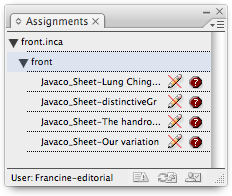
The stories are listed, but the red stop sign icon tells you that InCopy can’t find them. It looks for the linked .incx files with the same name and in the same location — the same folder path — that the designer saved them to when he first exported them from the layout.
So, one cause might be that someone used the Finder or Windows Explorer to manually move the folder of .incx files to a different location, or they renamed them. (It’s okay to rename the stories by editing their names in Assignment panel, but not anywhere else.)
The more common reason, though, is that you (the InCopy user) moved the layout or assignment file from its original location to a different one, like from the server to your desktop, or from the designer’s computer to the server, or to your own. None of that is kosher in the workflow. Unless you’re using CS3’s remote workflow (e-mailed assignment packages), all assignments and exported .incx files need to be on a central file server, and everyone opens the files directly from there. If you’re using a layout-based workflow, the .indd file needs to be on the server too.
There are ways for either the InDesign or InCopy user to fix missing stories — to correct the path information stored in the layout or assignment — but that’s for another (future) post, as it’s a little complicated. Better to just manage the workflow files correctly in the first place! ;-)
You Might Find This Helpful
If you’re a newbie at this whole InCopy/InDesign workflow stuff, and you’ve encountered the “No InCopy Stories” alert and wondered why, now you know (she hopes).
But I would bet that you’d feel a LOT more comfortable  with the process if you read the paper I wrote for Adobe’s InCopy marketing team, “Collaborative Editorial Workflow with InDesign CS3 and InCopy CS3.” I made sure to include lots of diagrams, screen shots and step-by-steps, so new users could gain an essential understanding of how the files work together — what goes where and who opens what.
You can download the 16-page PDF from the InCopy product page on Adobe’s web site, or you can click this link to download it directly (5 MB — all those screen shots).
This article was last modified on December 18, 2021
This article was first published on April 23, 2008
Commenting is easier and faster when you're logged in!

Recommended for you

Hide the Contextual Taskbar in Photoshop
Get the contextual task bar out of your way in Photoshop with this quick tip!

New Stock Photography Agency UpperCut Images Offers Rights-Protected Images by A-List Photographers
UpperCut Images has entered the stock photography market armed with a not-so-sec...
ImageCatalog.com is Seeking Top Quality Images from Photographers
The royalty free stock photography web site that recently launched is already pa...