



Update: I corrected a comment I made in the last paragraph about my problems with a gradient. I was having problems with a transparent gradient, not a normal gradient.
Today Adobe announced the beta release of their Flash to HTML5 conversion tool, Wallaby. Adobe demoed this software last Fall at Adobe Max. With todays release, you can download Wallaby (a free Adobe AIR app) and test out the conversion yourself.

In order to convert from Flash, you need to have access to the actual FLA (native Flash authoring file), unfortunately published SWFs will not work. According to various reports, the following items will not be converted in this beta:
- Blend Modes
- Flash TLF Text
- Filters
- Audio
- Video
- ActionScript
From InDesign to FLA
Since InDesign is able to export to FLA, I thought it would be interesting to see if an exported FLA file would convert cleanly into HTML5 code. I started out inside InDesign and created a simple banner ad with two animations. Click the graphic below to see the finished HTML5 banner ad. Note: you need a webkit browser (Safari or Chrome) to view the animation.

After creating the ad inside InDesign I exported the layout to a FLA. Upon exporting, I changed the text engine to Flash Classic Text since Flash TLF Text is not supported. At this point I could have converted the FLA file into HTML5, but I needed to stop the animations from looping. Whenever you export a FLA file, InDesign strips off the ActionScript code that controls the order and timing of animations. Because of this, every exported FLA from InDesign runs in a loop.

Stopping the Animation in Flash Pro
After opening the simple banner inside Flash, I double-clicked on the page to drill down to the two animations. After selecting the top animation, I double-clicked again to get down to the actual motion path.

With the object selected, I moved the playhead of the timeline to the last frame.

At this point I needed to add a stop command. If I wanted to write the ActionScript code, I could have opened the Actions panel and taken care of it manually. Being code-averse myself, I used the new Code Snippets panel in Flash CS5 to simply the process. I opened the panel and double-clicked on Stop at this Frame (inside the Timeline Navigation Folder) and Flash wrote the code for me.
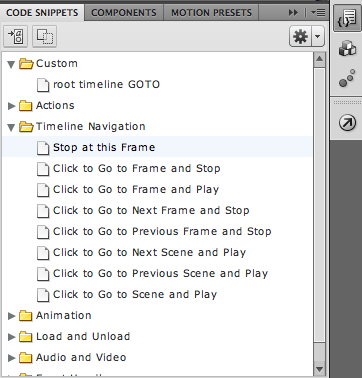
I repeated this process to add the stop command for the other animation in the movie. With the stop commands working, I saved the FLA file and was ready to convert it to HTML5.
Converting to HTML5
Next, I opened up Wallaby and browsed to the FLA file. After clicking convert, I created a directory for all of the newly converted HTML5 assets.

Inside the folder was a collection of files including: HTML, CSS, JavaScript and images (png and svg).

Not Bad for a Beta
Overall, I am impressed that I was able to convert a simple banner ad from InDesign to HTML5 with relative ease. However, I don’t think this is really for primetime just yet. First of all, these animations will currently only run on webkit browsers like Safari and Google Chrome. Firefox and IE do not support HTML5 and CSS3 animation yet. Secondly, transparency and blend mode support does not work well. I tried adding a transparent gradient and it fell apart in the conversion. Finally, the file size of the exported HTML is actually bigger than an exported SWF. The HTML5/CSS3 file banner weighed in at 175k vs. 45k for the SWF. Obviously, this is still beta software and it will improve over time, but I wouldn’t count on this to save on file size right now.
Regardless of these issues, I am hopeful that this technology will improve over time. The Adobe Digital Publishing Suite (iPad/Android Magazines like Wired, New Yorker, etc) already support HTML stacks & web overlays from InDesign. That means “in theory” you could create an animation inside InDesign, export to FLA (via help from Flash for stop commands and ordering the animations), convert it to HTML5 and insert it right back into InDesign. Hopefully at some point InDesign will be able to just export directly to HTML5 and we can avoid all of this conversion nonsense. (update: Johannes Henseler wrote up his own how to article on using the the DPS system with an animated headline here.)
This article was last modified on January 18, 2023
This article was first published on March 8, 2011
Commenting is easier and faster when you're logged in!

Recommended for you

InStep: Optimizing Photos for the Web in InDesign
Chad Chelius details a surprising use for InDesign: cropping and sizing photos f...

Why Would Objects Leave the Pasteboard?
Rotating objects seems pretty easy… until you get a warning.
This Week in InDesign Articles, Number 49
Letterpress, InDesign Tips, and more, in this roundup of recent interesting news...