



Everyone likes something for nothing. If you’ve already upgraded to InDesign CS4, you automatically have access to free web conferencing for you and up to two other colleagues or friends. This can include screen sharing in InDesign or any other application on your computer, chat facilities, and whiteboarding.
This feature, called Share My Screen, is such an unexpected and hidden bonus that it won the InDesign Secrets first prize for Best Obscure InDesign Feature of the Week in the recently held “Eeek-eek-eek” Awards. You’ll find it in InDesign CS4 under the File menu.

The feature makes use of the Adobe servers called Acrobat.com (up in “the cloud”), and is part of the more general feature called ConnectNow. If you also have Acrobat 9 Pro, you also have access to other free ConnectNow collaborative features from the Collaborate task button (uploading documents, sharing documents, and so on). These features are available for up to three people at a time. If you want more than than, you’ll need to purchase an Acrobat Connect account from Adobe.
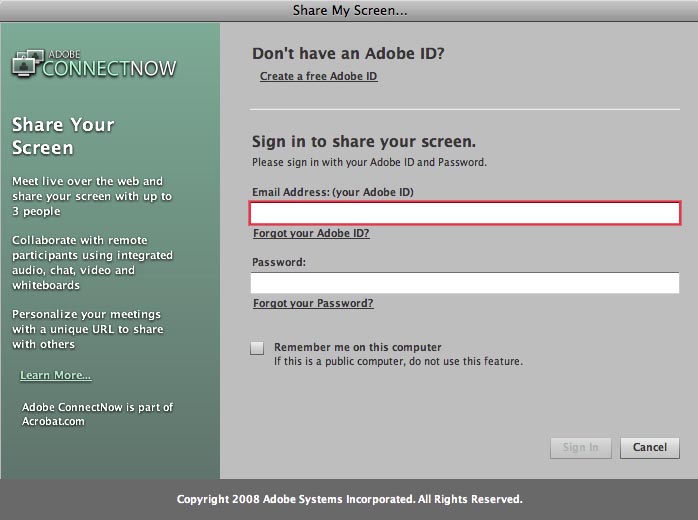
It’s extremely simple to set up and share your screen. When you choose Share My Screen, you are asked for your Adobe ID (your email address), so you as the initiator of the process need to set one up if you don’t already have one. You can do this in the initial dialog.
The service is just as easy for your clients, colleagues or friends. You’ll be given a URL you can share with others to log-in, or, even easier, you can send an email invitation directly from the next dialog you see.

Your collaborators will each open up your private meeting room in their own web browser. The process uses Adobe Flash technology, already installed on 98% of browsers, so there’s no special software for your friends to download. And they don’t need an Adobe ID, they can just login as a guest. The meeting room consists of a number of sections, technically called “pods.” The largest in the image below is the space for screen sharing. You can chat, share notes, view each other if you have webcams installed, and use the whiteboarding features. But the most useful feature is the screen sharing.

When you click the Share My Screen button, you are give the opportunity to share your desktop or an application. You can share a view of an InDesign document you’re working on together, or any other application on your computer. The first time you do this, you’ve given a little intro screen to explain how screen sharing works, and how it will appear for presenter and viewer.
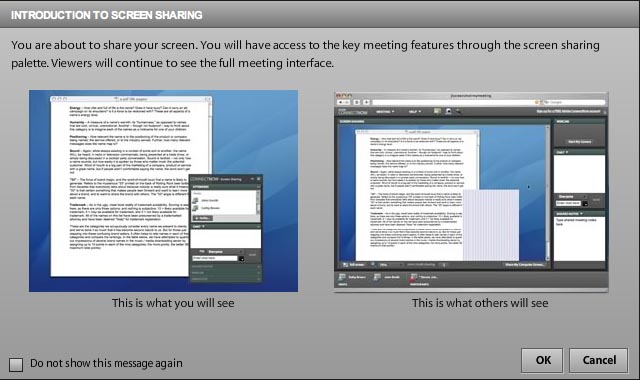
Anyone in the room can do screen sharing. The person sharing their screen sees a small panel which can be moved around which contains the meeting room controls (left in the image above). Those viewing see whatever you choose to show on your screen with a mysterious light blue hole where the screen sharing panel is located on your screen (right).
That’s pretty much all there is to it: Enjoy!
This article was last modified on December 19, 2021
This article was first published on May 24, 2009
Commenting is easier and faster when you're logged in!

Recommended for you

Copy Vectors from Illustrator to InDesign (or vice versa)
Why copy-and-paste of vector outlines between Illustrator and InDesign sometimes...

Quick–what Pantone color is that?
Q: I have a CMYK swatch in InDesign. But now we want to use a spot color instead...
Jump to a Master Page
While it's not obvious, you can use the Go to Page dialog to go directly to a ma...