


Font Management
Take charge of your font library once and for all with a strategy (and maybe some software) for font management.

This article appears in Issue 87 of InDesign Magazine.
They say the things you own end up owning you. (OK, in this case, “they” is an imaginary person named Tyler Durden from the novel and film Fight Club. Still, it’s a good quote.) If that’s the situation with your fonts, then it’s high time you take control with a strategy (and maybe some software) for font management.
Fonts are the single most important communication technology in the world. I know that’s a bold claim, but consider this: the invention of written language (and a few melting glaciers) is what allowed us humans to develop civilization and flourish on this planet. Along the way, we’ve used many tools to express written language, from reeds and tablets to quills and scrolls, from Gutenberg presses and Smith Coronas to Linotype machines and laser printers. And here in the 21st century, when digital devices have supplanted manual and mechanical ones, fonts are indispensable for capturing and conveying information and ideas in written language. Without fonts, there would be virtually no reading or writing in print or on screen. Fonts make language visible, and enrich our messages with their own visual character and associations. Maybe someday we’ll communicate through a universal language of emoji. But for now, my motto is In Fonts We Trust. Given all that, it’s no wonder that our computers are awash in font files. If you’ve been using the same machine for a few years, you probably have hundreds or thousands of those little buggers—many of vague and questionable origin, quality, and legal status—tucked into every digital crack and crevice. Here’s a fun experiment for you: search your hard drive right now for font files with the name “Helvetica.” If you’re like me (and especially if you’re using a Mac), the results might show that you have hundreds of Helveticas
(Figure 1).

Figure 1: What the Helvetica? A good font management strategy can help you avoid a mess like this.
A Multi-Faceted Problem
The first step in managing your fonts is to understand the nature and scope of what you’re dealing with. Fonts are software. And like any kind of software or digital documents, fonts can have significant problems. Here are some of the more common troubles you can encounter with your fonts.
Version Confusion
Like other software, fonts have versions (Figure 2), and it can be hard to keep track of which version of a font you need for a particular use. The wrong version of a font might have subtle but significant differences that can cause problems like character substitution and text reflow in your documents.

Figure 2: Every font has a version number that you can see in the Finder or Windows Explorer, and in font management applications.
Platform Incompatibility
While modern fonts work on both Mac and Windows, you can still encounter fonts in older file formats that are not cross-platform compatible. If you have an incompatible font, you won’t be able to use it unless you can convert it with an application like TransType.
Incomplete or Damaged Font Files
Some fonts are composed of multiple files (Figure 3), and if you lose any of the pieces, you won’t be able to use the font.

Figure 3: The two parts of a Macintosh PostScript Type 1 font. The LWFN file (LaserWriter font), contains the font outline shapes for printing. The FFIL (Font File) contains the bitmap and font metrics information to draw characters onscreen.

Figure 4: It’s easy to kill a Mac PostScript font. Just put it uncompressed on an FTP server. The resource fork will be stripped out, and you’ll be left with a zero K empty shell where your font used to be. Some services like Gmail understand this problem, and won’t allow you to attach uncompressed Mac PostScript fonts to an email.
Corrupted Cache Files
Both Mac and Windows platforms use font-caching technology to gather and reference information about your many font files in one place. Normally, font caches are a wonderful efficiency tool, saving your computer much toil. But since they’re constantly being accessed and edited, cache files are prone to corruption. When that happens, you need to replace the cache files for your fonts to work as expected. On the Mac side, there are several applications that can remove font cache files, including the free and highly-regarded FontNuke.
Duplicate Fonts
Fonts can seem to multiply like rabbits, and having many copies of the same font files makes a mess of your hard drive, uses up disk space, and wastes your time and effort dealing with them.
Conflicting Fonts
Every font file has both an internal and an external name. When different active font files have the same internal name, lots of bad things may ensue (Figure 5). Applications can stall or crash. The wrong font may appear in a font menu. Documents or web pages can become unreadable. Text can reflow. And you may be unable to activate a needed font.

Figure 5: A font conflict waiting to happen. The designer of this Brady Bunch font obviously started with Arial, and never bothered to change the internal name. Activate this font at your own risk.
Crappy Fonts
It’s a simple fact of life: there are loads of lousy fonts out there. Poorly designed from an artistic and/or technical perspective, these fonts are to be avoided if you want your workflow to go smoothly and your output to look good.
Font License Violations
Unless you made them, you don’t own the fonts on your computer. You may have permission to use those fonts under a set of conditions set forth in a legal document called the font license. Even free fonts have licenses you need to comply with (Figure 6). If you violate the terms of the license, you leave yourself open to being sued by the license holder—and you invite bad karma for disrespecting the effort and wishes of the font maker.
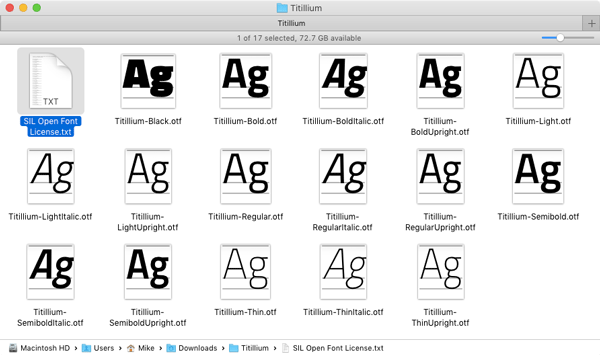
Figure 6: There’s important stuff in those text files that accompany your fonts. Read ‘em or weep.

Manual Font Management
The simplest (but most labor-intensive) approach is to do everything manually, aka “going commando.” The main benefit of this method is that it costs you nothing. The downside is, you’re on your own. It’s up to you to organize your font files into folders (or use shortcuts or aliases), and manually activate and deactivate them by moving the folders on your hard drive. To avoid versioning snafus, you have to keep track of which fonts go with each document or project. You need to be aware of where you got your fonts, and the licenses that accompany each font file, so you can stay in compliance. And it’s also up to you to troubleshoot problems with your fonts and cache files, and fix those problems. It’s not impossible, but it does require thought and effort, if you want to do it well. Here are some tips to get you started down the right path, should you choose to go it alone.
Stay Up to Date
Regardless of whether you’re using Mac or Windows, one important piece of general advice is to make sure you’ve fully updated your operating system and other key software. By installing all latest fixes and updates, you can head off known issues related to the handling of fonts.
OpenType to the Rescue
Next, whenever possible, replace old fonts with modern OpenType versions. These are cross-platform compatible, and the pro versions contain many alternate glyphs that you may need to use when working with various languages, or to create more refined typography. Corruption is less likely than with older font files. And you also won’t have to worry about missing pieces, since all the components of an OpenType font are contained in a single, compact file.
De-clutter
Another helpful step when you’re manually organizing your fonts is to remove fonts that you’ll probably never use from your computer. Of course, don’t disturb the fonts your operating system needs to function, and back up the fonts you remove, so you can get your hands on them if you ever need to. While you’re cleaning house, take the time to hunt down and delete exact duplicates of font files. Again, don’t delete anything without knowing you have a backup. In Windows, you can also select a font and choose Hide to keep it from appearing in your font menus (Figure 7). Note that this does not deactivate the font, so you can still open documents that use hidden fonts without any trouble.

Figure 7: It’s simple to de-clutter your Windows font menus, by using the option in the Fonts Control panel to hide the fonts you don’t intend to use.
Resources for Going Solo
If you’re on the Mac, and you choose to fly solo, you should not do so without consulting Font Management in OS X, by Kurt Lang. This single web page currently has over 31,000 words of nitty gritty details and expert advice, spanning OS X Panther 10.3 through El Capitan 10.11. There are also valuable sections on Microsoft Office fonts, dealing with font emergencies and troubleshooting, as well as information on required system fonts, and advice on font management software. You can also download the guide as a PDF. Extensis, the makers of Suitcase Fusion (detailed below), also provides free downloadable guides on best practices for font management in both Windows and Mac OS X. You do need to provide your email address to download the guides, but that is a small price to pay for the extensive information provided (the Windows guide is over 50 pages long, covering every aspect of working with font files in Windows).
Using Font Management Software
If the thought of spending significant time and effort to fully understand the care and feeding of your fonts doesn’t appeal to you, then consider enlisting the aid of some font management software. Most font management apps and utilities are relatively inexpensive, especially when you consider how much time and trouble they may save you in the long run. And many smaller offerings are free. Let’s start by taking a look at a font management app that virtually all Mac users have (since it comes with Mac OS X), Font Book.
Font Book: The Mac’s Built-In Font Manager
Font Book has been around for more than a decade, debuting with Mac OS X 10.3 in 2003. Font Book does not have all the features you’d find in commercial font management solutions, but if you’re a Mac user just looking for something that allows you to test, preview, and organize your fonts, Font Book might be enough for you. Font Book lets you create your own customized collections, which are simply groups of fonts gathered together for a specific purpose. You can organize your font collections by style, project, or client, for example. You can put one font into as many collections as you wish, which eliminates the need for duplicate fonts. Also, in the main window of Font Book, you get easy access to three standard collections (Figure 8).

Figure 8: The three standard collections displayed in Font Book.

Figure 9: The search options in Font Book allow you to target fonts by several different criteria.

Figure 10: A dynamic Smart Collection of handwriting fonts in Font Book.

Figure 11: Previews in Font Book offer a wealth of information about the selected font.

Figure 12: A contextual menu in Font Book with options for managing the selected font.

Figure 13: You can get a QuickLook preview of a font in the Mac OS Finder, simply by selecting the font and pressing the spacebar.
The Big Three: Suitcase, FontAgent, and Font Explorer X
If you’re a Windows user, or a Mac user seeking more from a font manager than Font Book provides, then there are three powerful solutions to choose from: Extensis Suitcase Fusion, Font Agent Pro by Insider Software, and Monotype’s FontExplorer X. They all cost roughly the same amount of money and offer a range of useful features for individual users and groups (summarized below). You can figure out the best fit for your needs by checking out the feature lists and downloading fully-functioning demo versions to kick the tires. If you try more than one demo version, be sure to fully uninstall one before installing another.
 Suitcase Fusion
Manufacturer: Extensis Cost: $119.95. Upgrades from version 5 or 6 are $59.95. TeamSync subscriptions: $8.00 per month per user (includes Suitcase Fusion 7 and all future upgrades for two machines per user). Extensis also offers Universal Type Server for groups. Support: Mac 10.9 and later and Windows 7 and later Features:
- Intelligent auto-activation for Adobe CS6 and Creative Cloud apps, and QuarkXPress via FontSense technology
- Organize fonts into sets and smart sets
- Archive and restore your font collection via Dropbox or Google Drive
- Sync your fonts on two machines (a single license of Suitcase allows for two installations) via TypeSync
- Sync fonts to teams of users and control font access with TeamSync.
- Find fonts based on visual characteristics via QuickMatch
- Prototype, preview, and compare fonts via QuickComp
- Integration with Extensis’ WebINK Web fonts service, Google Fonts, and Adobe Typekit
- Fontspiration for finding new fonts and typographic techniques
- FontDoctor for diagnosing and fixing common font problems
- Suitcase Attaché for managing fonts in Microsoft Office applications
 FontAgent
Manufacturer: Insider Software Cost: $99 for standard version, $59 annual subscription for Sync version Support: Windows (10, 8, 7, Vista, and XP), Mac (10.8 and later) Features:
- Auto-activation of fonts for Creative Cloud apps and QuarkXPress
- Organize fonts into sets and smart sets
- Find fonts in your collection or the Web via keyword search
- Comes with more than 1350 downloadable fonts; Plus version has an additional 750 fonts
- Font Player for creating font sets and specimen books, via a fun and intuitive slideshow method
- Mac version comes with a separate app called Smasher for clearing Apple and Adobe font caches and breaking up suitcases of PostScript screen fonts (also available separately for $49)
- Workflow Center offers one-click access to common font management tasks.
- FontAgent Sync allows you share fonts among users, sync fonts across computers, and archive your fonts in the Cloud
- Workgroup solutions include FontAgent TeamServer (for 10 or fewer users), FontAgent Enterprise Server, and FontAgent CloudServer
 FontExplorer X
Manufacturer: Monotype Cost: $99, $49 upgrade for users who purchased FontExplorer after April 1, 2015 Support: Windows (7, 8, and 10) and Mac (10.8 and later) Features:
- Auto-activation of fonts for Creative Cloud apps and QuarkXPress
- Organize fonts into sets and smart sets
- Clear system and application font caches
- Sort fonts by features and languages
- Preview features allow you to try different fonts on any website, or overlay different fonts on your documents
- Font Tile View provides previews of selected character sets
- Create customizable font sample books
- Monotype also offers FontExplorer X Server for groups of Mac and Windows users
- Integration with Fonts.com subscription fonts, Monotype’s SkyFonts subscription and syncing service, and Google Fonts
- Import font sets from other font management systems
- Purchase fonts directly through the application
- Manage fonts for large workgroups with FontExplorer X Server
- Unicode 7 support
 Everyone’s favorite price is “FREE,” but can you really get something worth using for no money? The answer is, yes, well, sometimes. There actually are some very good free fonts, offered by reputable sites and talented type designers. But there is also a whole lot of trash out there that isn’t worth the time and trouble to download, even if it is technically free. Many so-called free fonts are not free for use in commercial work. Some free fonts have horrible defects, like poor spacing or missing glyphs. Other free fonts come with strings attached, like having to re-tweet a sales pitch or give your email address. Some free fonts are outright ripoffs of commercial fonts. That said, you can find some gems amongst the garbage. Here are a few sites where you can download high-quality free-for-commercial-use fonts (be sure to check the license terms before using any font): Font Squirrel, Behance, The League of Moveable Type, exljbris, and GoogleFonts.
 Fare Thee (Fonts) Well
If you’re like many InDesign users, you might be a bit overwhelmed at the thought of taming a huge collection of fonts. But with a little thought and effort, you can clean house, develop some good habits, and take charge of your fonts once and for all. Much of the work can be done on your own, but if you really want to get the most out of your fonts with the least amount of time and trouble, check out the major font management applications. They can help you keep even the largest libraries of fonts organized and in tip-top shape, so you can stop worrying about fonts and focus on designing and building great things.

Commenting is easier and faster when you're logged in!

Recommended for you

Harry Potter and the Switch to InDesign
Editor’s Note: On the occasion of a new film in the Harry Potter universe,...

How to Make the File Extension Go Away in Captions
You've created file name captions for your pictures, but you don't want those ic...

dot-font: Zapfs on Paper and Onscreen
dot-font was a collection of short articles written by editor and typographer Jo...