


Flash MX How-To: Testing the Size of your Flash Files


Bandwidth Profiler
There are a few basic rules for Flash in terms of streaming. You should understand very clearly that Flash must always download a frame before it can play it. It always downloads the first keyframe of your movie before it begins playing your movie. The secret to keeping your movies streaming is extremely simple: The download of the movie must stay ahead of the playback head or the movie will pause in its playback. Perhaps an example from another medium that we know will help: In a QuickTime movie we can watch the download of the movie by seeing a dark gray bar behind the indicator for what part of the movie is playing. Whenever the play indicator catches up to the download the movie stops playing. The same is true for Flash. We have a nice place to view this interaction in our authoring environment, which will allow us to play a bit with how the streaming in our movie will proceed.
The easiest way to figure out how your file is going to stream and to see how each of the keyframes will load is to use Control > Test Movie. Test movie is Flash’s way of allowing you to obtain an SWF movie while the FLA document is still open. To get back to your FLA document to continue editing, all you have to do is close the SWF movie document; behind it will be the Flash document all ready for you to dive in and continue working. Test movie has a ton of more interesting features beyond just allowing you to see the SWF movie at high speed.
To use Test Movie:
- Select Control > Test Movie.
- When this window opens up most people will see a screen with their animation playing over and over again. Go to View >Bandwidth Profiler.
- The Bandwidth Profiler opens up which tells you how this movie is going to play over certain bandwidths. Stop your animation, if it is currently playing and take the playback head to the beginning of the movie. You can use Control > Stop and Control > Rewind to accomplish this as well.
On the left-hand side of the Bandwidth Profiler you can see a bunch of information about your movie (see figure 3). You can see the frame size, frame rate, file size of the SWF movie, the length your movie will play, preload duration, and the connection speed the Profiler is analyzing. The State area gives you information about what is currently being displayed on the graph.
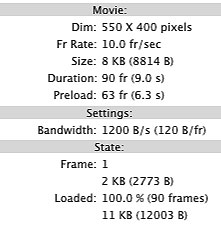
Figure 3: The Bandwidth Profiler shows frame size and rate, along with other useful information.
Choose View > Frame-By-Frame Graph. The graph now shows individual bars corresponding to each frame of the movie (see figure 4). These bars show you how much data needs to be downloaded before the frame can play.
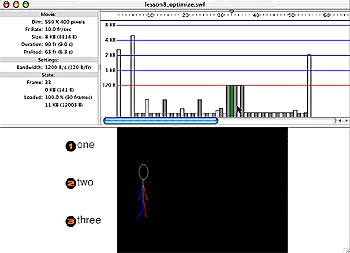
Figure 4: Under the Frame-By-Frame Graph view, you can see how much data needs to download before playing.
This article was last modified on January 8, 2023
This article was first published on July 16, 2002
Commenting is easier and faster when you're logged in!

Recommended for you


Super Simple Swatch Creation from Hailpixel
For a new and easy way to experiment with color and generate swatches, check out...
PaperSpecs and PrintNet Solutions Partner to Provide Most In-depth Paper Information Source
PaperNet Solutions, an emerging leader of product information and marketing tool...