




So, here’s an existential conundrum for you: Why would InDesign tell you that you’re missing a font that doesn’t exist?
Exhibit 1: This screen shot of an InDesign alert, telling me I’m missing “Times 85 Heavy” …
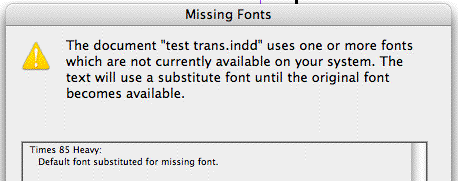
Perhaps the layout was created in an alternate universe where there’s a numbered version of Times? That was my first thought this morning, when I opened the problem child document sent to me by a couple new InDesign users.
But, no such luck – that would’ve made a great post! When I opened the file and looked in the Component Information dialog box (hold down the Command/Control key as you choose About InDesign to see it), the Document History area didn’t report that it was created in the 9th dimension or in the Orion Nebula. Just your usual, prosaic InDesign CS2 on planet Earth.
No, the problem was a Character Style that had been applied by mistake. It’s easy to inadvertently let this happen, no matter how experienced you are with InDesign. Let me briefly explain how it came about, and how we fixed it.
It Could Happen to Anyone
The user had created a Paragraph Style for body text that used the Avenir LT Std typeface with the style “55 Roman.” Then they selected some text in a styled paragraph and changed the style to “85 Heavy” to plump it up.
Since they were going to use this style a lot, they created a Character Style based on it in the usual way – left the text selected and chose New Character Style, which I’ve named “plump” in the screen shot below. The end result is that Character Style’s specs consisted of just the call for “85 Heavy,” since that was the only local formatting difference between the selected text and the underlying Paragraph Style.
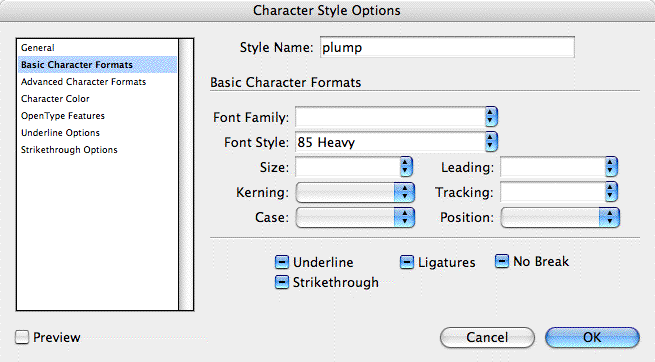
So far so good, and that’s one of the strengths of InDesign’s Character Styles. You don’t have to spec a typeface, size, etc. within them, making them much more flexible.
The problem is that at some point, the user inadvertently selected that character style in the palette when there was no active text selection, making it the default character style instead of “None.” Perhaps they were fiddling with it when there was nothing selected in the layout, or had an image selected with the Selection tool. The “plump” character style became the default character style (along with the default paragraph style, “Basic Paragraph”) for any new text they added or imported.
So then they make a new text frame, enter some text, and InDesign thinks they want Times (“Basic Paragraph”) 85 Heavy (“plump”). Even if they apply a different paragraph style, InDesign still thinks it’s supposed to override the font style with 85 Heavy.
Yes, InDesign warns you as you try to do the impossible – format text with a missing font or style – via the “dreaded pinking,” the highlighting of text indicating a substituted font for a missing one. But what if you turned off that option in Preferences? Or what if you’re working in Preview mode, where the highlighting just flashes briefly and then disappears?
The text retains its original typeface and style called for in the paragraph style, so it’s easy to overlook that something’s gone glitchy. Only a sharp-eyed user would see that the Typeface Style field in the Control palette has brackets around it, indicating a missing font.
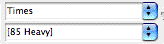
And if the Control palette was in Paragraph formatting mode, you wouldn’t get any feedback at all.
What happened with these particular new InDesign users is that they saved the document, closed it, and then opened it later. That’s when they got the dialog box alerting them to Missing Fonts that Don’t Exist – their alert actually listed a whole pile of impossible fonts. Fun times!
Fixing It for Good
Luckily it’s an easy fix: First, deselect everything in the document (Edit > Deselect All is one way) and choose the default “None” in the Character Styles palette. That stops the problem from continuing.
Next, use Type > Find Font to find instances of the “impossible font” in your document. Whenever it finds a range of this sort of text, change the selected text’s Character Style to [None].

Or, use Edit > Find/Change’s “More Options” button to find/change formatting. For the Times 85 Heavy example, in the Find Formats area you’d enter Times as the Typeface and “plump” as the Character Style. In the Change Formats area you’d just choose “None” as the Character Style. That’d remove all mistaken applications of the character style to the font in question.
Finally, you might want to consider editing the character style so that it specifies the actual font in addition to the font style, at least for those character styles where an unusual font style, like 85 Heavy (or UltraCompressed Thin or Engraved OldStyle, etc.) should only be used in combination with a particular font.
This article was last modified on December 18, 2021
This article was first published on May 25, 2007
Commenting is easier and faster when you're logged in!

Recommended for you

Review: PitStop Pro 11
Pros: Can find and edit anything in a PDF. Cons: Pricey for an average designer....

Taking a Menuez Moment
Image courtesy of Menuez Pictures. Doug Menuez is a photographer with such a wid...
Print Buyer Boot Camp to Debut at 2nd Annual Print Buyers Conference
Print Buyers International today announced a newly developed program called Prin...