



It took me about 4 seconds just now to get a report listing all the images placed into my layout, along with their original res, effective res, scale amount, color space, and format:
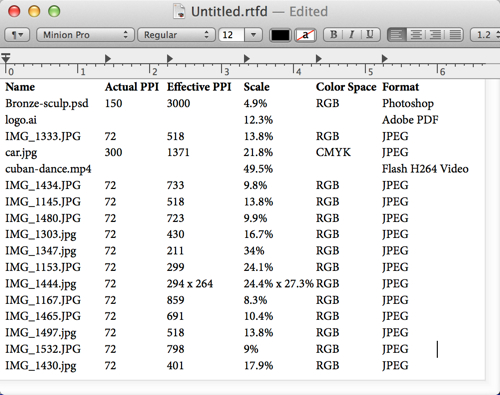
Having this info at hand, in an editable format (not a screenshot) is useful when working with clients, freelancers, and print/web production people. And it’s easy to do in InDesign!
First you need to get your Links panel to show the info you want in the report. Use the Link Options dialog box (in the Links panel menu) to check off the attributes you want to see in the Columns area (top half) of the Links panel. If you’re not sure how to do that, I wrote about it back in 2009: Saving Your Links Panel Settings.
Then select all the links in the panel: click the first one, scroll to the end, and shift-click the last one. Or, if you just want a report for some of the links, Shift-click or Command/Ctrl-click on the ones you want to include.
Finally, open the Links panel menu and choose Copy Info > Copy Info for Selected Links

Switch to any document and paste it in. Voila! It comes in as editable text, each column separated by a single tab. The little thumbnails don’t come through, though. You can format it a bit to make it more readable if you like, as I did with my TextEdit document above — adjusted the tab stops and made the column headers bold.
“Copy Info for Selected Links” has been around for a while now, one of those quiet features that make life a little easier. Try it out!
This article was last modified on December 30, 2021
This article was first published on October 14, 2013
Commenting is easier and faster when you're logged in!

Recommended for you

Learn About Your Links at a Glance
Learn how to get an instant summary of the status of all the links in an InDesig...

InDesign How-to Video: How to View Extra Image Information
In this week’s InDesignSecrets video, Anne-Marie Concepción shows us how to view...

What Do Angle Brackets Mean in the Links Panel?
When I opened this file, I saw brackets in the Links panel where the page number...