




Illustrator 2026 brings welcome enhancements to the font browser. You can access these features anywhere you format type, in the Character panel, Properties panel, Control panel, or the Contextual Task Bar.
Libraries
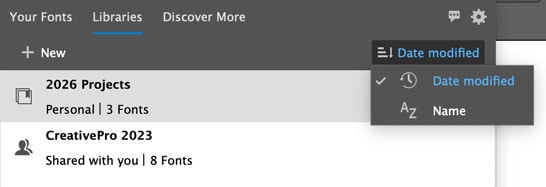
In Illustrator 2026, you can use Creative Cloud Libraries to organize and filter your fonts in the font browser. You can also create new libraries right in the font browser. Just go to the Libraries tab and click New. To add a font to a library, go to either Your Fonts or Discover More, locate the font, and click the Add to Library button.

To remove a font from a library, click the Delete (trash can) button.
You can list your font libraries by Date or Name.
Discover More
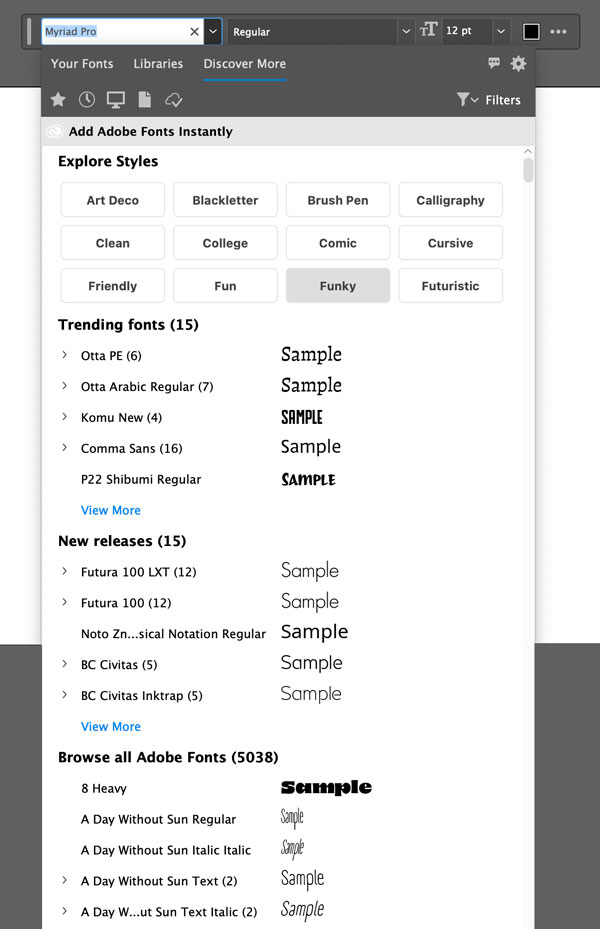
The old Find More tab simply listed Adobe Fonts. Now it’s called Discover More, and it’s organized with areas for various font Styles, Trending Fonts, and New Releases, all of which can also be filtered.
Easier Access to Settings
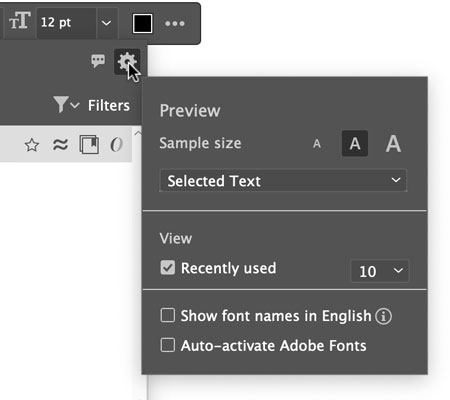
Clicking the gear icon on the far right opens settings where you can toggle the auto-activation of Adobe Fonts and set the number of recent fonts. Previously, you had to go to File Handling and Type preferences. Preview settings have also been moved here.
Finer Filtering
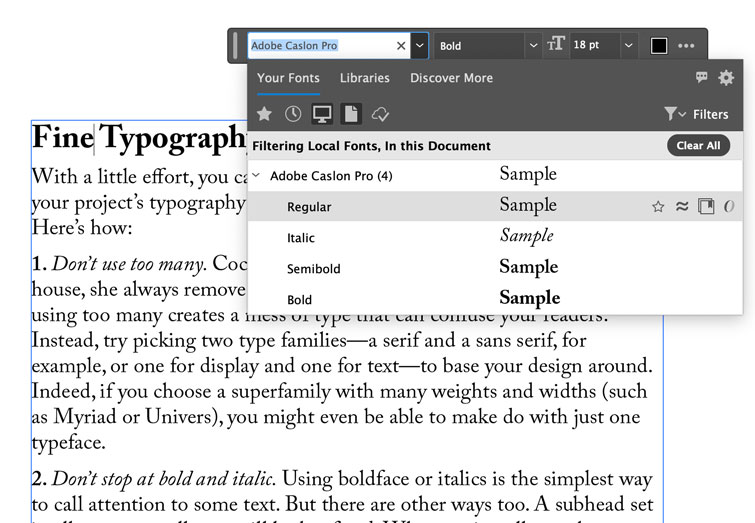
The ability to filter the fonts list has been given a significant upgrade. In addition to Favorites, Added Fonts (i.e. Adobe Fonts), and Recently Added, two new buttons allow you to filter the list so it shows only Local Fonts or fonts In This Document.
The filter button has been moved to the right and now offers several new options. Previously, you could only filter on Classification (e.g. Serif, Sans Serif), and Properties (Weight, Width, X-Height, etc.). Now, you can filter fonts according to Languages and Writing Systems, and Font Technology (True Type, Open Type, Variable, Color, SVG, and Composite). So, for example you could tell Illustrator to show only Japanese SVG fonts in the list. Properties has been renamed Weight & Width.

Commenting is easier and faster when you're logged in!

Recommended for you
CreativePro Font Collection Vol. 4
A diverse set of professional-quality fonts cleared for commercial use

An Introduction to Actions in Illustrator
Learn how to automate repetitive tasks to save your time for being creative.

Futuristic Fonts
Andrea Leksen and Charles Fadem explore the realm of type that evokes space, tec...