



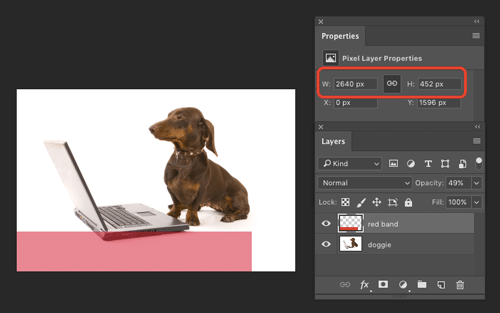
Want to know the exact pixel dimensions of a layer in a Photoshop document? Just show the Properties panel (Window > Properties). Then click on the layer in the Layers panel. This will show the dimensions of the entire layer you selected, including parts that are beyond the boundaries of the canvas.
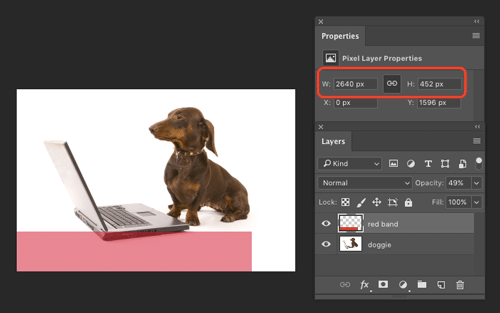
If part of the layer is outside the canvas and you only want to see the size of the visible pixels (or you’re using a really old version of Photoshop), you can also use the Info panel (Window > Info).
Hold the Ctrl key (Windows) or the Command key (Mac) and click on the layer thumbnail in the Layers panel to select all the visible pixels in that layer.
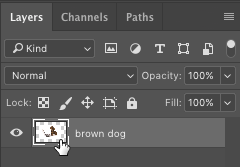
The size of the selection (visible pixels) is now displayed in the Info panel.

This article was last modified on February 3, 2022
This article was first published on April 17, 2017
Commenting is easier and faster when you're logged in!

Recommended for you
Tips to Control Photoshop Layers
Khara Plicanic shares smart Photoshop Layers panel tips to help you find and man...
How to Turn a Photo into Graffiti in Photoshop
Create a spray-painted masterpiece in Photoshop with Steve Caplin.
How to Adjust Colors Using Photoshop’s Contextual Task Bar
Learn how to use the Photoshop Adjust Colors feature to make quick, non-destruct...