



Most of us are at The InDesign Conference in Miami right now, so it’s hard to get away to post tips. However, I was sitting at the AskMOGO desk yesterday and an attendee asked an interesting question: She has a lot of index markers in a document, often one right next to the other, and she wanted to know how to figure out what each index marker refers to.
The problem is that after you place an index marker, it’s just not obvious how to open the Page Reference dialog box to see how it was indexed (how it shows up in the index, what range it has, and so on). First of all, how do you even see the invisible index markers in the text? There are index markers in the text below, but where are they? (Note the placeholder.txt file that Anne-Marie snuck on my computer as a practical joke during our session today.)

Fortunately, seeing the index markers is relatively easy: Open the Story Editor (Edit > Edit in Story Editor).
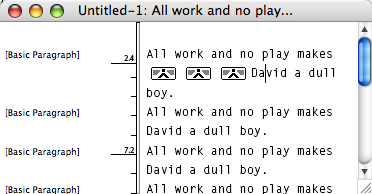
The problem is you cannot click on those index markers — it just doesn’t do anything. So I was about to give up when the obvious smacked me in the forehead: If you drag the Type tool cursor over the index marker, the page reference magically appears in the Index panel (the triangle expander things untwirl to display the reference).

If you double-click on the page reference (or choose Page Reference Options) from the Index panel flyout menu, then you’ll see the info you desired:
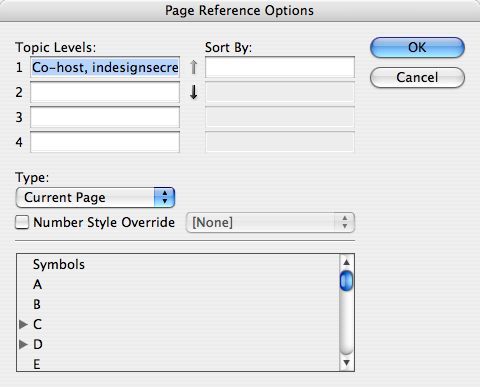
The index panel is deeply, truly in need of an overhaul in InDesign. I just hope it gets one sooner rather than later. In the meantime, I hope these little workarounds help.
See you at the next show!
This article was last modified on December 18, 2021
This article was first published on February 28, 2008
Commenting is easier and faster when you're logged in!

Recommended for you

Clear Text Overrides from Word Files
WBB wrote:This is an age-old problem for me... How do I get my Word styles to im...

Introducing The Adobe Illustrator Summit—An Online Event, August 26–27, 2021
Level up your Adobe Illustrator skills Join us online August 26–27 for The...

TypeTalk: Choosing and Using Swash Characters
Want to enhance and spiff up an otherwise ordinary or lackluster type treatment?...