



Last week we started an in depth look at the features of OpenType fonts. Let’s continue now with a review of typographic gems like contextual alternates, all small caps, stylistic sets, and more.
See also: Adobe Drops Fonts, Leaves Users Stranded
Contextual Alternates
These are alternate characters often found in script typefaces to provide a more natural link between two characters resembling handwriting style. They provide better spacing and joins between specific characters. Contextual alternates are also used in some non-Latin scripts, such as Arabic. This feature is selected by default.

All Small Caps
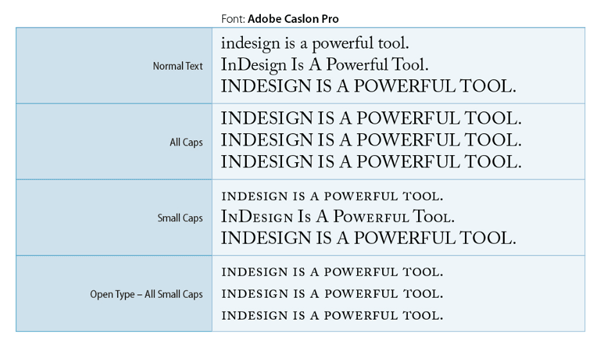
You’re probably familiar with InDesign’s ‘All-Caps’ and ‘Small-Caps’ features. All-Caps make all the text in uppercase. Small-Caps makes all the lowercase letters uppercase in a size equal to the x-height, while capital letters remain as-is.
The ‘All Small Caps’ feature of the Open Type fonts makes all the upper/lower case characters uppercase in a size equal to the x-height of the typeface. These are also referred as Real-Small-Caps.
Slashed Zero
This option displays the number zero ‘0’ with a slash through it. Sometimes (especially in condensed fonts), it becomes very difficult to differentiate between the character ‘O’ and the number zero. In the example below (the text with slashed zero), you can easily identify the zeros and Os. Check carefully the 100 and the last group of zero and Os.

See also: More Font Info for InDesign CC Users
Stylistic sets
Some OpenType fonts include alternate glyph sets designed for aesthetic effects. A stylistic set is a group of glyph alternates that can be applied to one character at a time or to a range of text. If you select a different stylistic set, the glyphs defined in the set are used instead of the font’s default glyphs. If a glyph character in a stylistic set is used in conjunction with another OpenType setting, the glyph from the individual setting overrides the character set glyph. The Stylistic sets available in a font can be seen and used through the Glyphs panel.

Positional Forms
In some cursive scripts and in languages such as Arabic, what a character looks like can depend on its position inside a word. The character may change form when it appears at the start (initial position), middle (medial position), or end (final position) of a word, and it may change form as well when it appears alone (isolated position). Select a character and choose a Positional Forms option to format it correctly. The General Form option inserts the common character; the Automatic Form option inserts a form of the character in which the character is located in the word. The General/Automatic Form controls the behaviour of the character and changes the shape accordingly.

Superior/Inferior vs Numerator/Denominator vs Superscript/Subscript
Whenever you apply Superscript or Subscript, the affected text is scaled to 58.3% and positioned at 33.3% (as per default Preferences > Advanced Type). The downside of this is that you get a squeezed version of the original typeface. Also, in many cases the subscript position is too low and looks stranded. Whereas the Open Type Superior and Inferior are much better in all respects. They neither look squeezed nor stranded.
Similarly Open Type Numerators and Denominators stay within the character height. The Numerator does not go beyond the Cap Height and the Denominator stays on the baseline. If an OpenType font doesn’t support Superior and Inferior glyphs, the application of Numerator and Denominator attributes can be useful. Moreover, if a font also doesn’t support true fractions, then complex fractions can be created using these attributes.

OK, that’s all for now. We’ll finish our look at OpenType features next week, in Part 3. Till then spend some time exploring your fonts and see how you can take advantage of these great OpenType features!
This article was last modified on July 25, 2019
This article was first published on September 21, 2015
Commenting is easier and faster when you're logged in!

Recommended for you

20 Obscure Features
David Blatner shares his favorite 20 obscure features that every InDesign users...

TypeTalk: Times Roman vs Times New Roman
What is the difference between Times Roman and Times New Roman?

This Week in InDesign Articles, Number 133
I’ve been sitting in a dark soundproof booth recently, recording videos for lynd...