


Enhance a Layout By Changing its Perspective




Version: 4, 4.1
Operating systems: Macintosh, Windows
You’ve probably heard the phrase “think outside of the box,” but what about “turn the box on its side”? You don’t necessarily have to go to great lengths to create an interesting layout; sometimes you just need to see things from a slightly different perspective. QuarkXPress makes it easy to edit an image’s orientation. By rotating, flipping, or skewing some of the graphic elements in your design, you can achieve an entirely new look. Let’s take a look at how you can turn the world around, upside down, and sideways in just a few simple steps.
Altered States
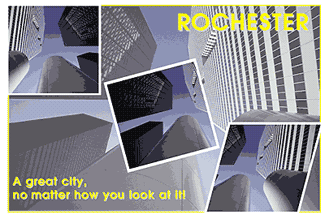
There are several different reasons why offsetting the balance of a graphic element may or may not work. Typically, using rotating, flipping, and skewing together is too much for one design. In the postcard shown in Figure A, we used the Rotation, Flip Horizontal, and Skew options to incorporate the phrase, “A great city, no matter how you look at it.” In this case, we’re able to pull off using all three modes, because the concept of the postcard is to look at the city from a different perspective. The original photo was already in an unusual position, and our altered images add to the concept even more. It also works for this postcard because the photo doesn’t need to be focused on. You don’t want to obscure an image or text that needs to be seen clearly and easily. As a designer, you must decide which effects will enhance your design without giving your audience motion sickness.
Figure A: By rotating, flipping, and skewing images, you can give your layout a whole new perspective.
Rotating an Image or Text
Taking an image or text and rotating it is a useful design approach for some layouts. It’s fun, it’s quirky, and best of all, it’s easy to do. To use this effect appropriately, though, you need to keep a few things in mind. If it’s overdone, it’s annoying. You’ll likely get hate mail for putting a kink in everyone’s neck. Don’t rotate large amounts of text for this reason. Also, take care as to what degree you rotate things; your purpose is to add some artistic relief to your layout. Rotating any image more than 15 degrees, which needs to be read or viewed in order to comprehend the message, will only add to your hate mail and take away from your layout. Also, keep in mind that any changes made to a photo will alter its quality somewhat. There are three ways to rotate an image. One is to use the manual Rotation tool from the Tools palette. This method is convenient if you’re not sure of the degree you want to rotate the image. To rotate text, as shown in Figure B, select the text box using the Item tool , located in the Tools palette. Then, select the Rotation tool and move the pointer over the page; the tool now appears as cross-hairs. Place the cross-hairs somewhere on the page, click, and hold. It doesn’t matter where you place the pointer. However, the farther away you are from the image, the more precise the increment of rotation. When you click on the page, an arrow appears. Drag the arrow clockwise while still holding down the pointer to rotate the text in the same direction. To see what degree you’ve rotated it, look in the Measurements palette. The new angle of the text is noted, as shown in Figure C.
Figure B: Images, such as text, can be realigned to create unique effects using the Rotation tool.

Figure C: You can enter the angle you want applied to your text in the Item information area of the Measurements palette.

You’ve probably noticed that it’s difficult to maneuver the text to the exact degree you want using the Rotation tool. This method works better if you want to rotate an image in 45-degree angles, which is done by holding down the [shift] key.
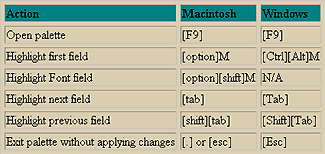
Which brings us to the second and easiest way to rotate an image–simply enter the angle you want in the Measurements palette. However, you have to know the desired angle in order to use this method. Also, when going this route, there are several shortcut keys you can use to navigate through the Measurements palette more easily, which are shown in Table A.
Table A: Measurements palette shortcuts
The third way to rotate a picture or text is to enter the exact degree in the Modify dialog box, as shown in Figure D. This method is also only useful if you know the exact degree you want for rotation. To rotate text this way, select the Item tool and double-click on the text (or press M on the Mac; [Ctrl]M in Windows) to open the Modify dialog box. Then, click on the Text tab. In the Text Angle text box, enter -15 degrees. When you’ve finished, click OK. If you’re modifying an image, a Picture tab will also be included in the Modify dialog box. Use this dialog box if you want to apply a change to just the image and not the entire Picture box.
Figure D: You can also use the options in the Modify dialog box to rotate images.

There’s a big difference between the Box tab and the Text tab in the Modify dialog box, so be sure you’re working on the right one. If you’re working on the Box tab, all the changes you make are applied to the entire box. On the Text tab, the changes you make apply only to the text inside the box.
Flipping an Image or Text
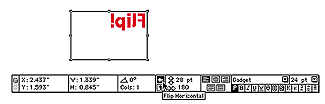
Flipping an image or text create various effects in a layout, such as mirrored images. This feature is also handy to correct slides that were scanned upside down (not that you’d ever do such a thing). To flip an image, such as the one shown in Figure E, you can use the Flip Horizontal and Flip Vertical buttons, shown in Figure F, which are located in the Measurements palette. Don’t confuse them with the Leading button or the Tracking And Kerning button, which are adjacent to the Flip buttons. To flip text horizontally, you must select the Content tool so that you can access the content information in the Measurements palette. Click the Flip Horizontal button (the upper arrow that points right by default) to flip an image horizontally. To flip an image vertically, click the Flip Vertical button (the lower arrow that points up by default). You can also flip an image by displaying the Modify dialog box and selecting either the Flip Horizontal or Flip Vertical check box.
Figure E: Flipping an image can be an interesting effect, if used properly.

Figure F: You can also flip an image using the Flip Horizontal or Flip Vertical button found in the Measurements palette.
Skewing an Image or Text
The last mode, which you’ll probably use the least, is Skew, as shown in Figure G. It’s easy to do, but not practical. Don’t use this mode just because you can–make sure you have a method to your madness.
Figure G: Skewing text can be achieved by entering a degree value in the Text Skew text box.

With the Item tool selected, double-click on the page to bring up the Modify dialog box and then click on the Text tab. In the Text Skew text box, enter 40 as the angle of skew. Click OK. When manipulating text this way, you won’t be able to use the Measurements palette to skew. If you’re skewing an image, however, you can enter the angle of skew in the Picture Skew field, located in the lower-right corner of the Measurements palette, as shown in Figure H.
Figure H: If you’re skewing an image, you can use the Measurements palette as a shortcut.

Back to Reality
Now that you know how to use the Rotation, Flip, and Skew features, proceed with caution. The effects these tools are able to create can turn a bad layout into a good layout, or a good layout into a bad layout. The end results are up to you!

Copyright © 2000, Element K Content LLC. All rights reserved. Reproduction in whole or in part in any form or medium without express written permission of Element K Content LLC is prohibited. Element K is a service mark of Element K LLC.
This article was last modified on March 12, 2022
This article was first published on August 24, 2000
Commenting is easier and faster when you're logged in!

Recommended for you
A Script to Continue Footnote Numbering Across Book Documents in InDesign
Free script to makes it easy to manage footnote numbering in complex book docume...
InDesign How-To: Use Data Merge in a Table Using a Script
Learn how the CSV2Tables script adds critical functionality missing from InDesig...
Heavy Metal Madness: I Only Have Ice for You
Between the era of hot metal and digital, we had a brief period of phototypesett...