




This article appears in Issue 117 of InDesign Magazine.
InDesign CC 2018 introduced a new endnotes feature to go along with its long-standing footnotes feature. While far from perfect, it was a good start for a feature that had been sadly lacking for far too long. In my review of the endnotes feature in issue #105, I lamented some of its shortcomings. For example, endnotes could be deleted without a warning, endnote text couldn’t be added while in the Story Editor, and InCopy didn’t support endnotes. Adobe addressed these issues with the InDesign CC 2018.1 update, which you can read about in issue #108.
However, now, with the release of InDesign CC 2019, Adobe has continued to fine-tune InDesign’s endnote and footnote features with a couple of welcome improvements.
Convert Footnotes and Endnotes
You can now convert footnotes to endnotes, or endnotes to footnotes, in your document. To convert footnotes and endnotes, choose Type > Convert Footnote and Endnote. In the Convert Footnote Endnotes dialog box (Figure 1), choose in which direction you want to convert.
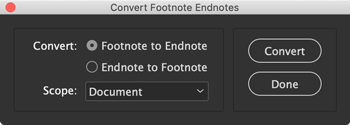
Figure 1. The Convert Footnote Endnotes dialog box
You can also specify whether you want to convert all the endnotes and footnotes in your document, or only those in your current text selection. For example, if you have two different text frames, each with footnotes, you could select the text inside one of them (but you have to select all of the text, not just a bit of the footnote), and choose Selection from the Scope pop-up menu. That will move the footnotes from that one story, but leave the footnotes of the other.
While this is great news, there are still some things to watch out for. If you
select any footnote or endnote text in your document, there’s a contextual menu option to convert the selected note(s), but the behavior can be buggy and not consistent with the command in the Type menu. For instance, if you make a partial selection of some footnote text and then choose Type > Convert Footnote to Endnote, with Scope set to “Selection,” you’ll see a message that says, “There are no foot/endnotes to convert. Verify the selection and try again.”
But the exact same procedure works fine if you’re using the contextual menu. However, complete or partial selection of the note that includes the reference number does work when using the menu command, but converts that note and the following note! This happens regardless of what kind of conversion you choose—footnotes to endnotes or endnotes to footnotes. And while you can use the Undo command to undo conversions, you’ll need to use it for each note conversion—you can’t undo the whole conversion process in one step.
Import Endnotes as Static Text
With the release of CC 2018, any Microsoft Word document that contained endnotes would, when placed in InDesign, automatically use the new endnotes feature—there was no option to revert to InDesign’s old method, which simply placed all endnotes at the end of the text. This was a problem for everyone who had developed their own method of dealing with endnotes during the 18 years InDesign did not handle them. To address this issue, scripting guru Peter Kahrel created a script to convert InDesign’s endnotes to static endnotes. Happily, InDesign CC 2019 introduces a new option in the Microsoft Word Import Options dialog box to import endnotes as static text (Figure 2).
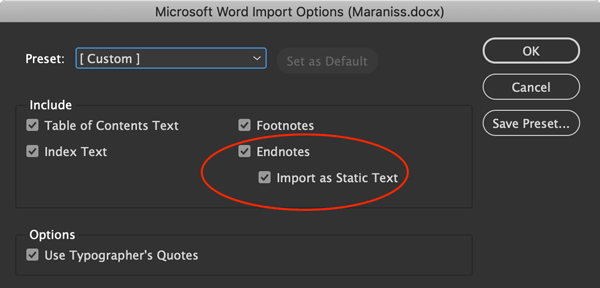
Figure 2. The new Import Endnotes as Static Text option found in the Microsoft Word Import Options dialog box
You can access the Microsoft Word Import Options by selecting the Show Import Options checkbox in the Place dialog box. With this option enabled, endnotes will be placed at the end of the document as static text and not connected to the markers throughout the text, just the way InDesign handled them prior to CC 2018.
Unfortunately, there are a couple of bugs with this option as well. First, if your endnote markers are properly styled throughout your text in Word with a superscript character style, the conversion to static text will remove that styling. This conversion process will also place an extra paragraph return at the end of each endnote that it converts to static text. Therefore, if you use this new option, be aware that some cleanup and restyling will be required that wasn’t necessary before CC 2019.
Footnotes in Tables
In previous versions of InDesign, the option to insert footnotes in table text was not available, and table footnotes from placed Word documents were ignored. InDesign CC 2019 removes both of these limitations, allowing you to insert footnotes as part of a table, and retaining table footnotes from imported Word documents. As with other footnotes, table footnotes are exported to formats that support footnotes, such as PDF, EPUB, and HTML.
Unfortunately (you knew there had to be a catch, right?), footnotes added in a table are part of the body text’s footnote stream, with the footnote text appearing at the bottom of the text frame. I’ve set hundreds of tables in my 25 years in the publishing industry, and never once needed to set any with table footnotes as part of the body text stream! Most publishers want table footnotes to be grouped under the table, and to start renumbering at each table. And often, table footnotes use a different numbering style from the main text, such as Roman numerals.
The workaround for this limitation is annoying but effective: Put each table in its own text frame, and then (optionally) anchor that frame into the larger story.
Should you find yourself tantalized by the addition of table footnotes, yet disappointed by this limitation or workaround, Peter Kahrel has once again come to the rescue with a script that will place table footnotes immediately after the table, separate from the main text stream. Keep in mind that, though Peter makes his scripts available for free, donations are appreciated if you find them useful.
Final Note
Hopefully, Adobe will get these bugs sorted in the next update. Extra points if they add an option to apply a style to the converted text in the Convert Footnote Endnote dialog box. Nevertheless, it is encouraging to see progress, as Adobe continues to address the shortcomings I pointed out in my original Endnotes article.
Commenting is easier and faster when you're logged in!

Recommended for you

Blind Endnotes
This script creates endnotes without note numbers or references (“blind notes”)....
Text Anchors
It's not possible in InDesign to get an overview of what a document's text ancho...
Endnotes as Pop-Up Footnotes
In PDF and Epub, InDesign creates links between endnotes and their references. B...