




There are no prizes for guessing which of the following most creatives would plump for: investigating ways to increase efficiency, or exploring new design ideas and techniques.
Being creative is what designers love most about the profession, yet if we were to break down an average working week into creative and non-creative activities, most of us would be slack-jawed in surprise.
Once you subtract the time lost to performing repetitive tasks — such as mousing around OS and application menus, shunting palettes about, performing multiple file conversions, switching from app to app, and managing arcane document workflows — not much time is left for designing that new logo or magazine dummy.
Being efficient is not a crime against creativity, and yet many designers disparage it; efficiency, I was once told by a design co-worker, “is for production monkeys.”
Let’s discard that self-defeating view. The more time we can spend being creative, the better for both us and our clients. In recognition of that truth, Adobe has made productivity a key plank of its Creative Suite. Here are five primary ways in which the CS apps can help you be more efficient.
Keyboard Shortcuts
Why scroll through menus for everything, when learning keyboard shortcuts is so much quicker? Keyboard commands take a fraction of a second, but mousing to a menu item takes, say, an average of 4 seconds, once you’ve factored in nested menus. If the average creative selects 100 menu items a day, this comes to 6.66 minutes a day, 33.33 minutes a week, 2.22 hours a month and 26.24 hours a year. Over the course of a 30-year career, it amounts to 799.2 hours, or 33.3 days. If for no other reason, use keyboard commands so you’ll be able to retire a month earlier than you’d have otherwise done.
Adobe unifies common shortcut commands across many of its applications (Figure 1). If a CS menu item doesn’t have a shortcut displayed next to it, you can assign one by selecting Keyboard Shortcuts from the Edit menu.
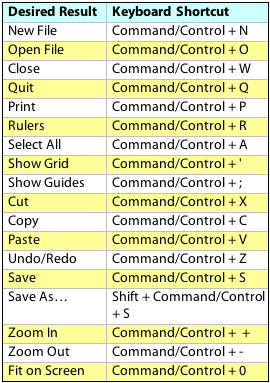
Figure 1. A few of the keyboard shortcuts common to Photoshop, Illustrator, and InDesign.
Keyboard shortcuts are not unique to CS apps; all software — including operating systems — displays the keyboard equivalent next to menu items.
The best way to kick the mousing habit is one shortcut at a time. Start with the shortcuts for print and save, and aim to add at least one to your repertoire each week. For a species able to recall pi to more than 20,000 places, 50 or so shortcuts shouldn’t be beyond any of us.
Customizing Workspaces
Just as a car mechanic doesn’t always use a wrench for every job, the type of project you’re working on dictates which of the CS tools you need. In Photoshop, image retouching calls for different features than does comping; the same thing holds true for such diverse InDesign projects as a 160-page image-heavy brochure and a restaurant menu.
This is why Adobe introduced the Save Workspace feature (Window> Workspace) across the Creative Suite apps. Note that the ability to save workspaces appeared in Photoshop and InDesign in the first CS, but Illustrator and Dreamweaver had to wait for CS2.
Save Workspace lets you create customized workspaces for different kinds of projects. When you select the appropriate workspace, all the required palettes appear in the pop-out palette drawer (or docking panel, in the CS3 apps) on the right of the screen. Once you spend a bit of time tailoring workspaces to your most common project types, it’s a breeze to switch between them (Figure 2).
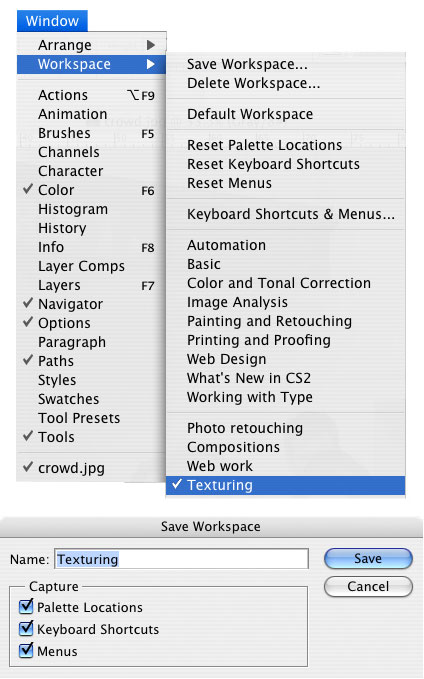
Figure 2. In Photoshop, when you save a unique workspace, it’s possible to capture information relating to palette locations, keyboard shortcuts, and menus, meaning that you don’t waste time shunting, shuffling, and searching when moving from one type of project to the next.
Scripts
Many creative processes have repetitive elements, which is why the CS apps can import scripts that free you from those boring tasks. Your first script resource can be the apps themselves: In Photoshop and Illustrator, go to File> Scripts; in InDesign, Window> Scripting> Scripts. But don’t stop there. If you build a library of scripts that covers as many process-crunching eventualities as possible, you’ll be better-equipped to concentrate on what you love to do.
Mercifully, you needn’t be a codehead to compile a stack of scripts, because at Adobe Exchange there are hundreds of useful scripts available for free download. Adobe Exchange is Adobe’s upload area for CS users to share resources, such as scripts and actions (more of which later).
One guide to a script’s usefulness is its number of downloads. For example, an InDesign script for automatically generating calendars has been downloaded more than 15,000 times, while another for multiple PDF imports has nearly 10,000 hits.
In the Photoshop area, Russell Brown, senior creative director at Adobe, provides the star script. His hugely popular Image Processor allows you to process large numbers of images quickly and efficiently (Figure 3). Another useful script adds a watermark to images.
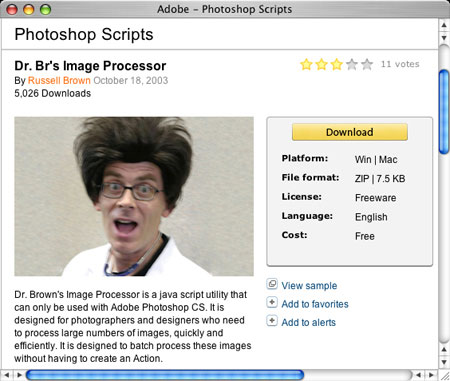
Figure 3. Adobe Exchange is a great resource for downloading timesaving scripts and actions for CS products. This Photoshop script lets you process images quickly and efficiently.
And for Illustrator, the most popular script rounds any selected corner of path items.
Actions
Anyone with CS, CS2, or CS3 versions of Photoshop and Illustrator who isn’t using these apps’ Actions feature should seriously consider doing so.
An Action is a series of commands you play back on a single file or a batch of files — menu commands, palette options, tool actions, and so on. Photoshop and Illustrator come with predefined actions (Windows> Actions) for common tasks (Figure 4). You can use them as is, customize them to meet your needs, or create new Actions. In Photoshop, for example, you could create an Action that applies an Image Size command to change an image to a specific size in pixels, followed by an Unsharp Mask filter that resharpens the detail, ending with a Save command that saves the file in the desired format.
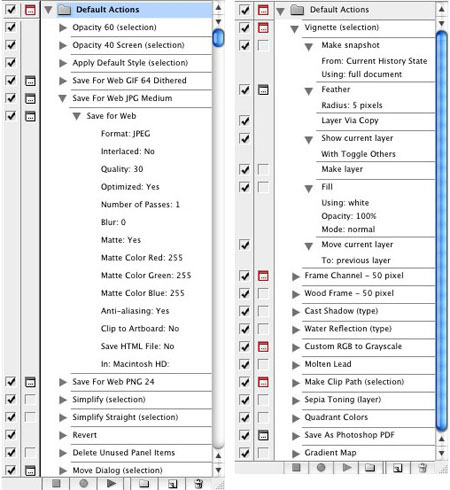
Figure 4. Illustrator (left) and Photoshop (right) ship with handy actions that can automate oft-performed tasks.
Actions are stored in sets to help you organize them. You can record, edit, customize, and batch-process Actions, and you can manage groups of Actions by working with Action sets.
You can record most commands and tool operations in Actions, and you can include stops while you perform tasks that can’t be recorded (for example, using a painting tool). Actions can also include modal controls that let you enter values in a dialog box while playing an Action.
Adobe Exchange includes actions for Photoshop, with a staggering 5,000 ready for download. Use the advance search option to narrow down the actions in which you’re interested, choosing search phrases such as “workflow”, “conversion”, “frame”, etc.
Version Cue
Do files with naming conventions such as “final_final_final” litter your hard drives? Do you often seek clarification about the ultimate version of any given file (only to discover the person you need is in a meeting?) Worse, do you ever discover you’ve been working on the wrong document?
Those who answered in the affirmative to one or all of these questions need to revisit their workflow, because it will almost certainly be slowing you (and your colleagues) down.
Again, Adobe provides a ready-made CS workflow solution, called Version Cue (Figure 5). This server-based file-management system enables small- to medium-sized creative teams to work more efficiently by tracking the evolution of a digital asset — an image, drawing, layout, and so forth — as a series of versions.
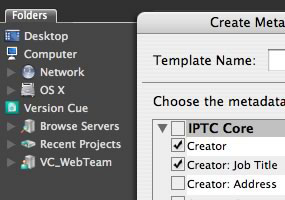
Figure 5. With Version Cue, you can centrally manage shared project files and track file status with comments — much more efficient and safer than homespun file-sharing systems. Also, with Version Cue CS3, Java developers can customize the file-management capabilities to support specific workflows for small creative teams.
With Version Cue, you can centrally manage shared project files and track file status with comments. Because it’s integrated with the CS components, Version Cue allows all of this to happen without anyone leaving the design environment. And it does these things without relying on dodgy file-naming conventions or other homespun workflows.
Version Cue is included with the following CS3 bundles: Design Premium; Design Standard; Web Premium; Web Standard; and Master Collection. For video tutorials on using Version Cue, go to www.adobe.com/designcenter/video_workshop/.
To read a discussion of the term “production monkey” in this article, go to https://creativepro.com/story/feature/25704.html.
This article was last modified on April 3, 2022
This article was first published on July 9, 2007
Commenting is easier and faster when you're logged in!

Recommended for you

Integrating 3D Text into Images with Photoshop
This is a technique you’ll have seen in countless films and TV shows, from...

Create Beautiful Contact Sheets Easily With DiapoSheet
If you need to build a contact sheet of images you have lots of options. You can...

Photoshop CC 2018 New Features
The 2018 release of Photoshop CC brings a range of new features, tools and worki...