



Vallery wrote:
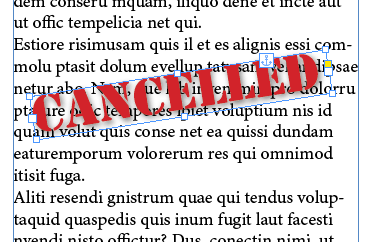
I have a paragraph… diagonally across the paragraph I want to write a word — let’s say, ‘cancelled’. How do I do this?
I think the best way to handle this would be an anchored object. It’s a relatively painless operation:
First, put the word in a text frame and format it the way you want it to appear. You can also rotate the frame if you want, by clicking it with the Selection tool, and then dragging just outside one of the corner handles.

Next, use the Selection tool to drag the little blue square near the upper-right corner of the frame. (Actually, this box might be a different color, like red; it depends on the current layer color. If you use CS5 or earlier, you won’t see this box; see my short comment after the article for instructions.) As you drag it over the text frame, you’ll see a small vertical bar appear, indicating where the frame will become anchored. You should drop it at the beginning of the paragraph you’re trying to cover.
Finally, drag the text frame you made on top of the paragraph:
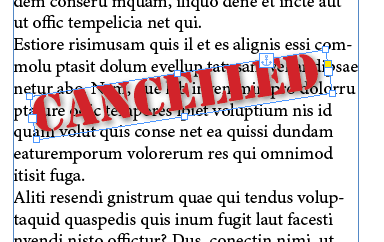
You can see the little anchor icon where the blue box was, indicating that it’s anchored in place. That means if the text reflows, the “cancelled” frame will flow with it. But it’s “anchored” rather than “inline” — anchored frames can be put anywhere, even outside text frames; inline frames usually cause text wrap, so they’re not appropriate for this use.
Of course, there are caveats. For example, if the paragraph breaks over two columns or pages, the anchored object won’t cover both parts. You can avoid that by using the Keep Options dialog box to specify that all the lines of the paragraph should always stay together.
Use it Again
Once you have set up this “cancelled” frame, you can reuse it! You might be tempted to copy and paste the frame to other locations, but don’t do that yet. (If you do, it will probably turn into an inline frame rather than anchored frame.)
Instead, make sure you create an object style for the frame first! To do this, select it with the Selection tool, open the Object Styles panel from the Window > Styles menu, and then choose New Object Style from the panel menu. Give it a name, click OK, and then click the name of the new style to apply it to the object.
Now that the object has this object style applied to it, you can copy and paste it to other locations properly. Copy it with the Selection tool, then switch to the Type tool, place the text cursor at the beginning of another paragraph, and paste The object is anchored in the new paragraph location, though (depending on the size of the paragraph) you may need to move, resize, or rotate it slightly differently.
This article was last modified on December 30, 2021
This article was first published on October 17, 2013
Commenting is easier and faster when you're logged in!

Recommended for you

How to Export Basic HTML Out of CS2
Let's say you have a magazine, annual report or newsletter you've done in InDesi...
A Shortcut to View Pages Horizontally
This post was inspired by InDesign Secrets editor Mike Rankin’s comments a...
Save Print Presets in InDesign for Each Printer in Your Office
You have three printers in your office, and you constantly find yourself changin...