



One of the long-requested features the folks at Adobe added to InDesign CS3 is the ability to align selected objects not just to each other, but also to the current page’s trim or margins, or to the spread. What I find interesting is that despite the name of the feature (“Align to Margins”), your choice here also affects Distributing. I guess “Align or Distribute to Margins” was too long to fit in the dropdown.
The “Align to [x]” dropdown menu is found in the Align panel (Window > Object & Layout > Align). It’s set to “Align to Selection” by default — in other words, it works just like CS2 — until you choose a different option from the dropdown:

The Align To menu is also found in the Control panel whenever you have two or more objects selected. See the little icon in the Align group of icons that looks a little different from the rest?
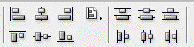
Press and hold it to get the Align to [whatever] menu:
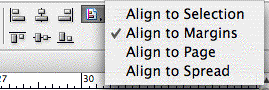
Even though it’s called Align and the menu’s home is on the align “side” of the two sets of icons, your choice here also effects Distribute commands. Which can be a good thing.
Distribute to Margins
Say I’ve got a selection of scattered objects on the page:
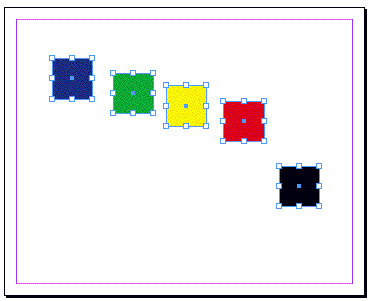
If I choose Align to Margins and then click the icon for Align Top Edges, the tops of all the objects would snap to the top margin. Neat.
But if instead of choosing Align Top Edges, I choose Distribute Top Edges:
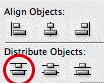
… then InDesign snaps the top edge of the highest object to the top margin, the bottom edge of the lowest object to the bottom margin, and evenly distributes the vertical space of the remaining objects appropriately:
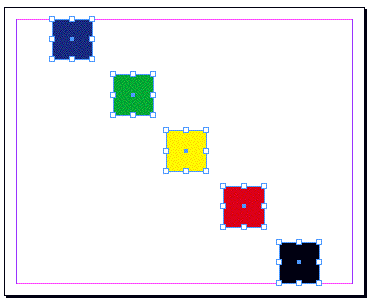
Now I can click the icon for Distribute Horizontal Centers, and since Align to Margins is still active, here’s what happens:
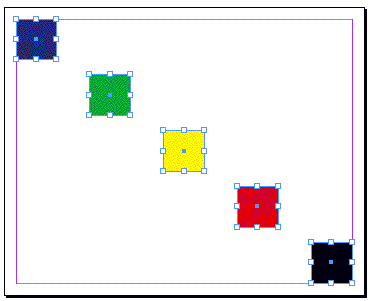
Distribute to Page and Distribute to Spread work the same way.
I thought this was pretty cool when I first stumbled upon the feature, and have found it to be handy in a number of circumstances. Thought I should share!
This article was last modified on December 18, 2021
This article was first published on October 9, 2007
Commenting is easier and faster when you're logged in!

Recommended for you

InDesign Magazine Issue Covers All Things IDCS3
The April/May issue of InDesign Magazine, which shipped yesterday, covers virtua...
InDesign CS3 Butterfly Easter Egg
Well, we held off as long as we could, but it's time to let loose the butterflie...
CID Identity H Fonts are Back?
Oh, woe is us! It appears that the CID font mess never really left us. Some of y...